> ## Documentation Index
> Fetch the complete documentation index at: https://meganharrisonconsulting.mintlify.site/llms.txt
> Use this file to discover all available pages before exploring further.
# Create a Subcontract Commitment
> Create a subcontract commitment so downstream cost, billing, and change tracking stay tied to the right trade agreement.
Use this guide to create a subcontract commitment with the correct contract company, schedule of values, invoice contacts, privacy settings, and supporting files.
## Prerequisites
* The project is already created.
* You have access to the **Commitments** tool.
* The subcontractor company already exists in the **Company Directory**.
* You have the contract number, scope summary, dates, and initial SOV detail ready.
## What you'll update
Add the contract company, status, retainage, dates, scope notes, and supporting files for the agreement.
Build the subcontract schedule of values and set invoice-routing and privacy controls for the commitment.
## Create the subcontract
In the project's **Commitments** tool, click **Create** and choose **Subcontract**.
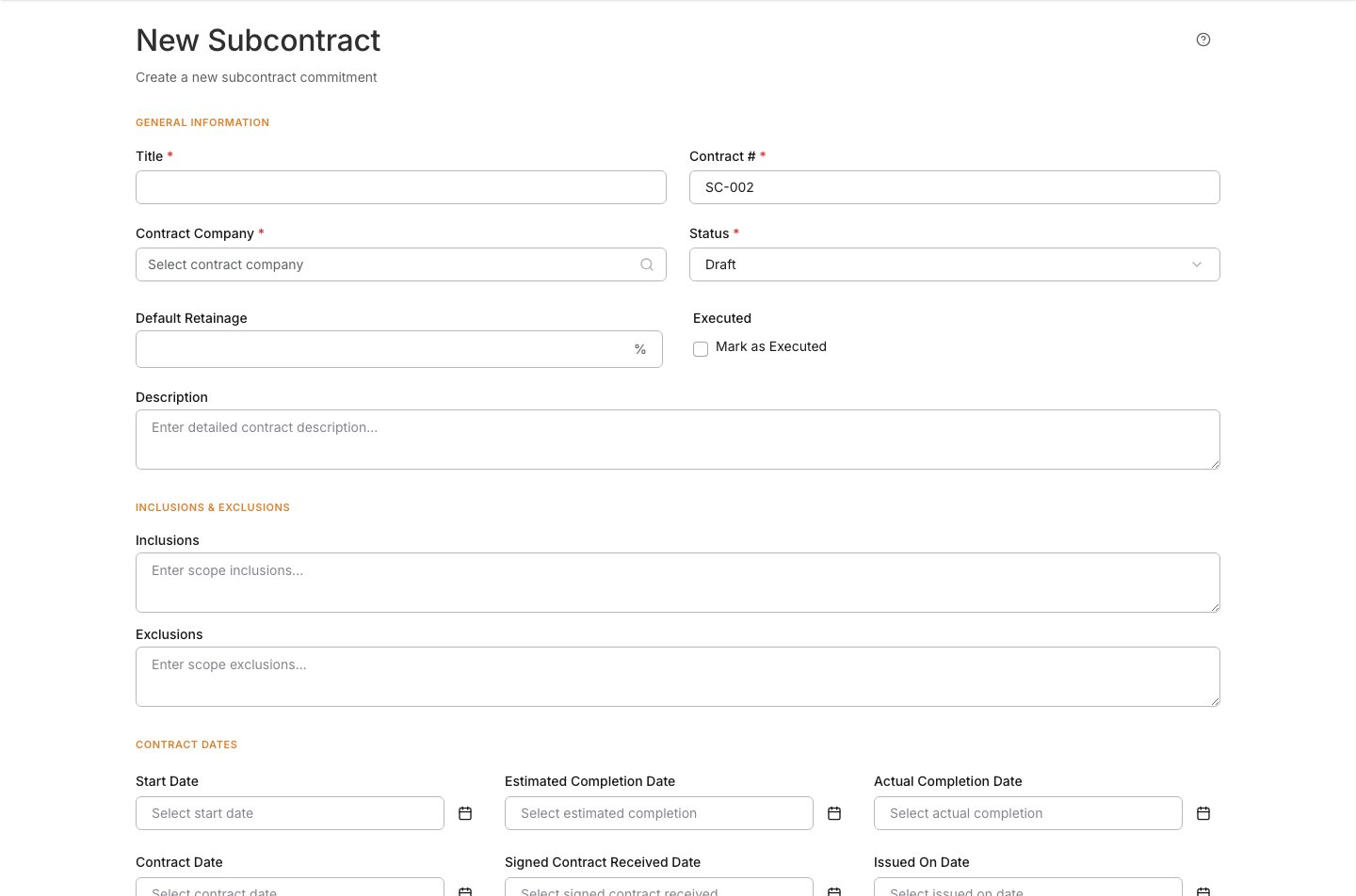 Fill out the fields that identify the agreement.
| Field | What to enter |
| ----------------- | ------------------------------------------------------------- |
| Title | A clear subcontract name, usually the trade or scope package. |
| Contract # | The subcontract number your team uses for the agreement. |
| Contract Company | The subcontractor or vendor performing the work. |
| Status | Leave the subcontract in **Draft** while it is being set up. |
| Default Retainage | The retainage percentage if it applies to the subcontract. |
| Executed | Mark this when the subcontract has been fully signed. |
If the subcontractor is missing from the search, add it in the **Company Directory** before continuing.
Fill out the fields that identify the agreement.
| Field | What to enter |
| ----------------- | ------------------------------------------------------------- |
| Title | A clear subcontract name, usually the trade or scope package. |
| Contract # | The subcontract number your team uses for the agreement. |
| Contract Company | The subcontractor or vendor performing the work. |
| Status | Leave the subcontract in **Draft** while it is being set up. |
| Default Retainage | The retainage percentage if it applies to the subcontract. |
| Executed | Mark this when the subcontract has been fully signed. |
If the subcontractor is missing from the search, add it in the **Company Directory** before continuing.
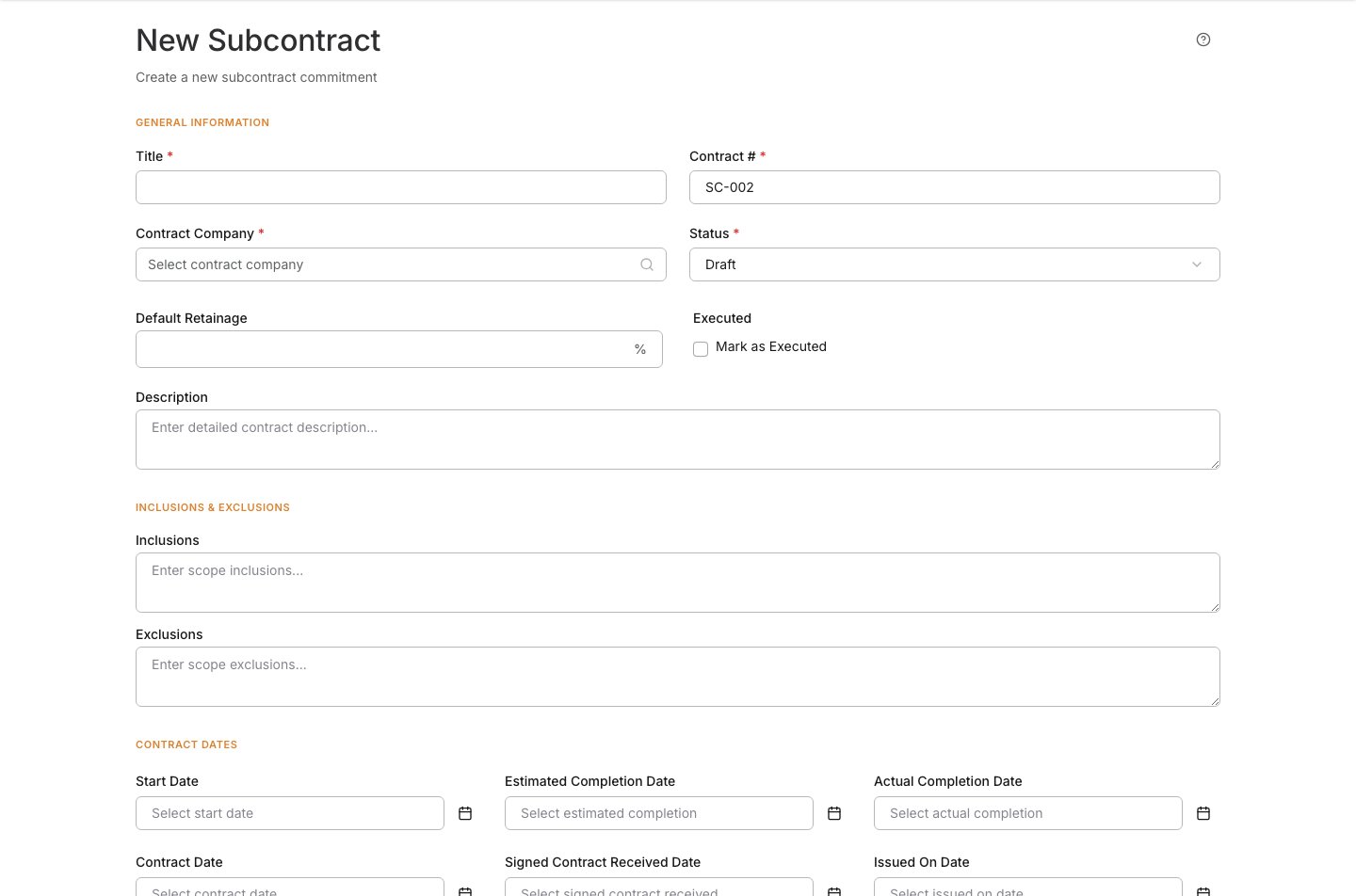 Use these fields when the subcontract scope needs to be more explicit.
| Field | What to enter |
| ---------- | -------------------------------------------------------------------------------------- |
| Inclusions | Work that is included in the subcontract scope. |
| Exclusions | Work that is intentionally excluded so it is not confused with contracted scope later. |
Use these fields when the subcontract scope needs to be more explicit.
| Field | What to enter |
| ---------- | -------------------------------------------------------------------------------------- |
| Inclusions | Work that is included in the subcontract scope. |
| Exclusions | Work that is intentionally excluded so it is not confused with contracted scope later. |
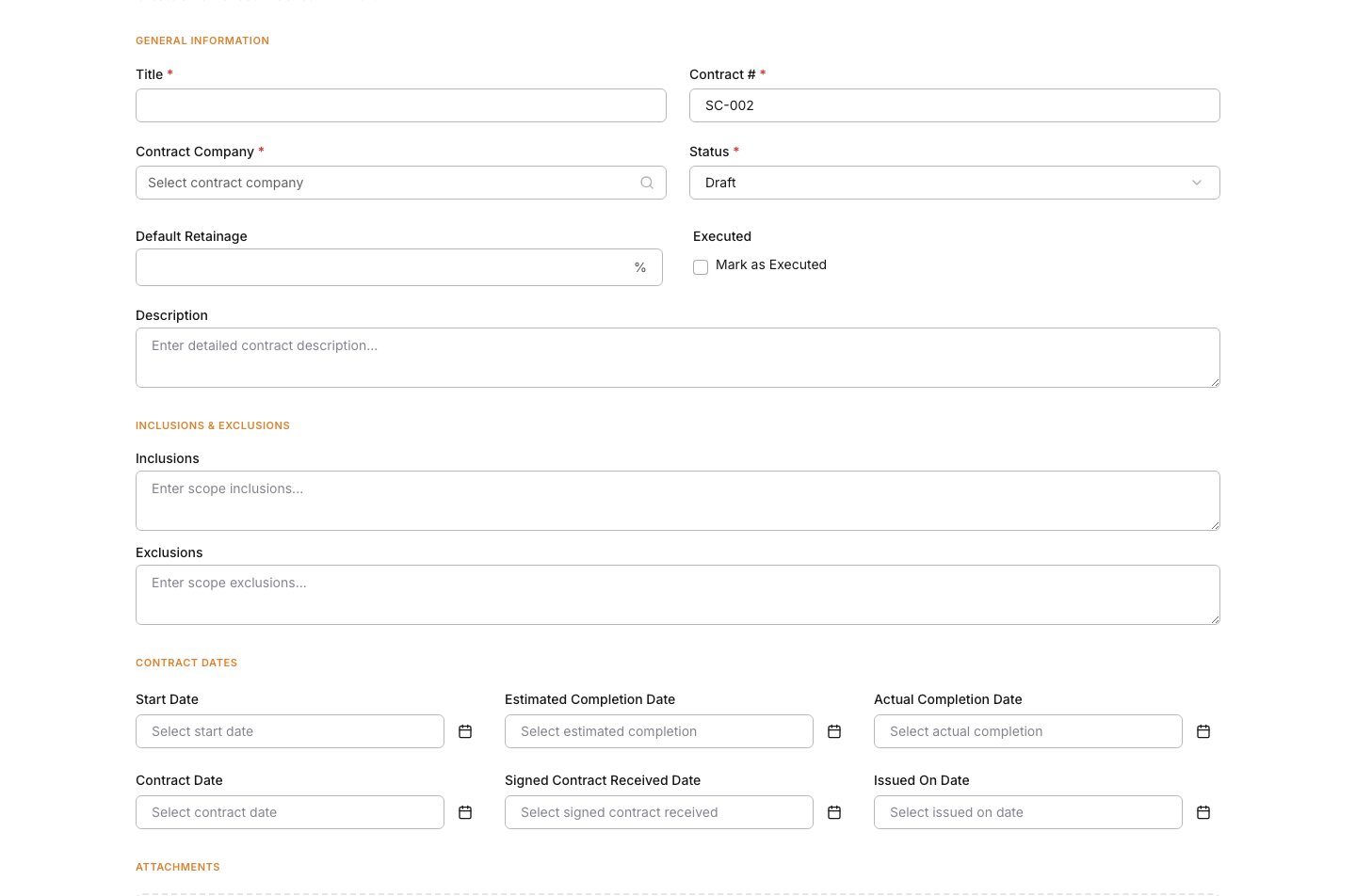 Enter the dates your team uses to track when subcontract work starts, when it should finish, and when the agreement is considered complete.
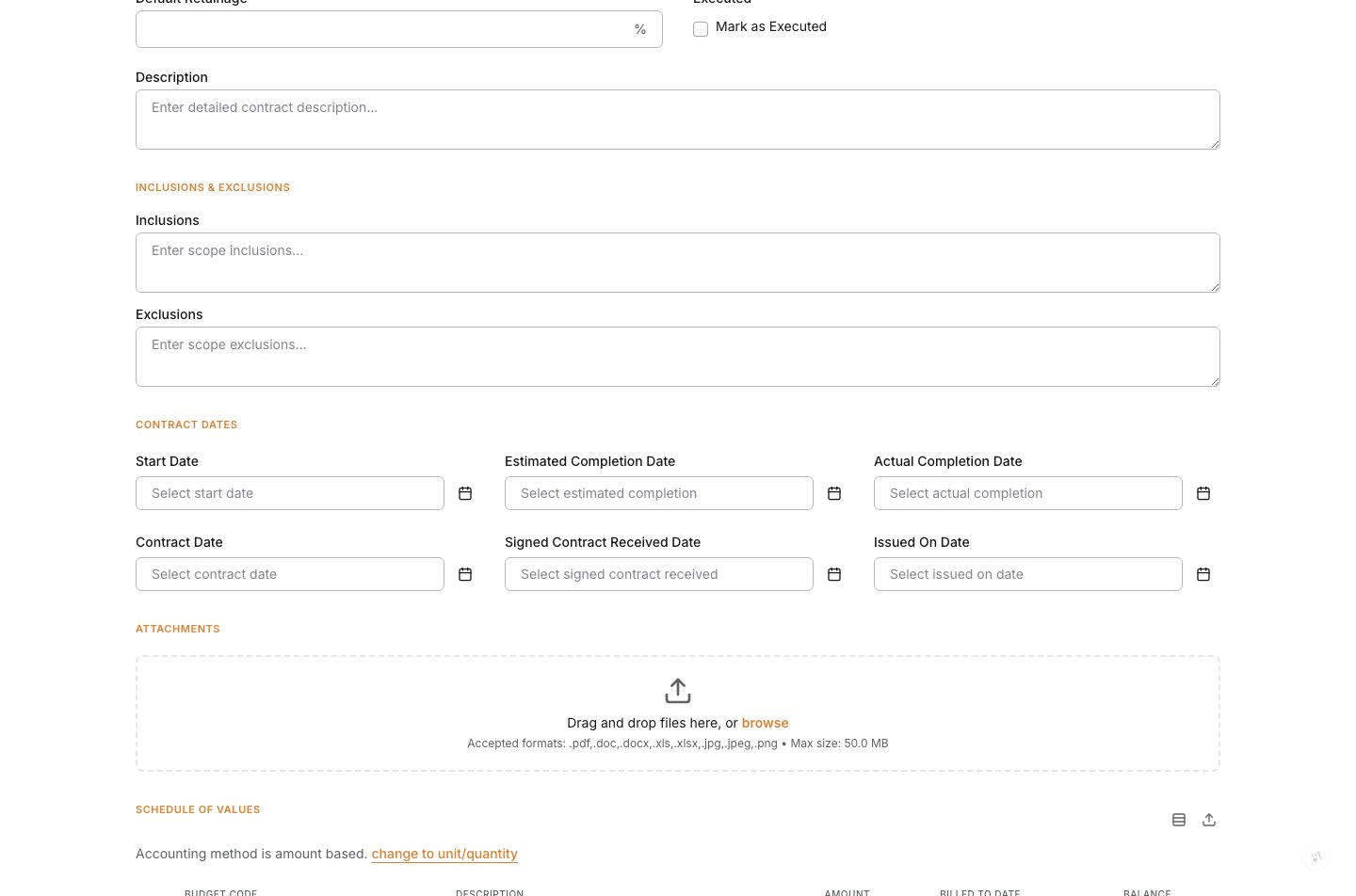 Upload the signed subcontract, proposal, quote, scope sheet, or other backup your team needs to keep with the agreement.
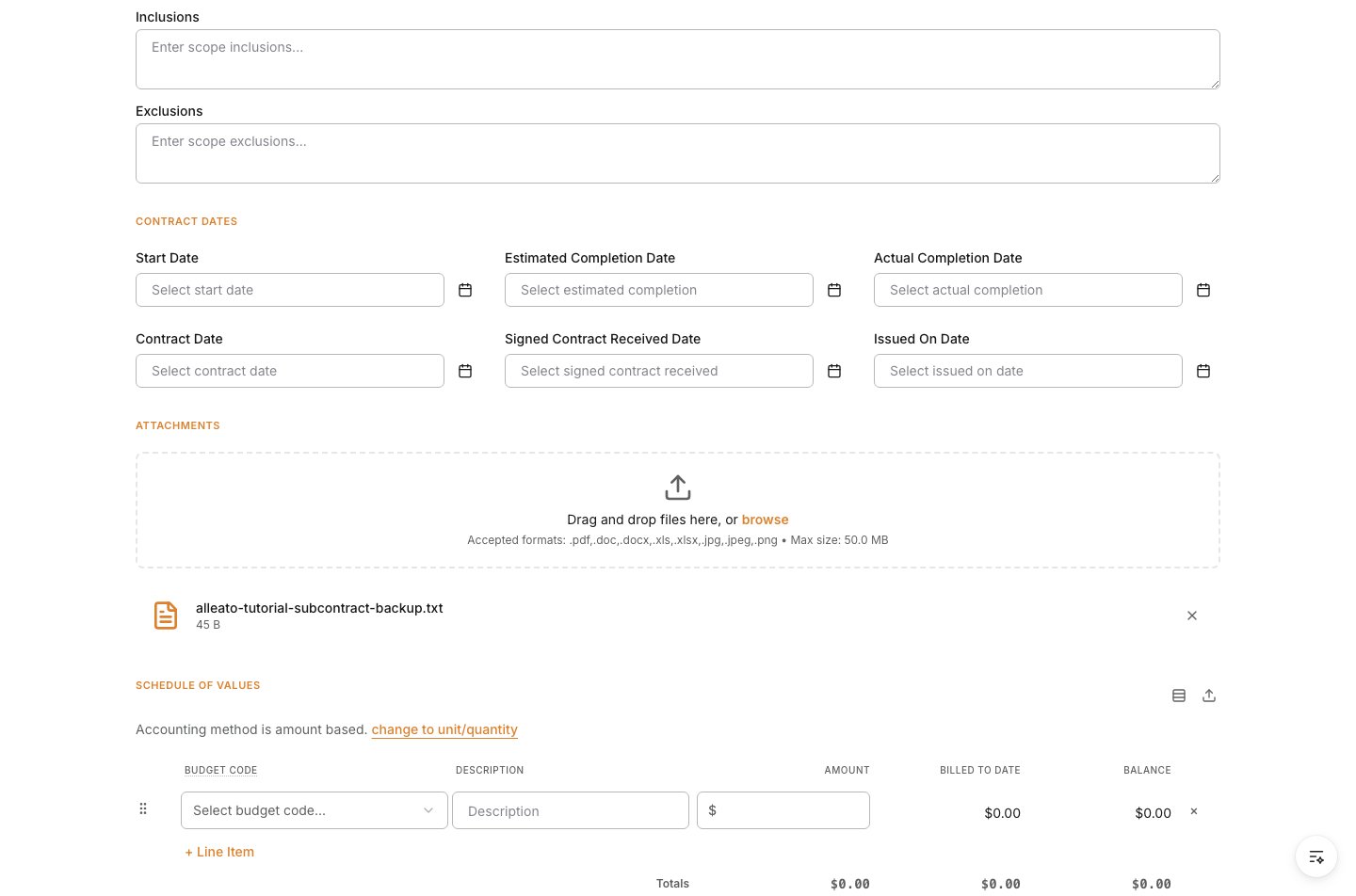 Add the SOV line items that make up the subcontract value.
| Field | What to enter |
| -------------------------------------- | -------------------------------------------------------------------- |
| Budget Code | Select the budget code that should carry the cost. |
| Description | Describe the work covered by each line item. |
| Amount | Enter the line-item value for lump-sum billing. |
| Quantity / Unit of Measure / Unit Cost | Use these when the line is billed by units instead of a flat amount. |
Structure the subcontract SOV the same way your budget and vendor billing are managed so commitment invoices and change orders stay clean.
Add the SOV line items that make up the subcontract value.
| Field | What to enter |
| -------------------------------------- | -------------------------------------------------------------------- |
| Budget Code | Select the budget code that should carry the cost. |
| Description | Describe the work covered by each line item. |
| Amount | Enter the line-item value for lump-sum billing. |
| Quantity / Unit of Measure / Unit Cost | Use these when the line is billed by units instead of a flat amount. |
Structure the subcontract SOV the same way your budget and vendor billing are managed so commitment invoices and change orders stay clean.
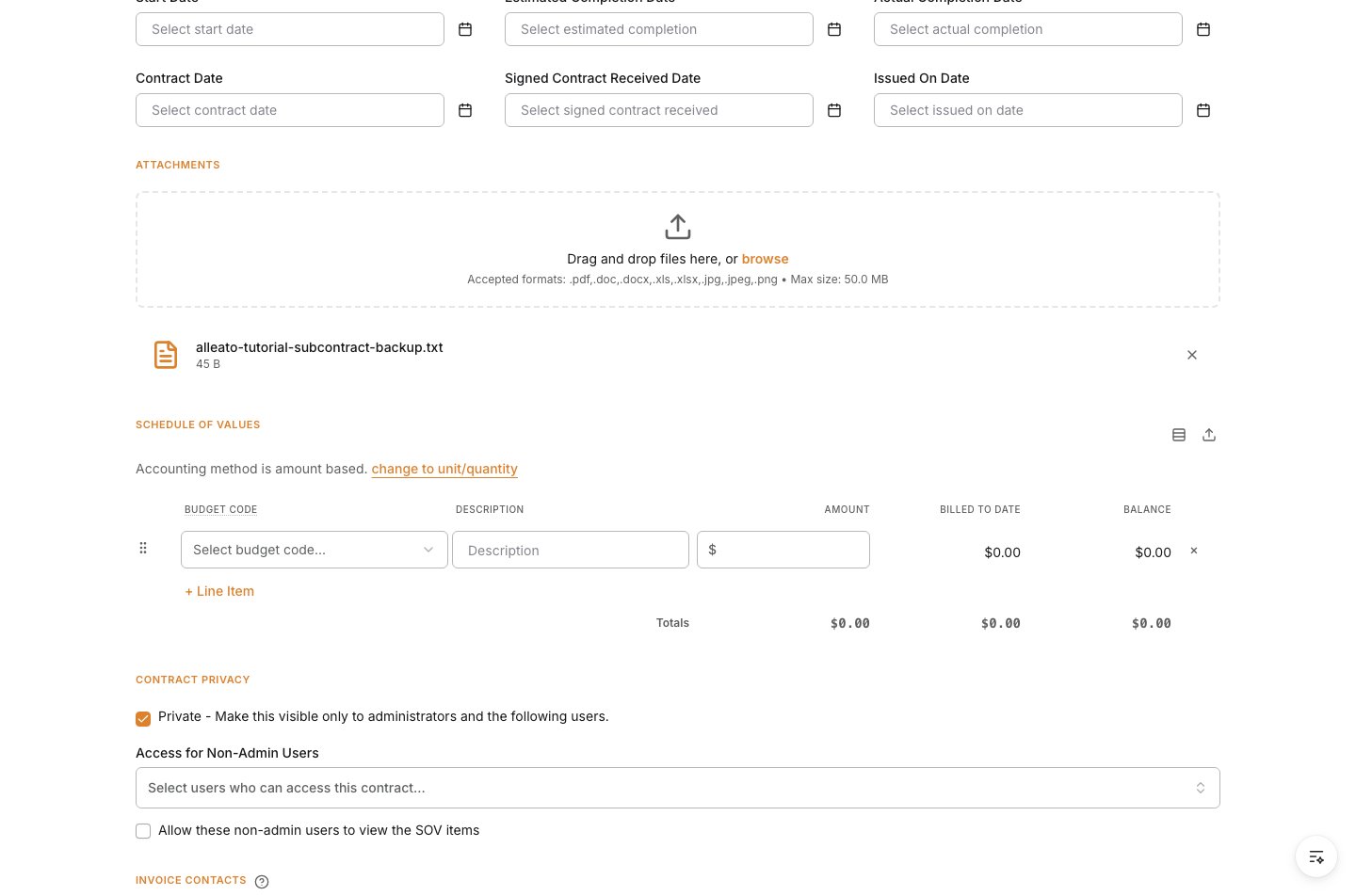 If the subcontract should not be visible to the full project team, limit access here. Add invoice contacts so vendor billing routes to the right people.
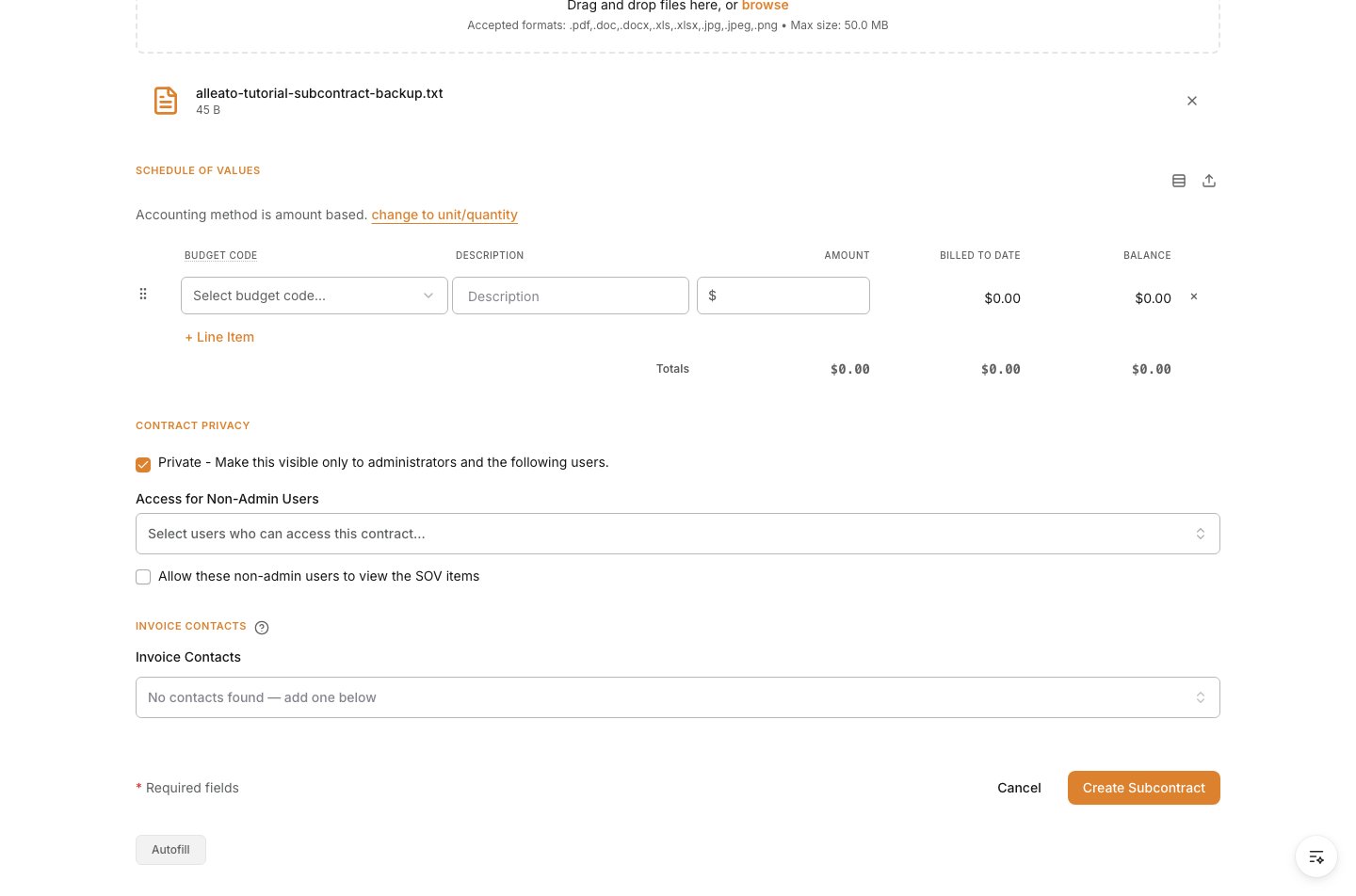 Review the form, then click **Create Subcontract**.
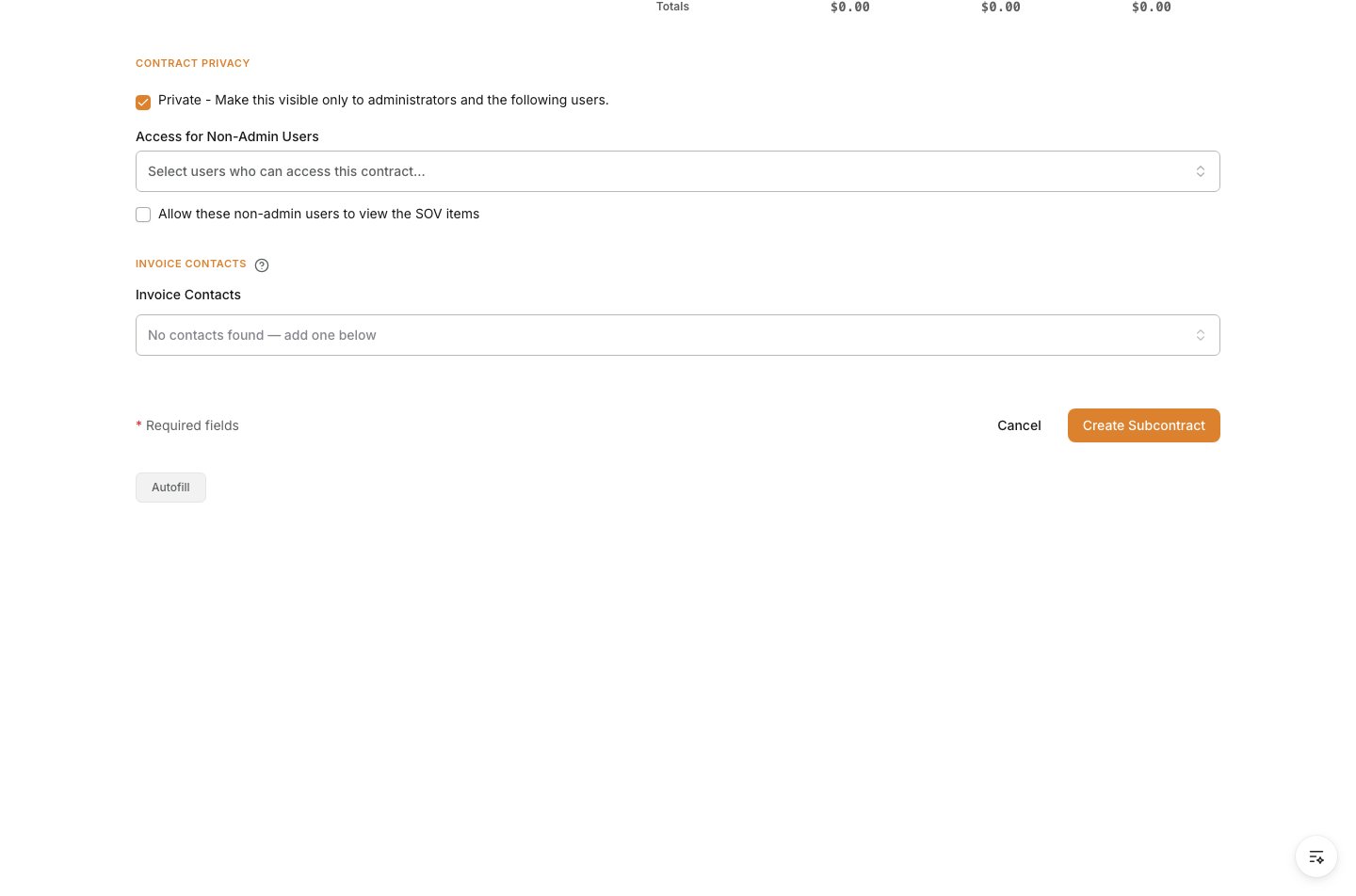 ## Verify the result
Confirm the subcontract appears in the **Commitments** list with the correct contract company, contract number, title, status, and value. Open the record and confirm the SOV and invoice contacts are in place.
## Troubleshooting
* **The subcontractor does not appear in Contract Company**: Add the company in the **Company Directory**, then return to the subcontract form.
* **The SOV total is wrong**: Review each line-item amount or unit-based entry before using the subcontract for billing.
* **The subcontract should be restricted**: Update the privacy settings before the subcontract is shared with the wider project team.
## Related tasks
* [Commitments overview](/commitments/commitments)
* [Create a Commitment PCO](/change-orders/create-a-commitment-pco)
* [Create a Purchase Order Commitment](/commitments/create-purchase-order-commitment)
## Verify the result
Confirm the subcontract appears in the **Commitments** list with the correct contract company, contract number, title, status, and value. Open the record and confirm the SOV and invoice contacts are in place.
## Troubleshooting
* **The subcontractor does not appear in Contract Company**: Add the company in the **Company Directory**, then return to the subcontract form.
* **The SOV total is wrong**: Review each line-item amount or unit-based entry before using the subcontract for billing.
* **The subcontract should be restricted**: Update the privacy settings before the subcontract is shared with the wider project team.
## Related tasks
* [Commitments overview](/commitments/commitments)
* [Create a Commitment PCO](/change-orders/create-a-commitment-pco)
* [Create a Purchase Order Commitment](/commitments/create-purchase-order-commitment)