> ## Documentation Index
> Fetch the complete documentation index at: https://meganharrisonconsulting.mintlify.site/llms.txt
> Use this file to discover all available pages before exploring further.
# Create a Prime Contract
> Create the owner contract that anchors billing, change orders, and contract reporting for a project.
A Prime Contract records the agreement between the project and its owner. It is the ***financial starting point for the owner-facing construction lifecycle.***
The prime contract will be used to define the agreed scope and value, bill against that value, then manage approved changes without losing the original agreement history.
Before approving a contract or sending an owner invoice, review every SOV line and its permissions. Your organization may restrict edits after approval or billing; the exact lock behavior depends on your configured workflow and permissions.
## Create the prime contract
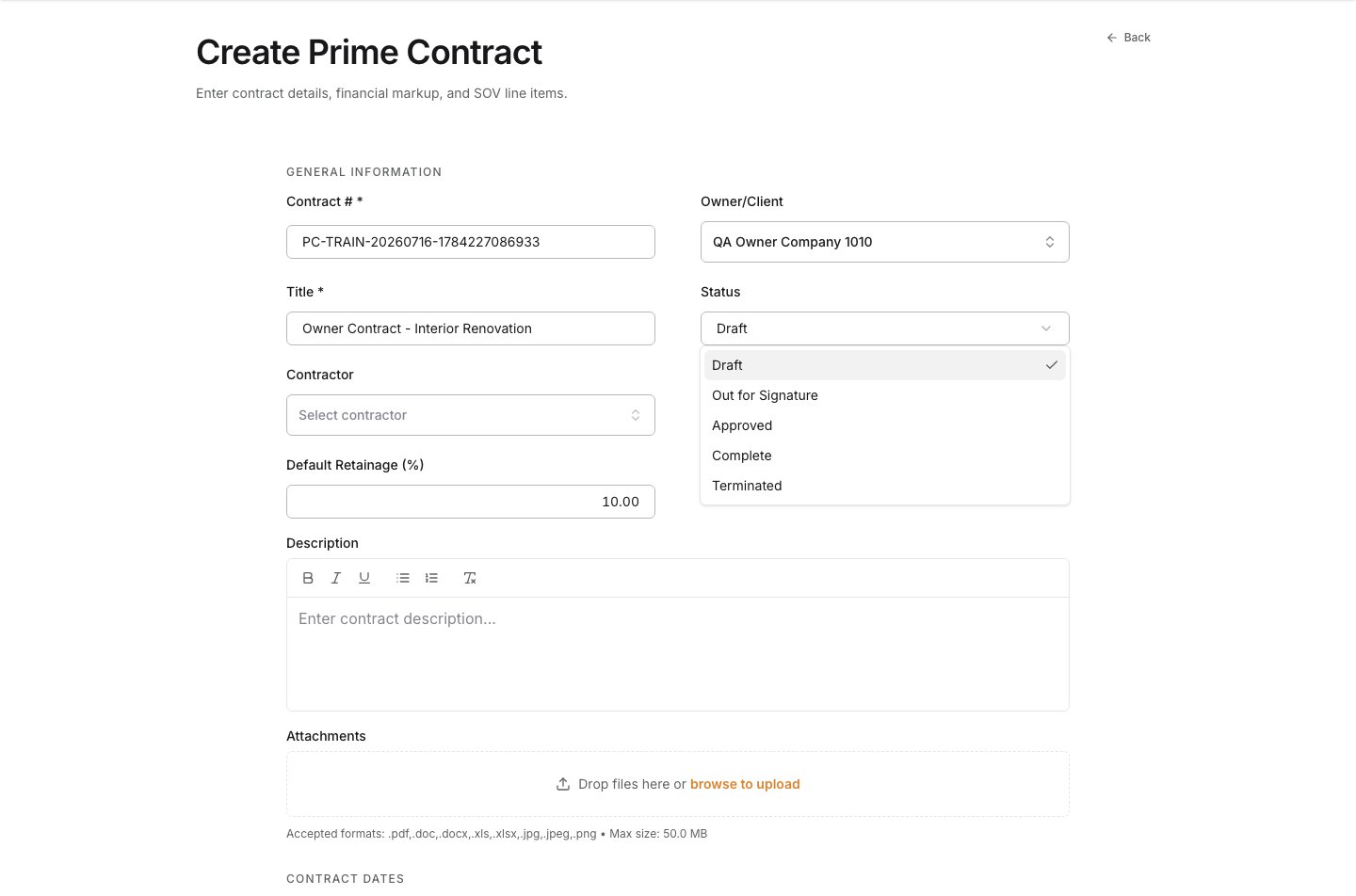
In the project, open **Prime Contracts** and select **Create**. The **Create Prime Contract** form opens with **General Information** visible.
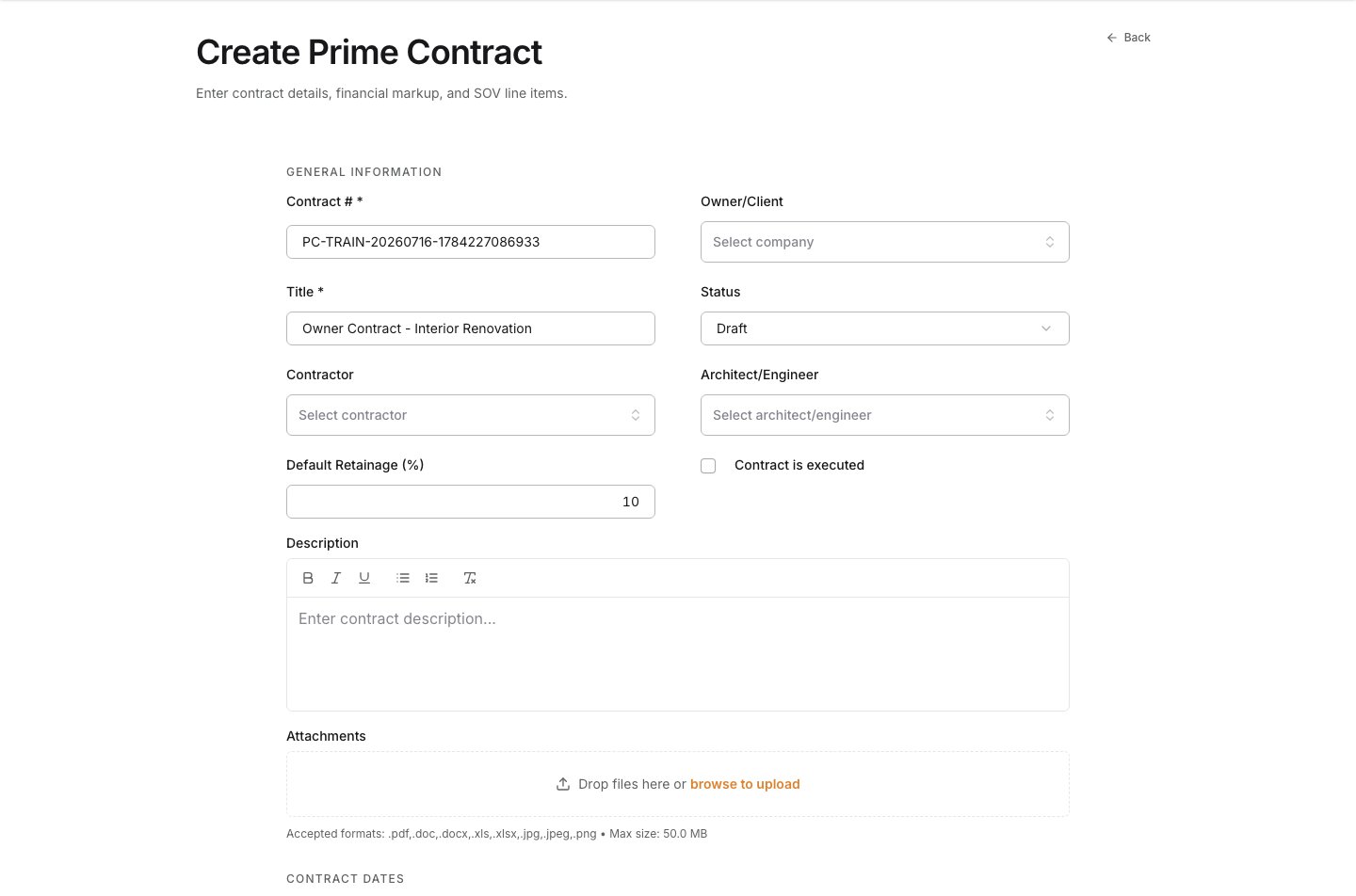
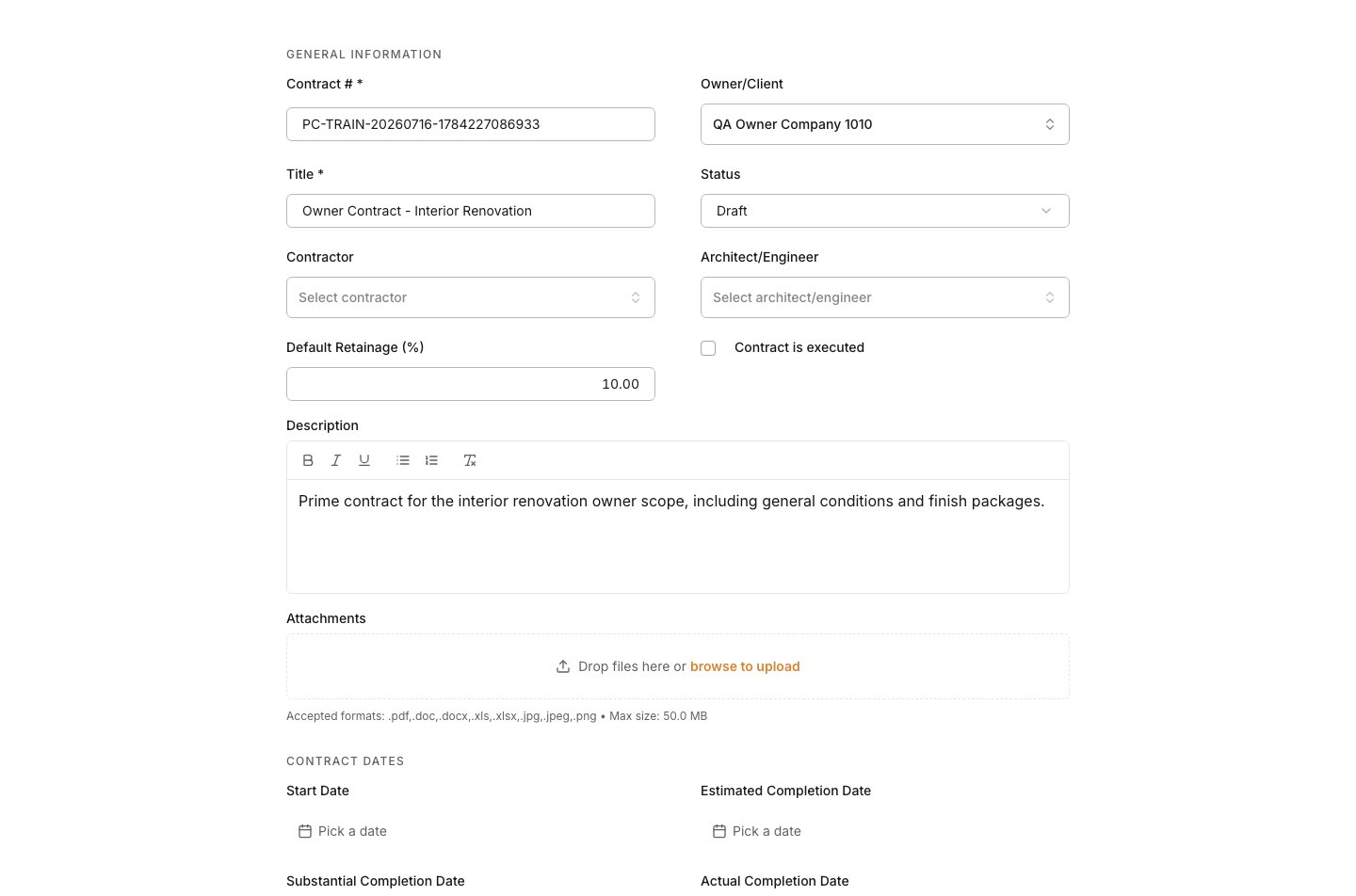
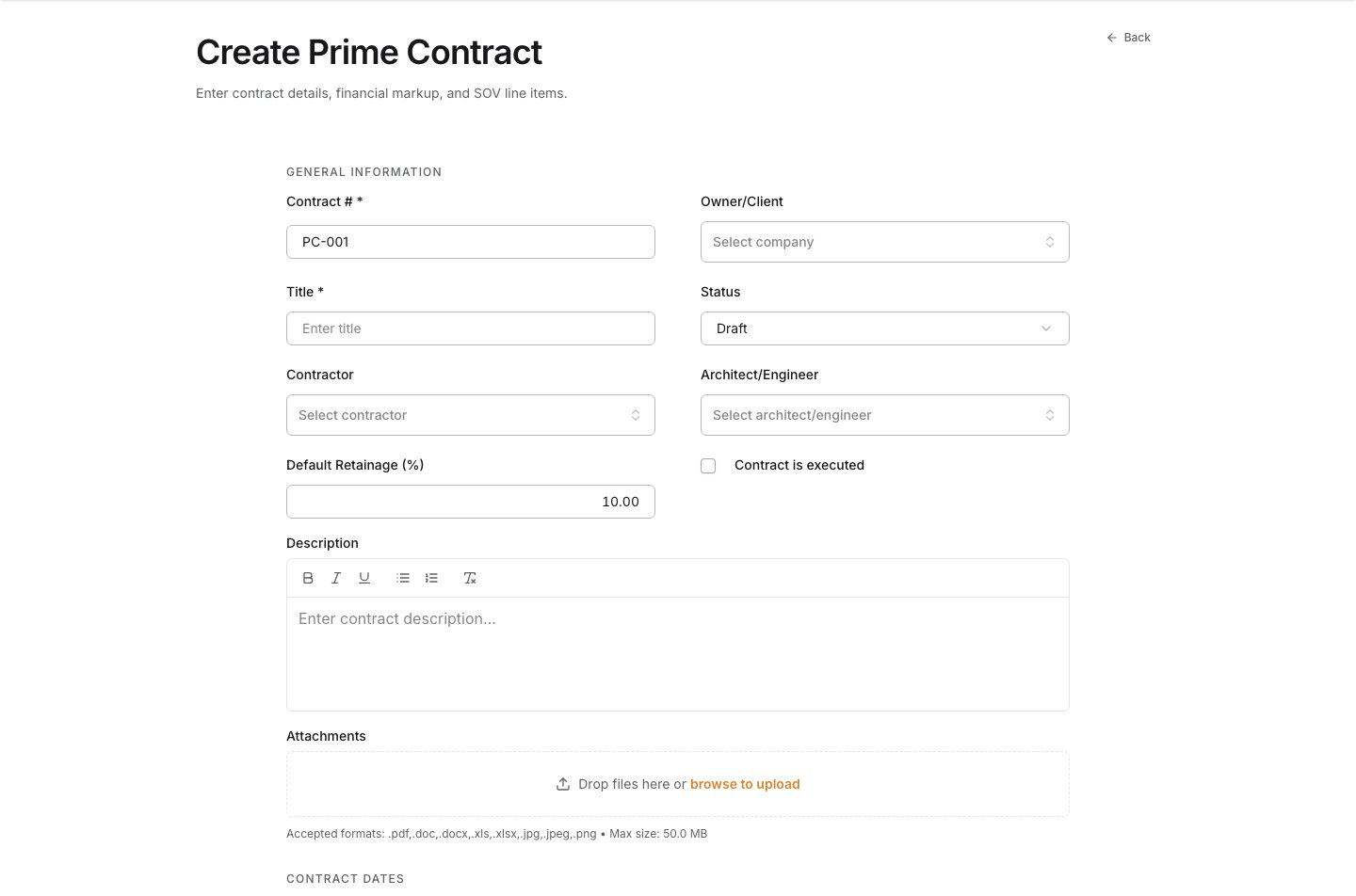 Enter a **Contract #** that the team can recognize later, a clear **Title**, and the default **Retainage** when it applies. These values identify the agreement in owner billing and reporting.
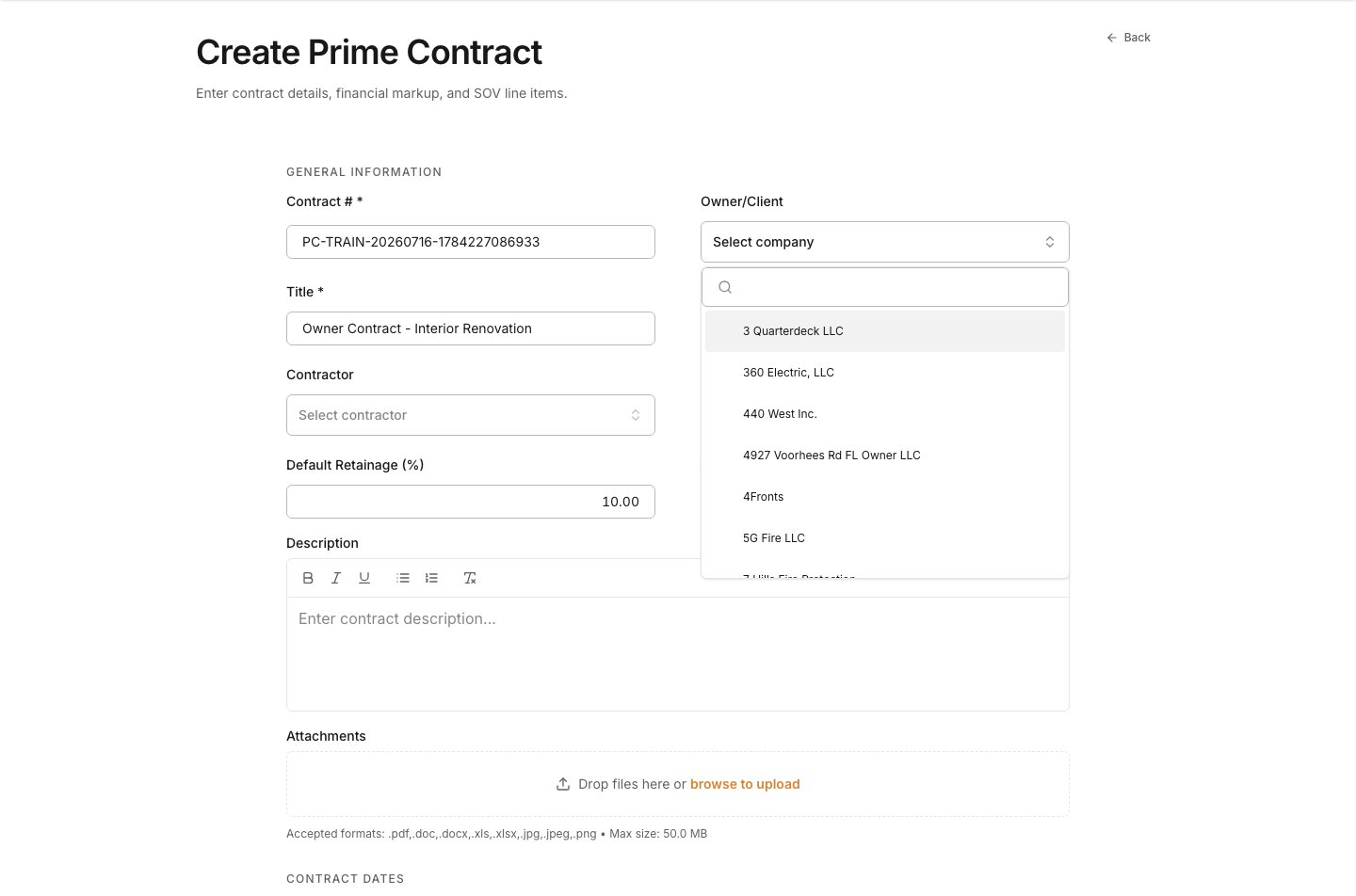
 Open **Owner/Client** to review the companies available to the project, then select the party executing the owner-facing agreement. Choose the actual funding or contracting party, not a subcontractor or internal company.
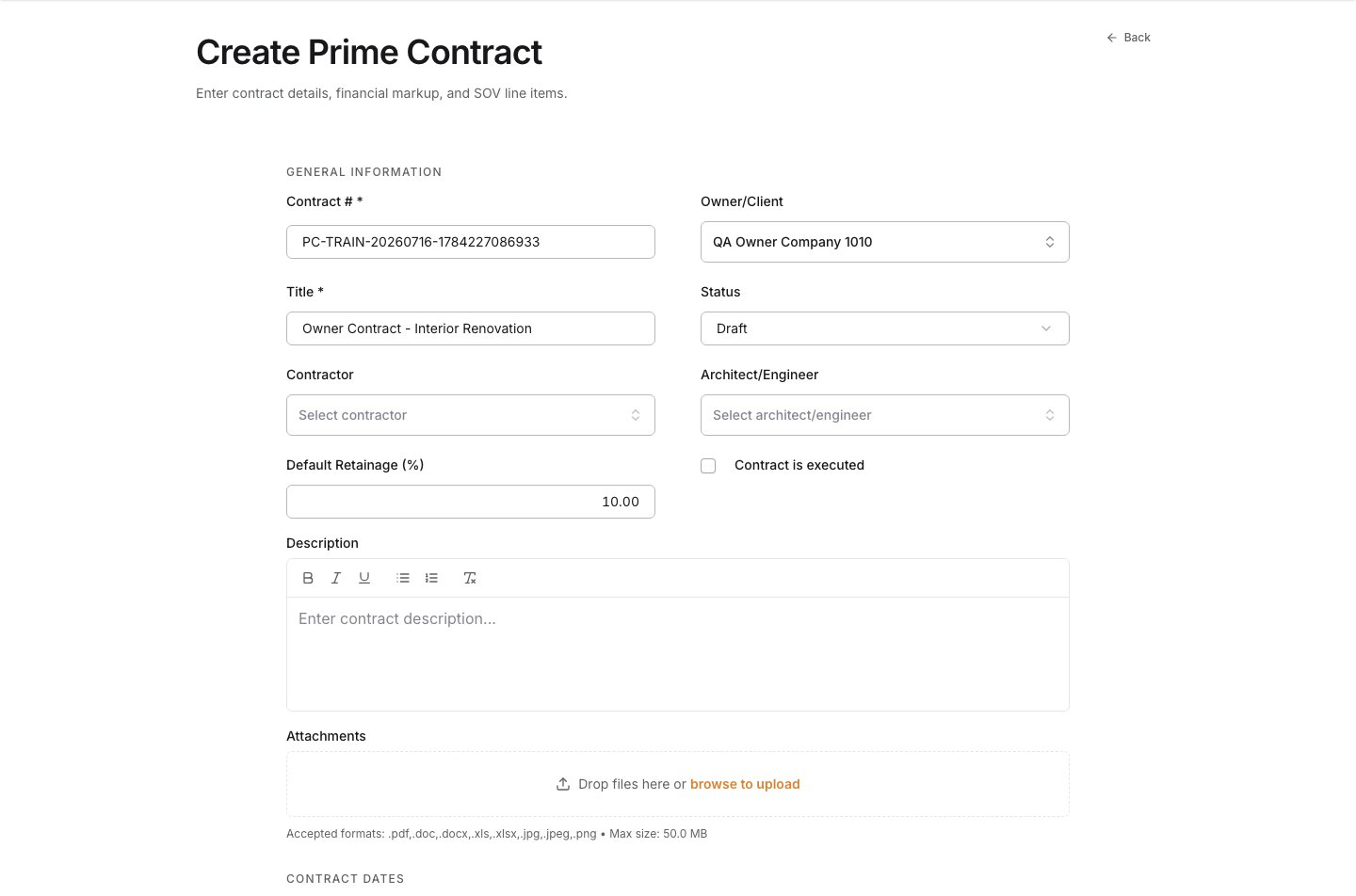 Open **Status** to review the available lifecycle states, then select the state that reflects the agreement today. Use **Draft** while the SOV or supporting information is still under review. Move the agreement forward only when it is ready for your approval and billing controls.
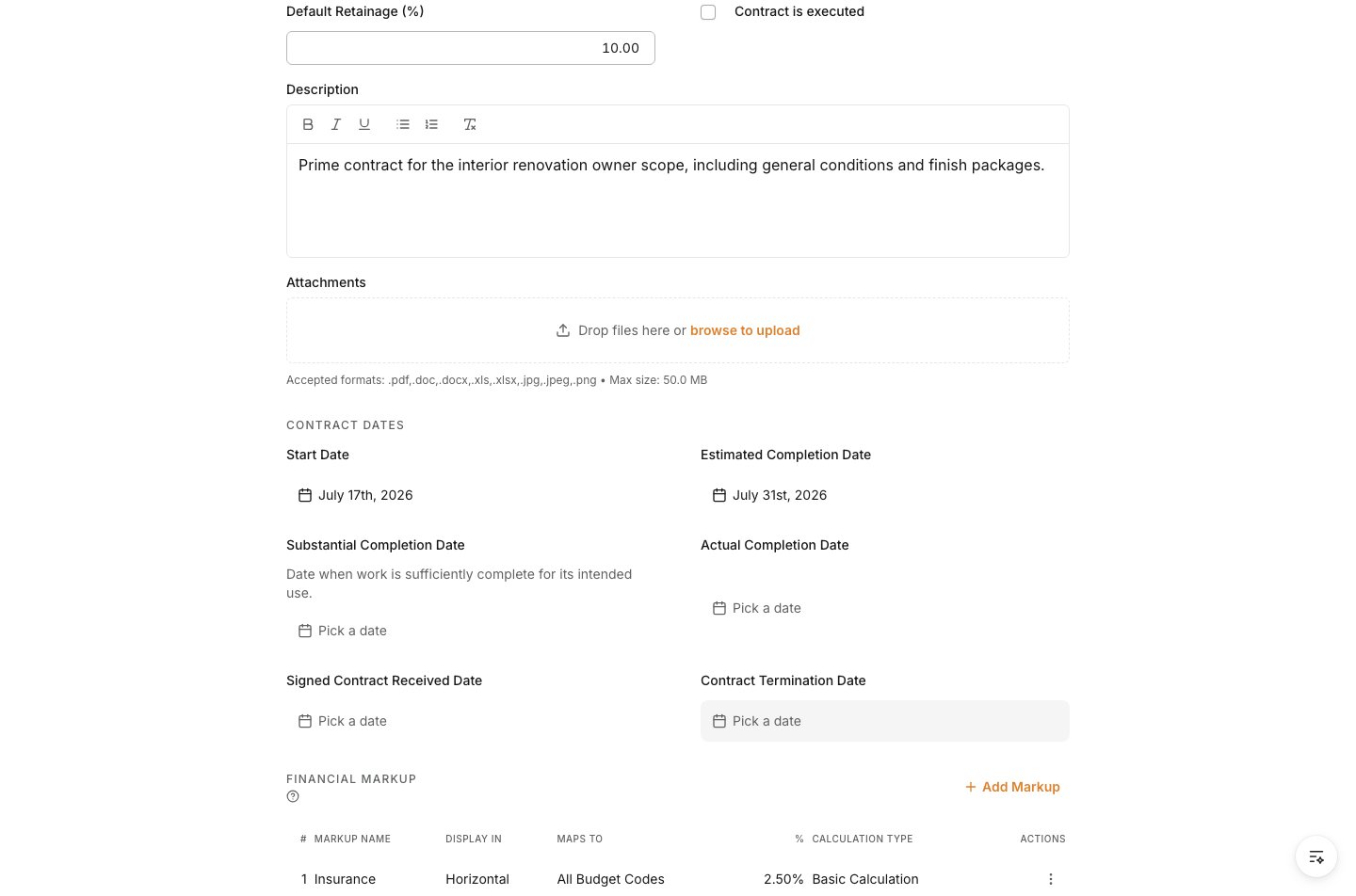
 Add a concise **Description** so the project team understands the owner-facing purpose and scope. Then enter the **Start Date** and **Estimated Completion Date**. These dates establish the agreement timeline; use your team's actual contract record for other milestone dates.
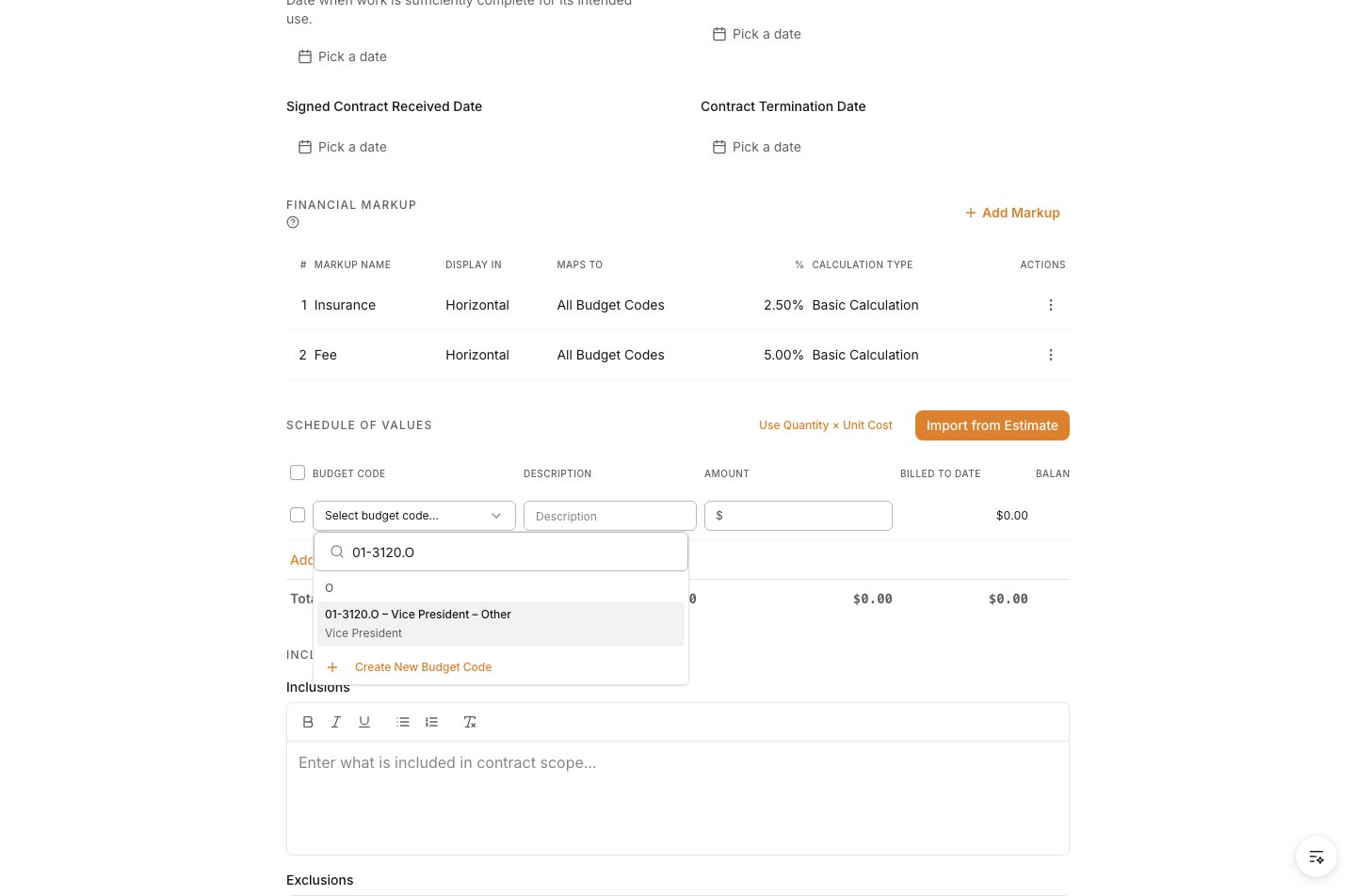
 In **Schedule of Values**, add a line. The SOV is where contract scope and value become billable structure. Each line should represent scope that the owner can review and that the project can report consistently.
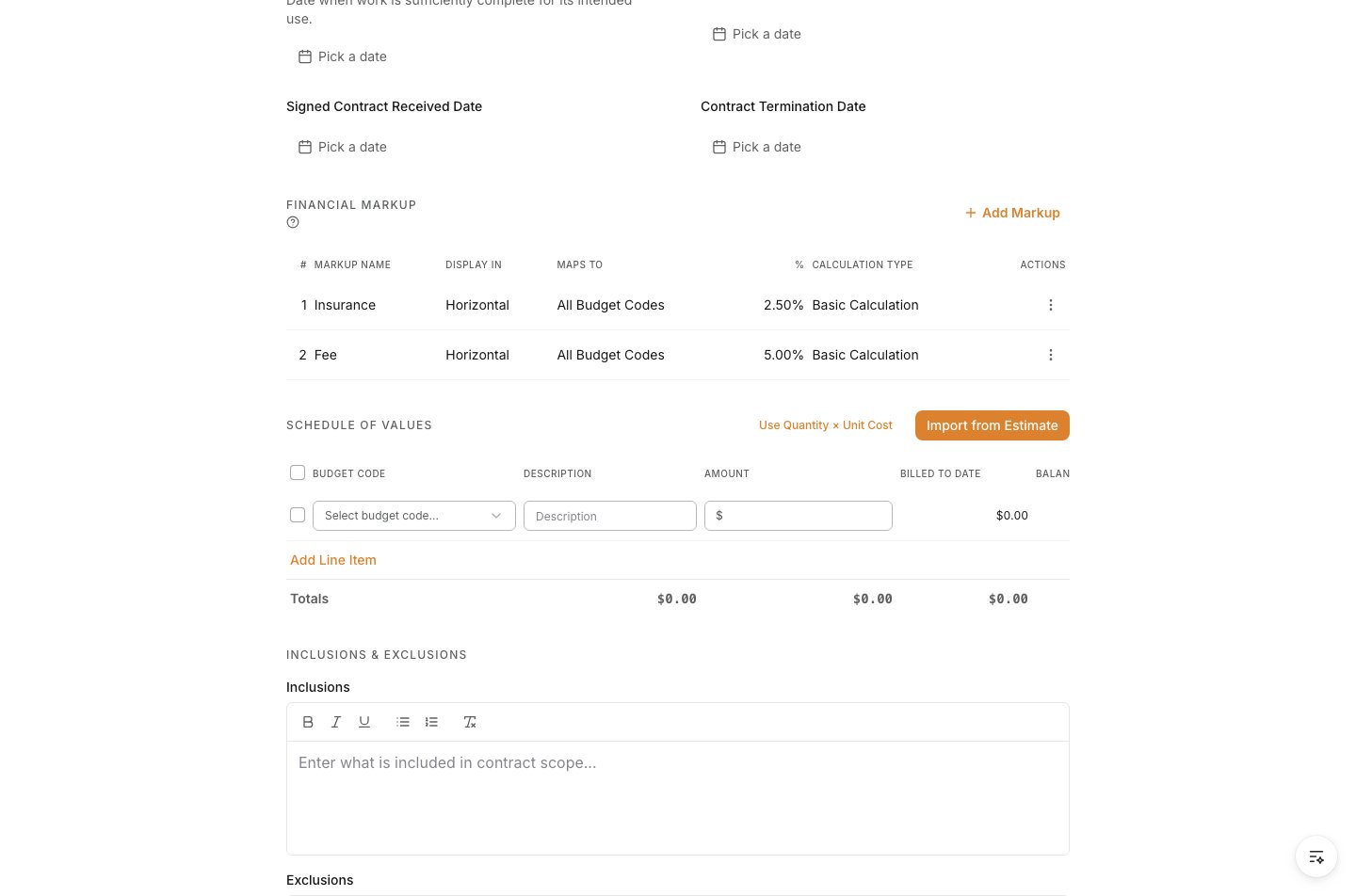 Open **Budget Code**, search for the code that owns this scope, and select it. Then enter a clear line **Description** and **Amount**. If the budget came from the estimate, use the same structure so the budget, contract total, and owner invoices remain aligned.
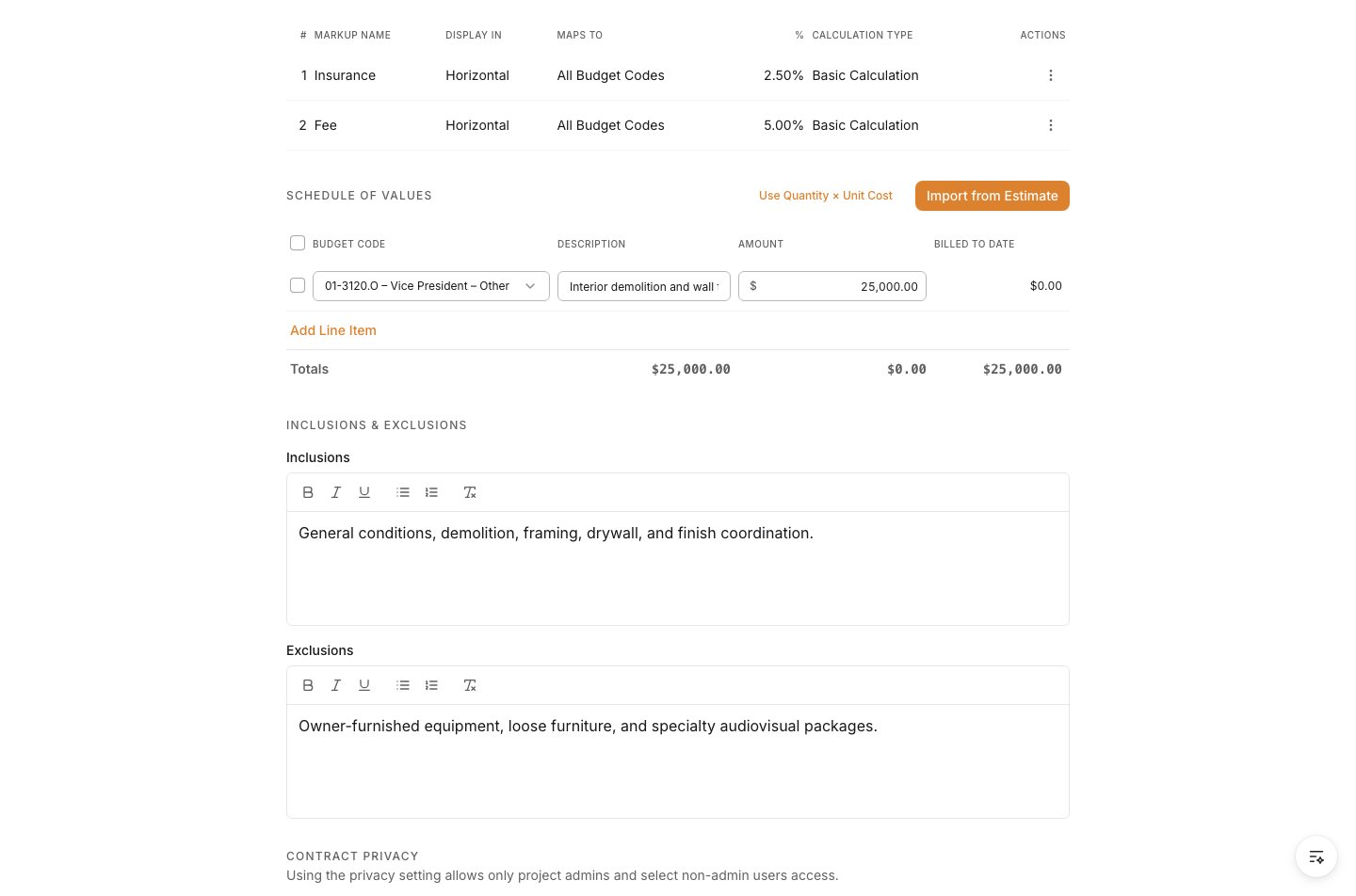
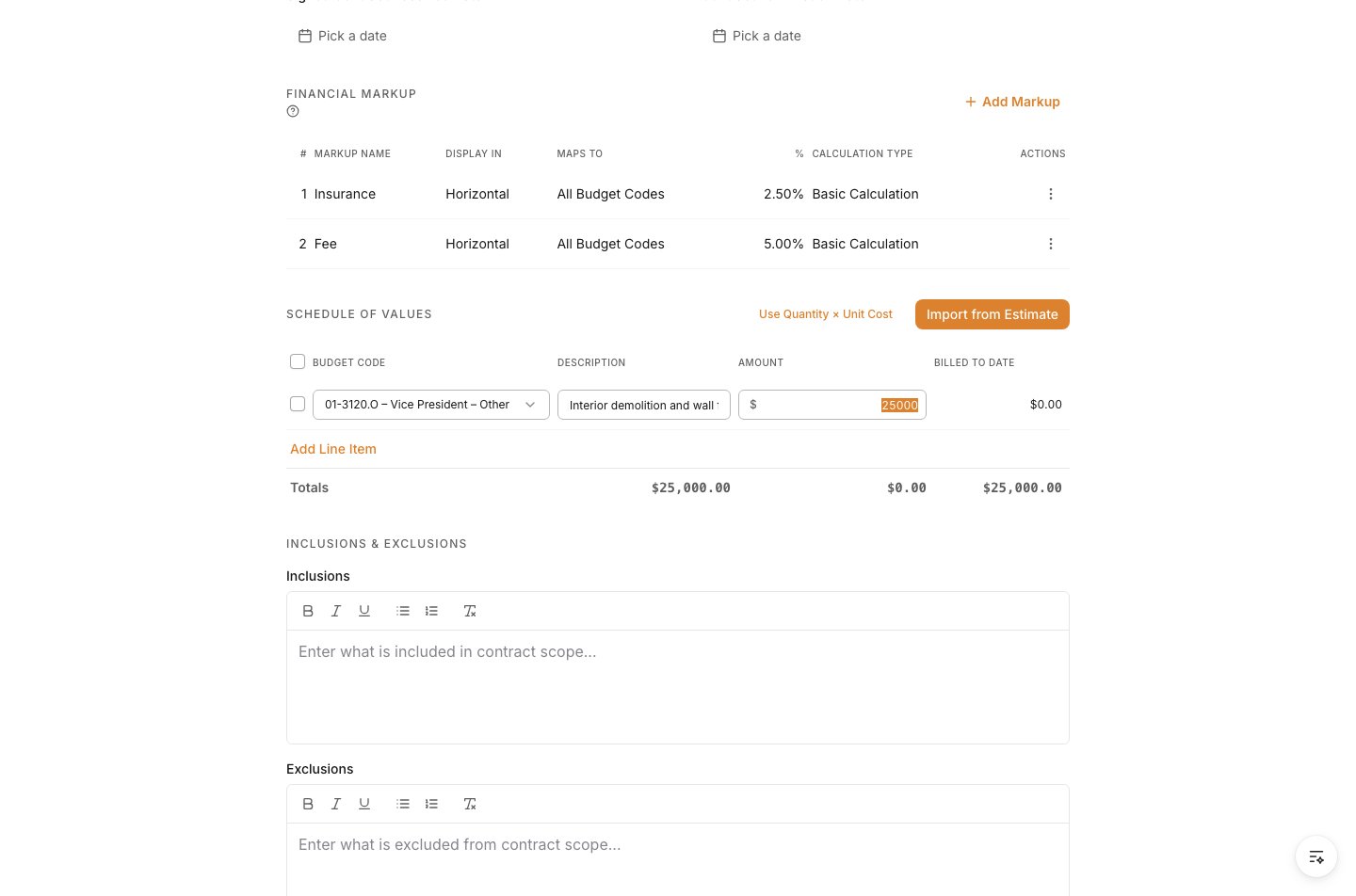 Record **Inclusions** and **Exclusions** when the agreement needs explicit boundaries. This prevents scope assumptions from being confused with contracted work when invoices or changes are reviewed later.
 Turn on **Private** when only project admins and specifically allowed non-admin users should access the contract. Leave it off only when the project team's normal access model is appropriate.
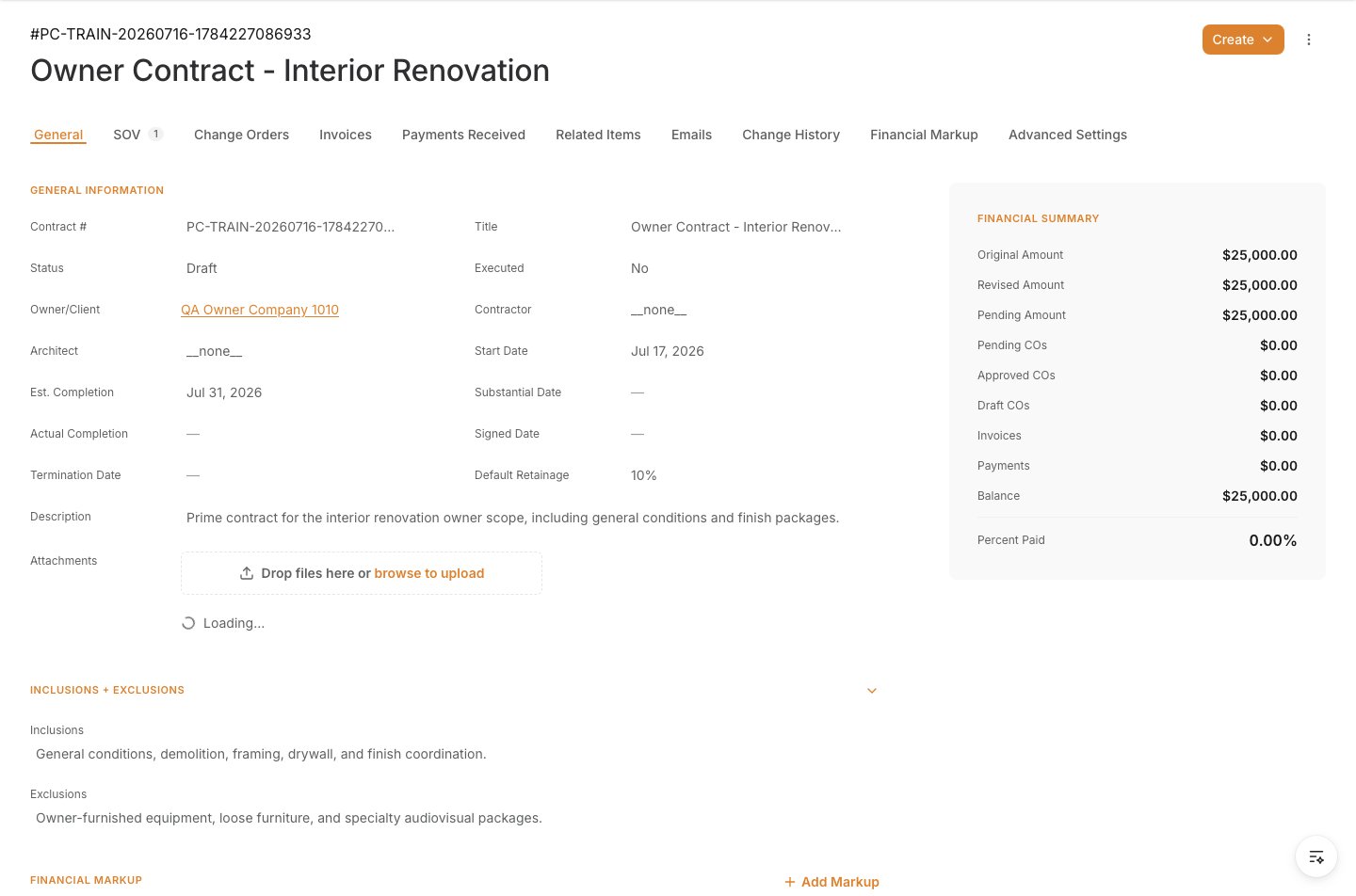
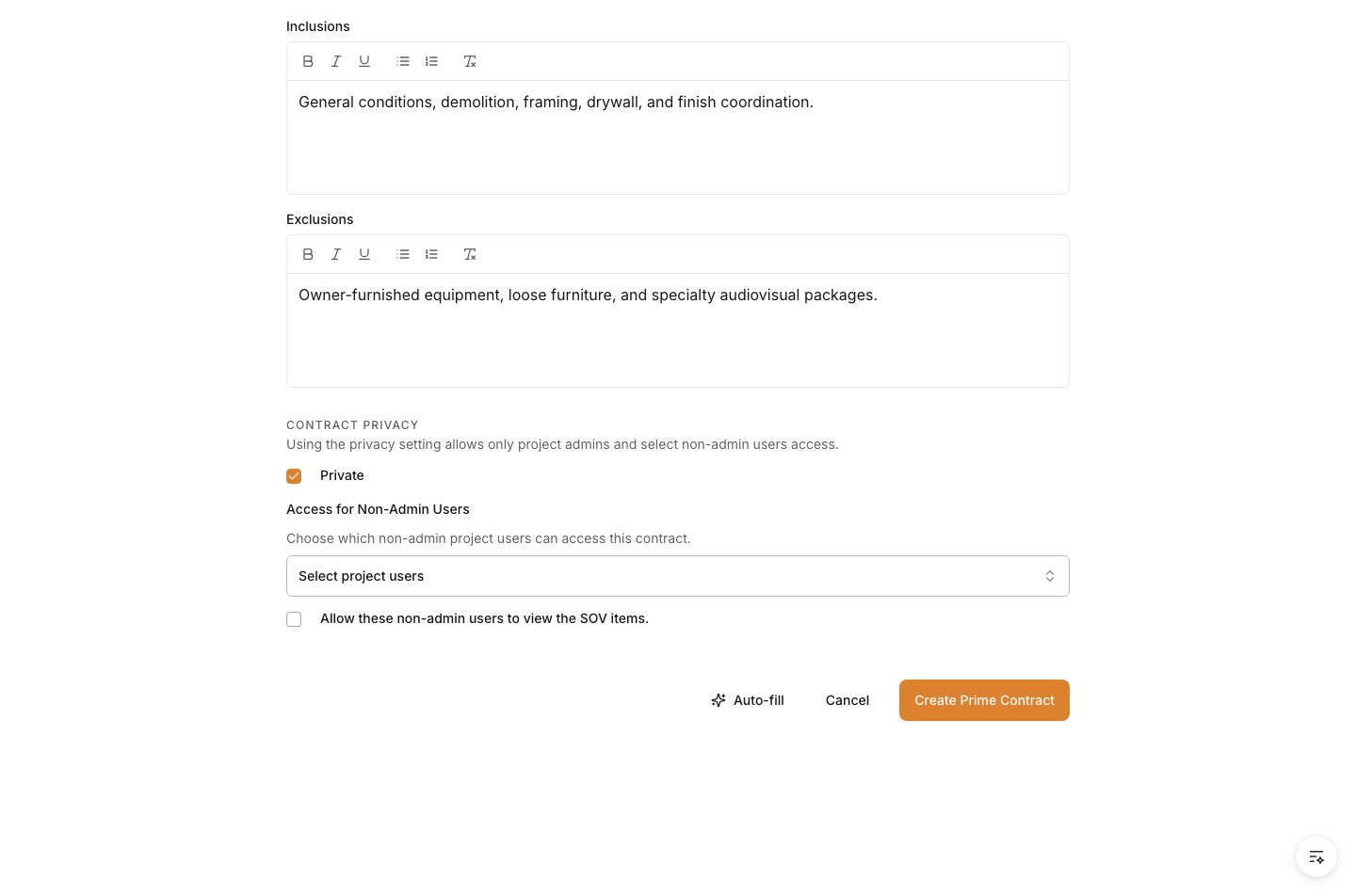 Select **Create Prime Contract**. The saved agreement opens on its detail page. Confirm the contract identity, owner/client, status, dates, SOV total, scope notes, and privacy setting before it enters approval or invoicing.
 ## After you create it
* Keep the agreement in **Draft** until the details and SOV are complete.
* Review the SOV total against the signed agreement before any owner invoice is created.
* Route new approved scope or value through change management so the original contract and billing history remain traceable.
* Recheck access whenever the contract becomes sensitive or the project team changes.
## Manage the contract after creation
The contract header shows the owner/client, original contract value, approved change-order value, revised contract value, effective and execution dates, retainage, and schedule details. Use it as the owner-facing record throughout the project.
### Maintain the Schedule of Values
The SOV is what owner pay applications bill against. Each line carries an original value, approved changes, and billed-to-date value. Open the saved contract and select **Schedule of Values** to add, edit, or remove lines while your workflow permits changes.
If the project team uses an Alleato estimate workbook (`.xlsm` or `.xlsx`), import its approved owner-SOV rows rather than re-entering them:
1. On a new contract, open **Actions** in the SOV section and select **Import Excel SOV**. On an existing contract, open the **Schedule of Values** tab, then select **Add** > **Estimate Workbook**.
2. Upload the workbook and review the preview. Select only the lines that belong in the owner contract.
3. Resolve any unmapped or invalid budget-code rows before importing. Rows with a zero amount are flagged for review.
4. Import the selected lines, then verify the SOV total before approval or billing.
### Track approved changes and contract files
Approved change orders appear as contract modifications and update the revised contract value. Store the executed agreement, exhibits, insurance certificates, and bonds in **Attachments** so the record and its supporting documents stay together.
## Related tasks
* [Create an Owner Invoice](/invoicing/create-an-owner-invoice)
* [Create a Prime PCO](/change-orders/create-a-prime-pco)
## After you create it
* Keep the agreement in **Draft** until the details and SOV are complete.
* Review the SOV total against the signed agreement before any owner invoice is created.
* Route new approved scope or value through change management so the original contract and billing history remain traceable.
* Recheck access whenever the contract becomes sensitive or the project team changes.
## Manage the contract after creation
The contract header shows the owner/client, original contract value, approved change-order value, revised contract value, effective and execution dates, retainage, and schedule details. Use it as the owner-facing record throughout the project.
### Maintain the Schedule of Values
The SOV is what owner pay applications bill against. Each line carries an original value, approved changes, and billed-to-date value. Open the saved contract and select **Schedule of Values** to add, edit, or remove lines while your workflow permits changes.
If the project team uses an Alleato estimate workbook (`.xlsm` or `.xlsx`), import its approved owner-SOV rows rather than re-entering them:
1. On a new contract, open **Actions** in the SOV section and select **Import Excel SOV**. On an existing contract, open the **Schedule of Values** tab, then select **Add** > **Estimate Workbook**.
2. Upload the workbook and review the preview. Select only the lines that belong in the owner contract.
3. Resolve any unmapped or invalid budget-code rows before importing. Rows with a zero amount are flagged for review.
4. Import the selected lines, then verify the SOV total before approval or billing.
### Track approved changes and contract files
Approved change orders appear as contract modifications and update the revised contract value. Store the executed agreement, exhibits, insurance certificates, and bonds in **Attachments** so the record and its supporting documents stay together.
## Related tasks
* [Create an Owner Invoice](/invoicing/create-an-owner-invoice)
* [Create a Prime PCO](/change-orders/create-a-prime-pco)