

Prerequisites
- The change event already exists.
- The affected subcontract or purchase order already exists.
- You know which commitment should be changed and what the vendor-facing description or schedule impact should be.
What you’ll update
Source linkage
Keep the Commitment PCO tied to the originating change event instead of creating a disconnected downstream record.
Commitment pricing
Set the affected commitment, reason, title, schedule impact, and description needed for vendor pricing.
Create the Commitment PCO
1
Start from the change event
Open the change event that covers the downstream change and choose the action to create a Commitment PCO.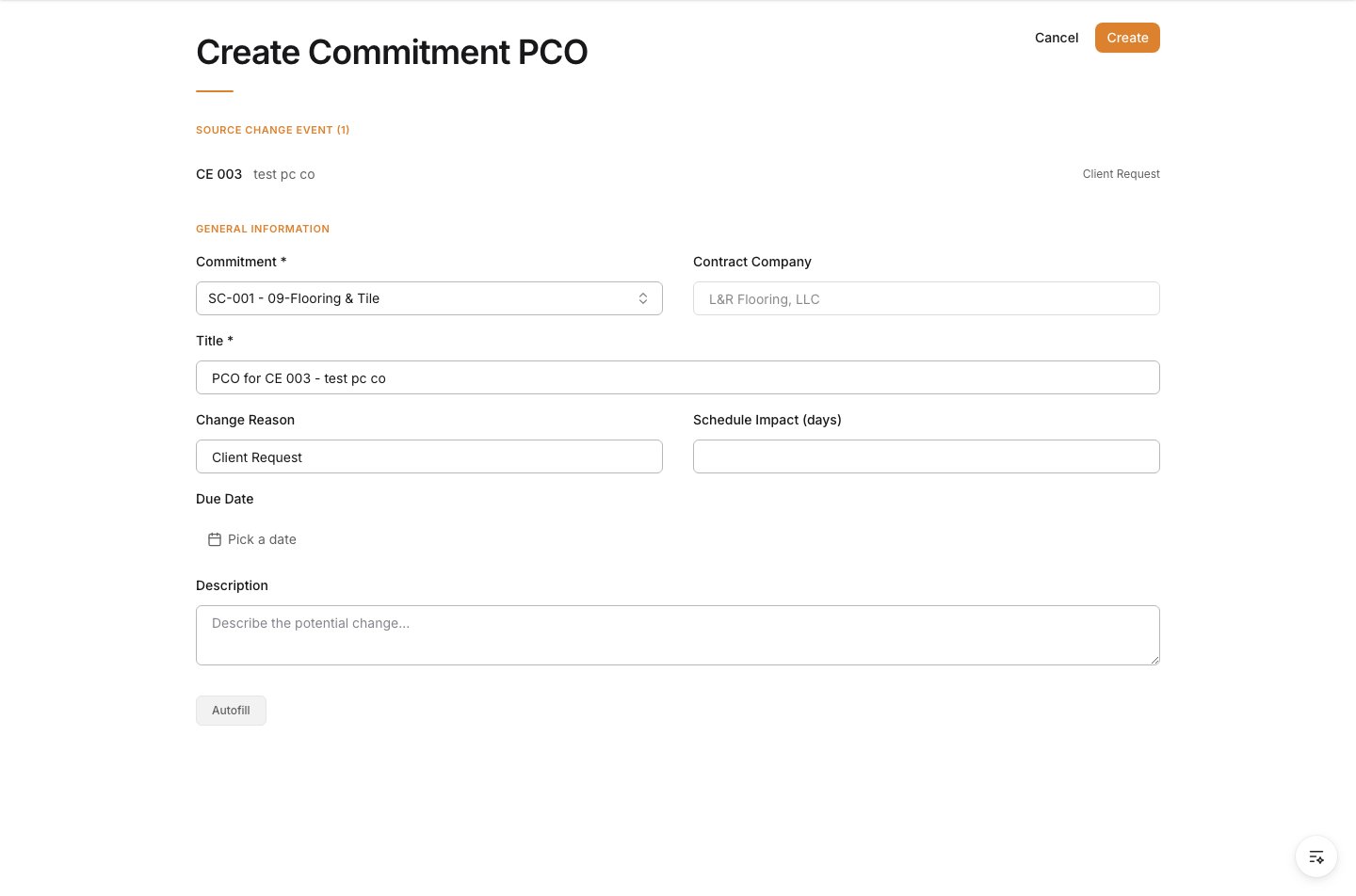
2
Confirm the source event is linked
When the new Commitment PCO form opens, make sure the source change event is already listed at the top.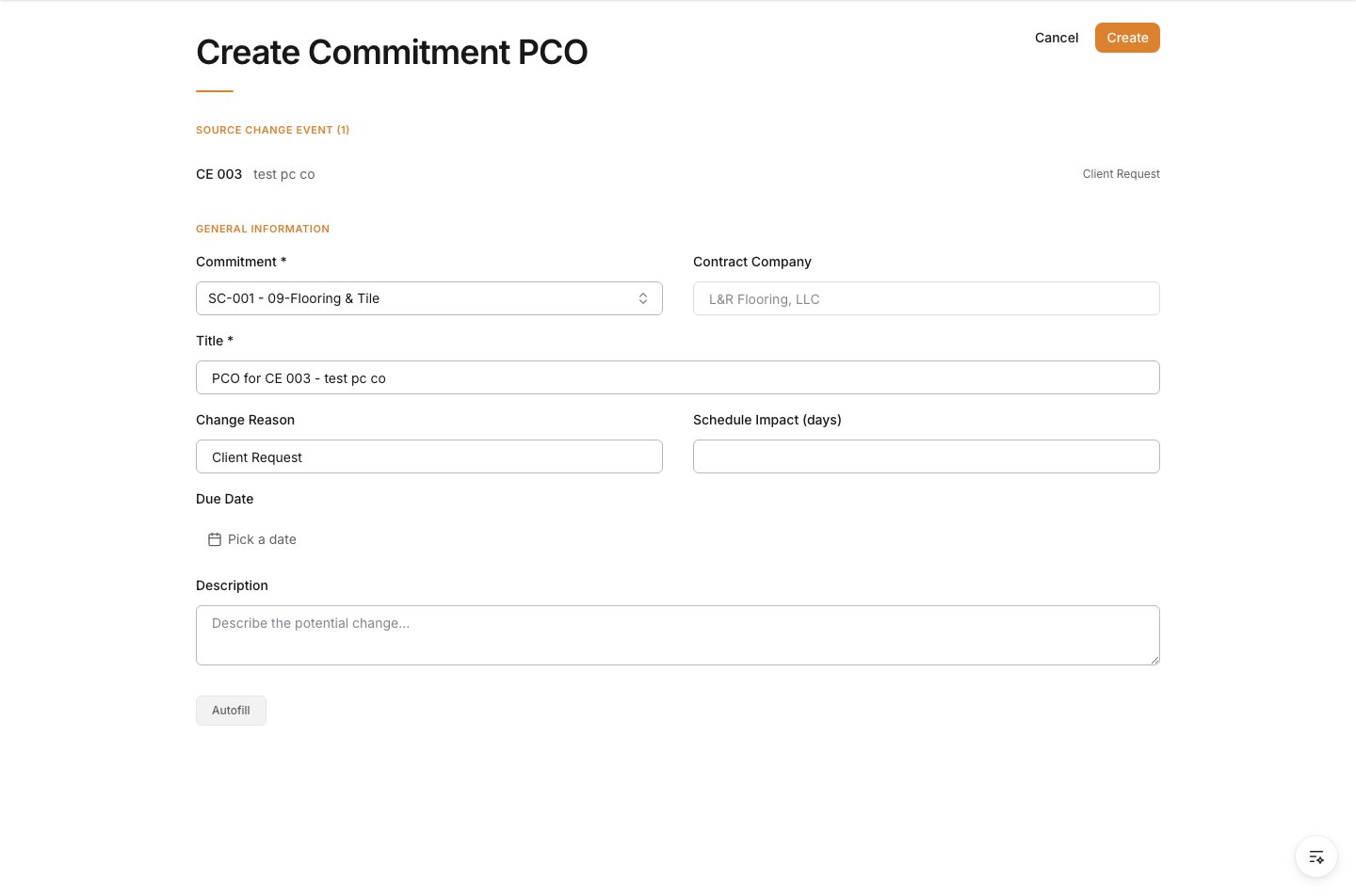
3
Select the affected commitment
Choose the subcontract or purchase order that should carry the downstream change.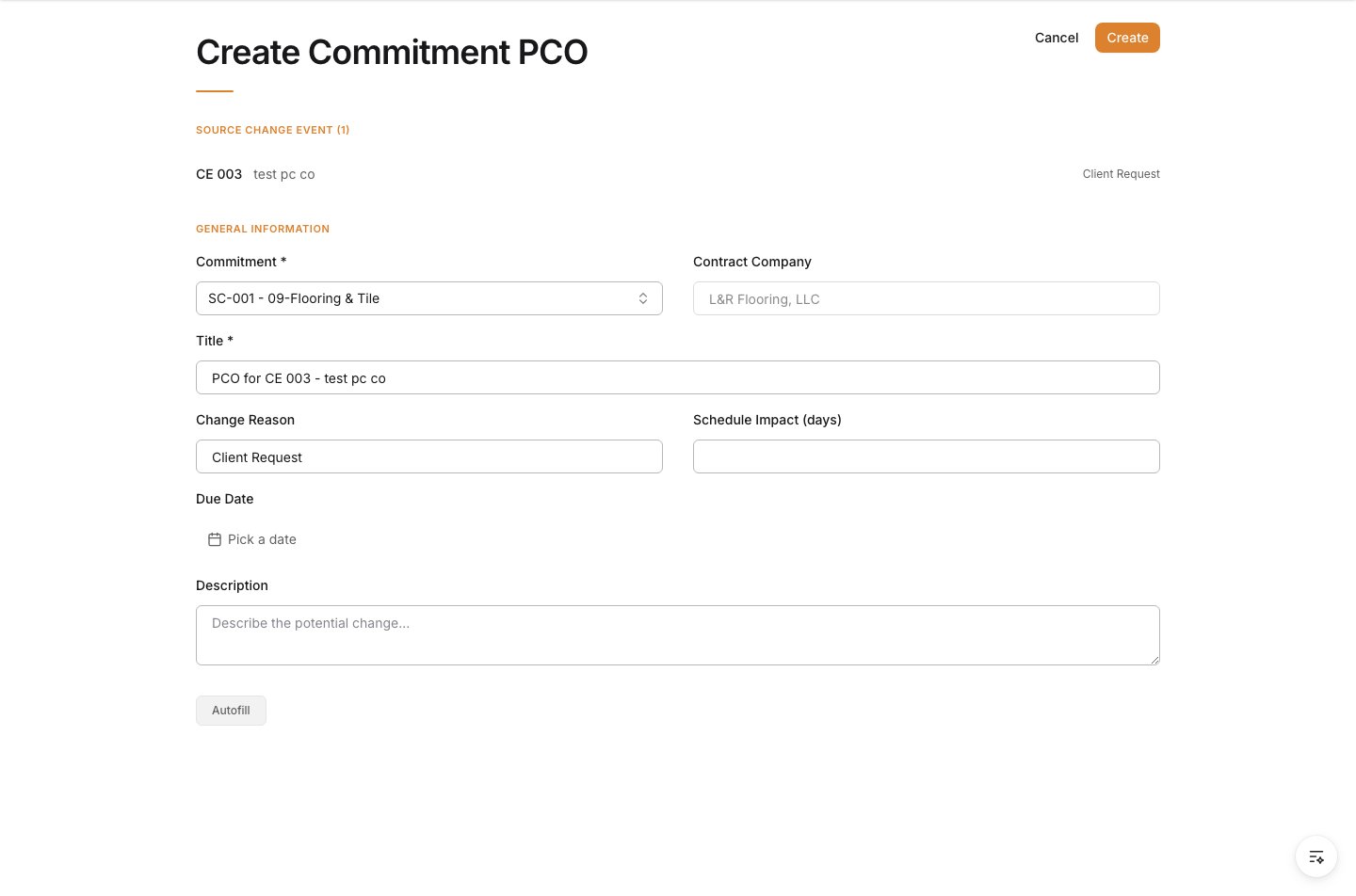
The contract company fills automatically from the selected commitment.
4
Enter the PCO details
Set the general information that the subcontractor, vendor, and project team will use for pricing.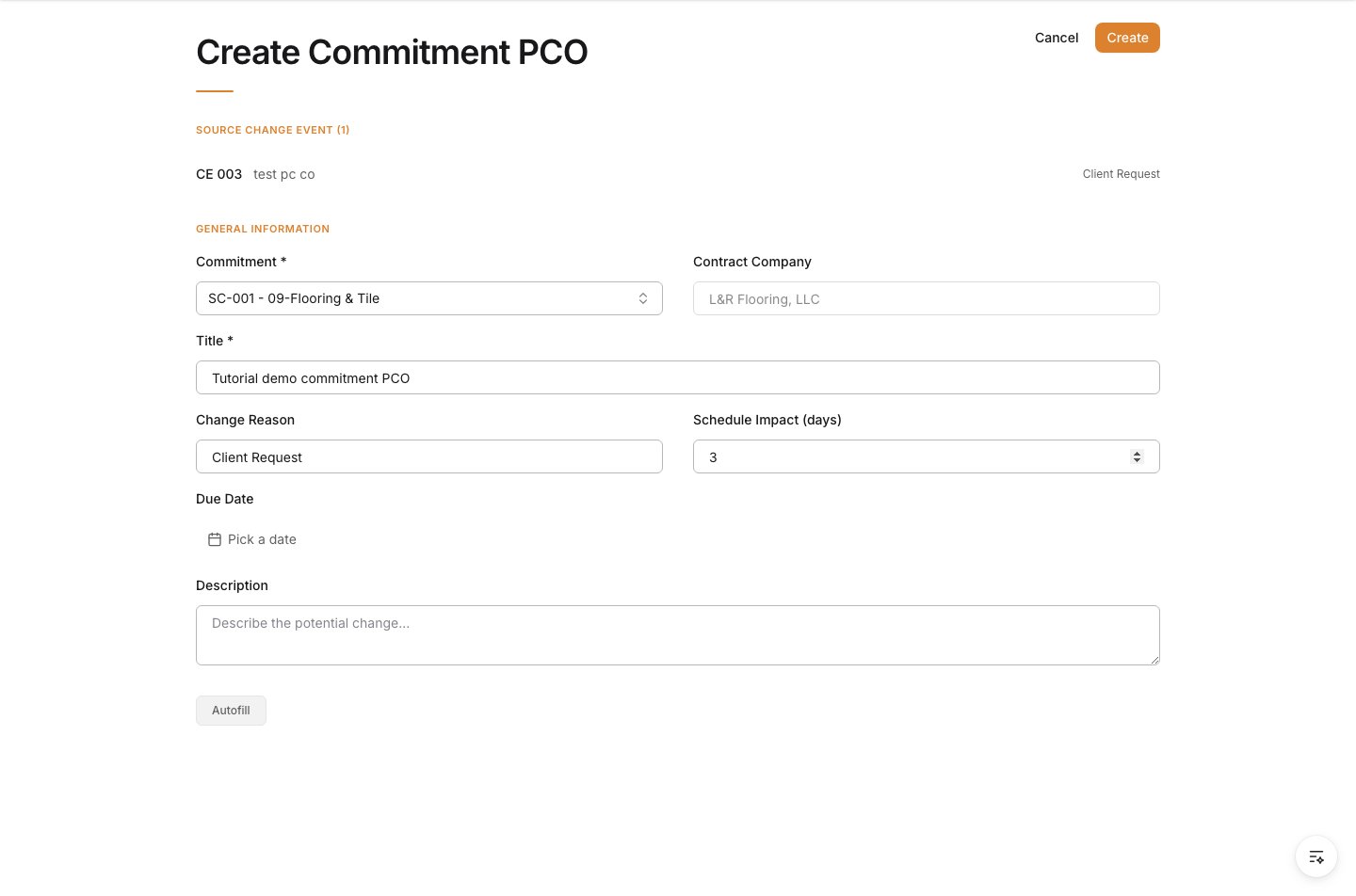
5
Describe the downstream change
Use Description to explain the change clearly enough for vendor pricing and internal review.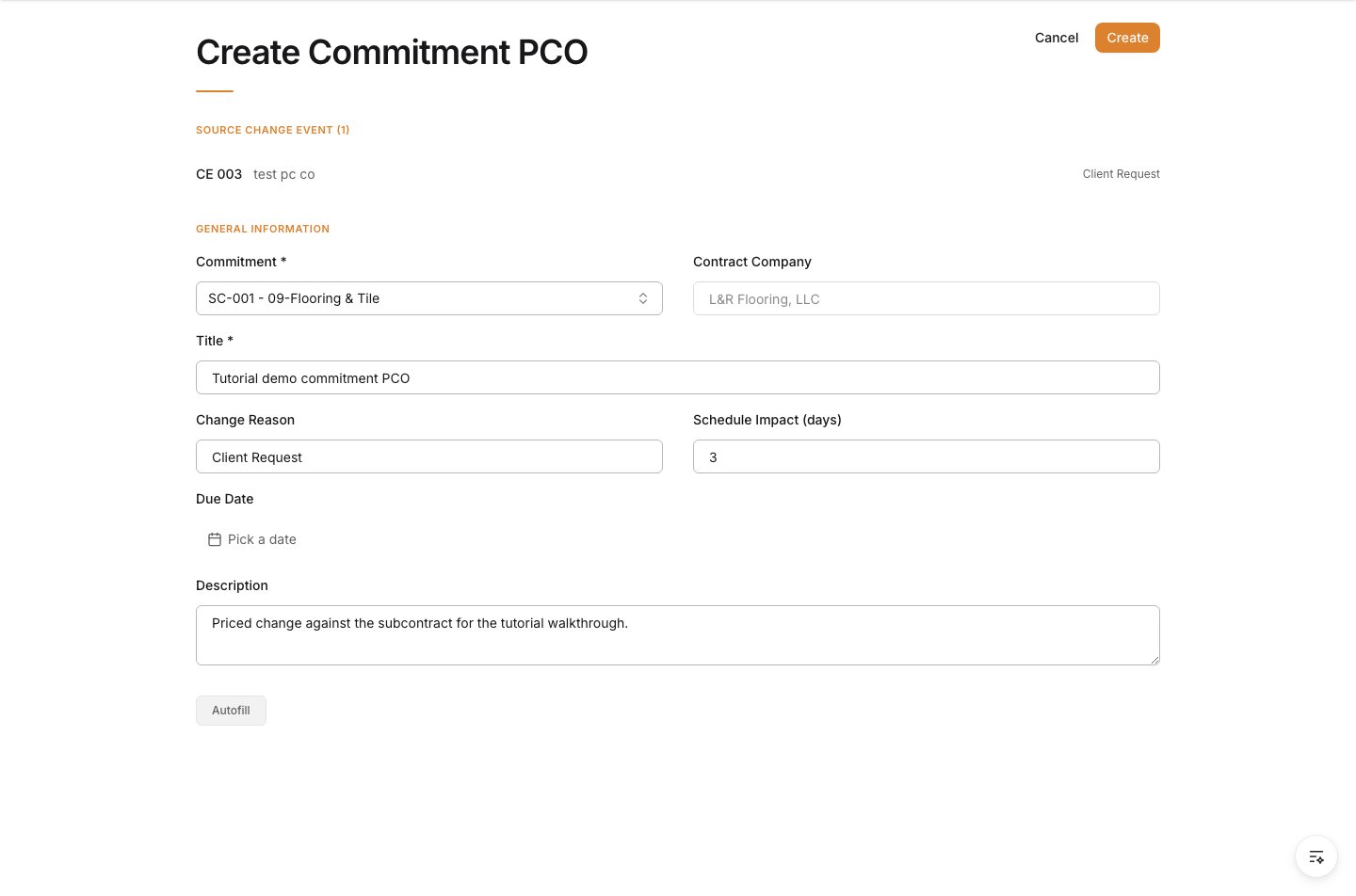
6
Create the Commitment PCO
Review the form, then click Create.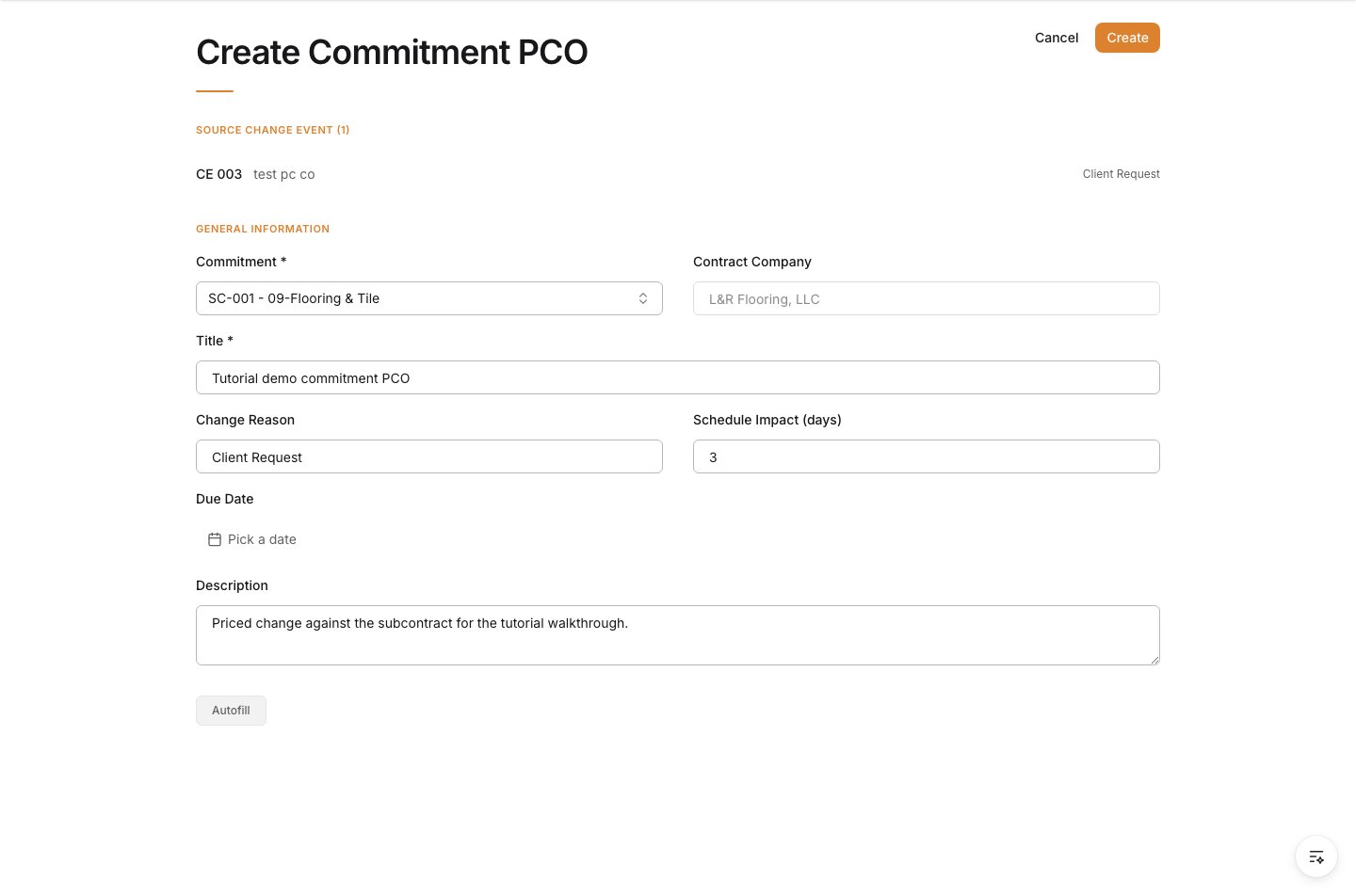
Verify the result
Confirm the Commitment PCO is saved against the correct subcontract or purchase order and still references the source change event that created it.Troubleshooting
- The wrong commitment is selected: Correct it before the PCO is used for vendor pricing or downstream approval.
- The change event is not connected: Restart from the change event so the pricing record remains traceable.
- The description is too vague for pricing: Expand it before sending the record to a subcontractor or vendor.