Ask Ask Alleato to draft a record like an RFI, change event, or task in plain English, then confirm the preview to save it.

1. Open the assistant

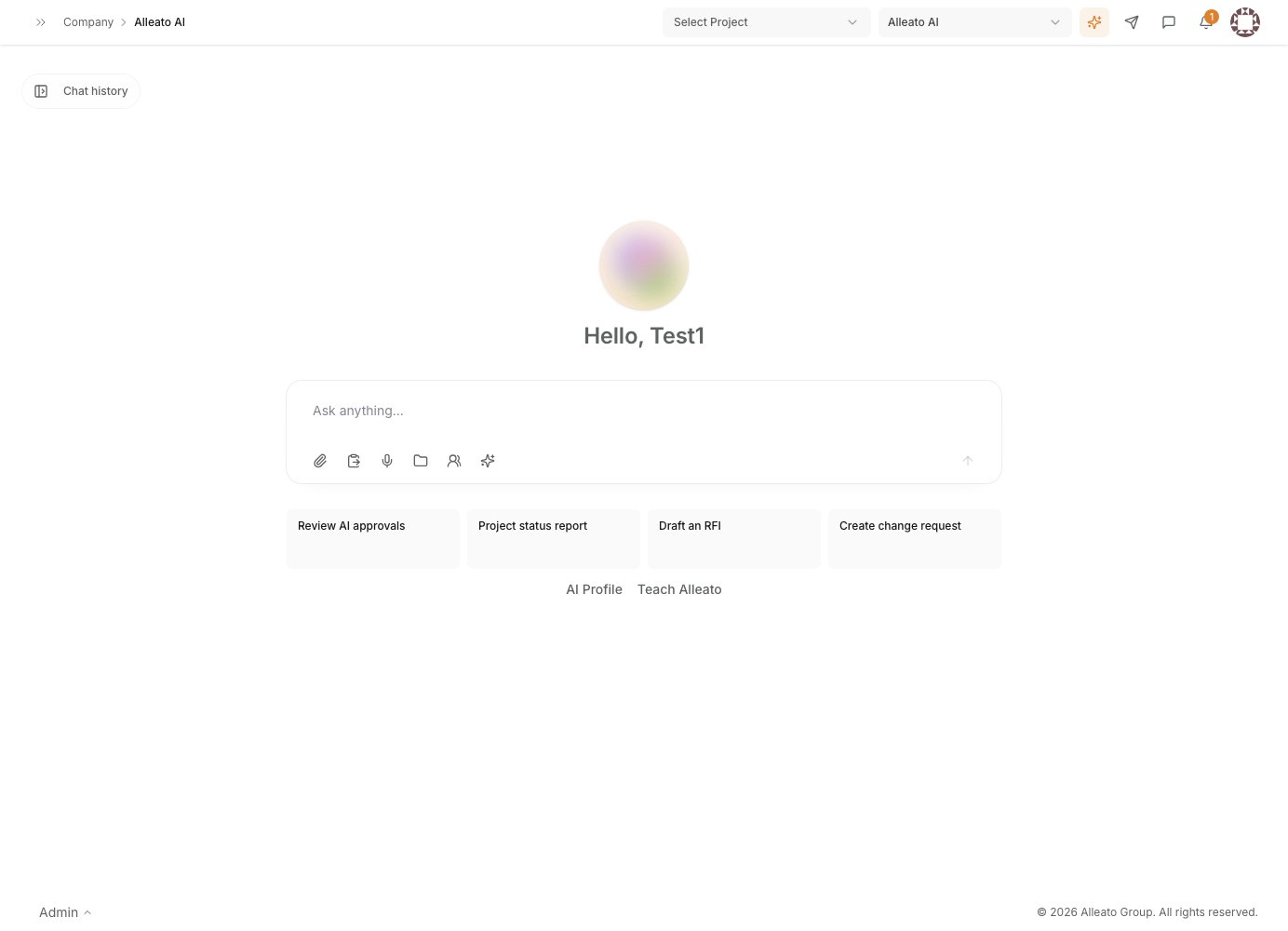
Open Ask Alleato from the main sidebar, or press ⌘I (Mac) / Ctrl+I (Windows) to open the floating pill from anywhere in the app. Expected result: The chat input is ready for you to type a request. The Ask Alleato assistant
2. Describe the record you want

In plain English, tell the assistant what to create and include the key details. For example: “Create an RFI for the fire suppression head clearance issue. Ball in court is the MEP engineer. Due in 5 days.” The assistant can create RFIs, change events, change orders, commitments, tasks, submittals, meeting notes, and more. Expected result: The assistant interprets your request and prepares the record.

3. Review the preview card

For any action that writes to the database, the assistant shows a preview card with the exact fields it will write. No changes have been made yet at this point. Expected result: You see the proposed record fields before anything is saved.

4. Correct anything that is wrong

If a field in the preview is wrong, describe the correction in chat (for example, “change the due date to next Friday”) before confirming. To abort entirely, reply cancel. Expected result: The assistant updates the preview to match your correction, or cancels the draft.

5. Confirm to save

Reply confirm or click the Confirm button to execute the write. Financial and sensitive records (RFIs, change orders, change events, commitments, project risk flags, project status updates) always require this confirmation step. Lower-impact records such as tasks may be created without a separate confirmation. Expected result: The assistant confirms the record was created and links to it.

6. Open the new record

Click the link in the assistant’s confirmation to open the record and verify the saved fields directly. Expected result: The record opens with the fields you confirmed. Note that write access is scoped to projects you have permission to edit; actions on projects outside your access are blocked.