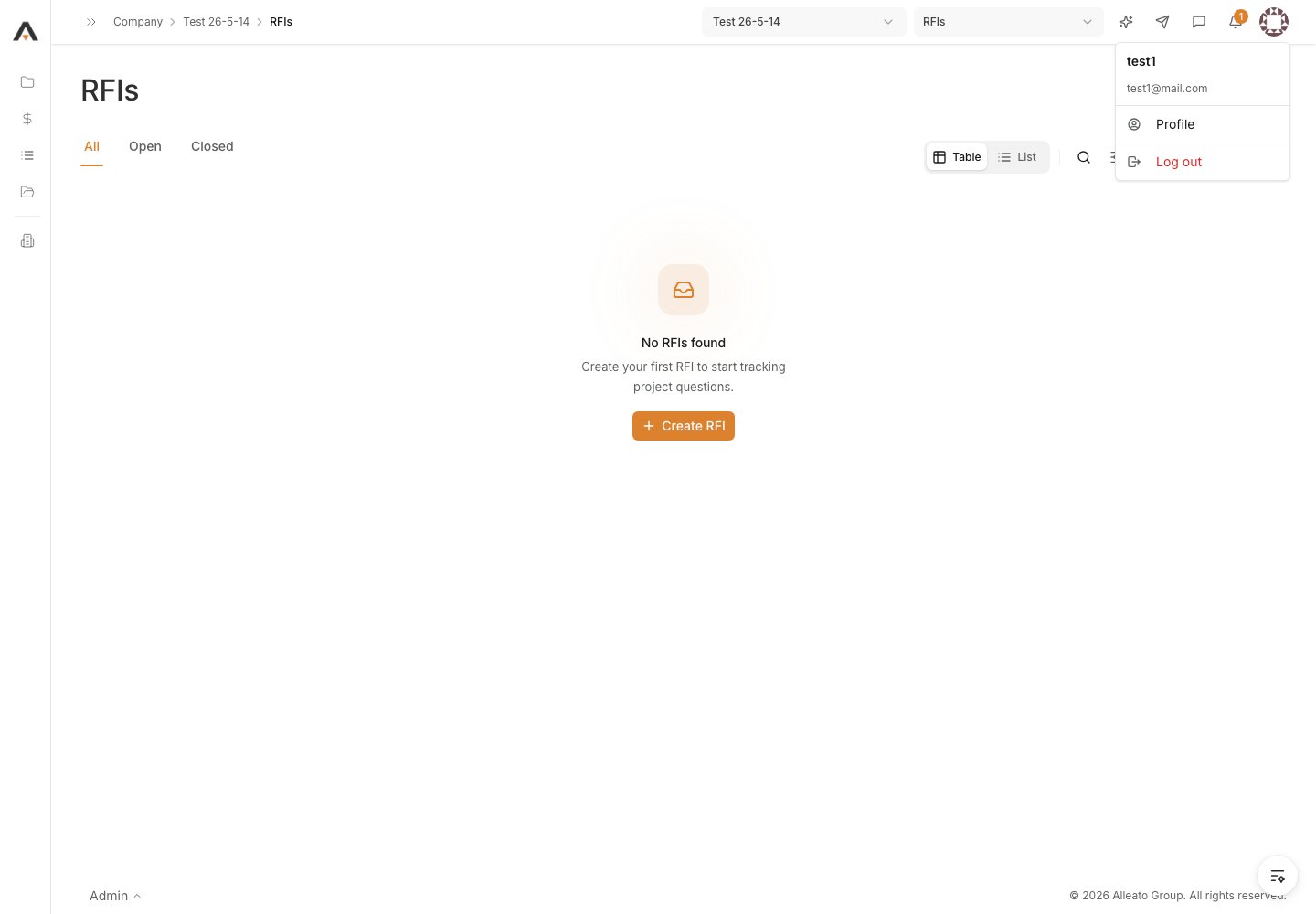
1. Open the RFI
From the project’s RFIs log, select the RFI you want to close to open its detail page. Expected result: The RFI detail page loads showing the General Information panel with the RFI #, Status, Subject, and Question.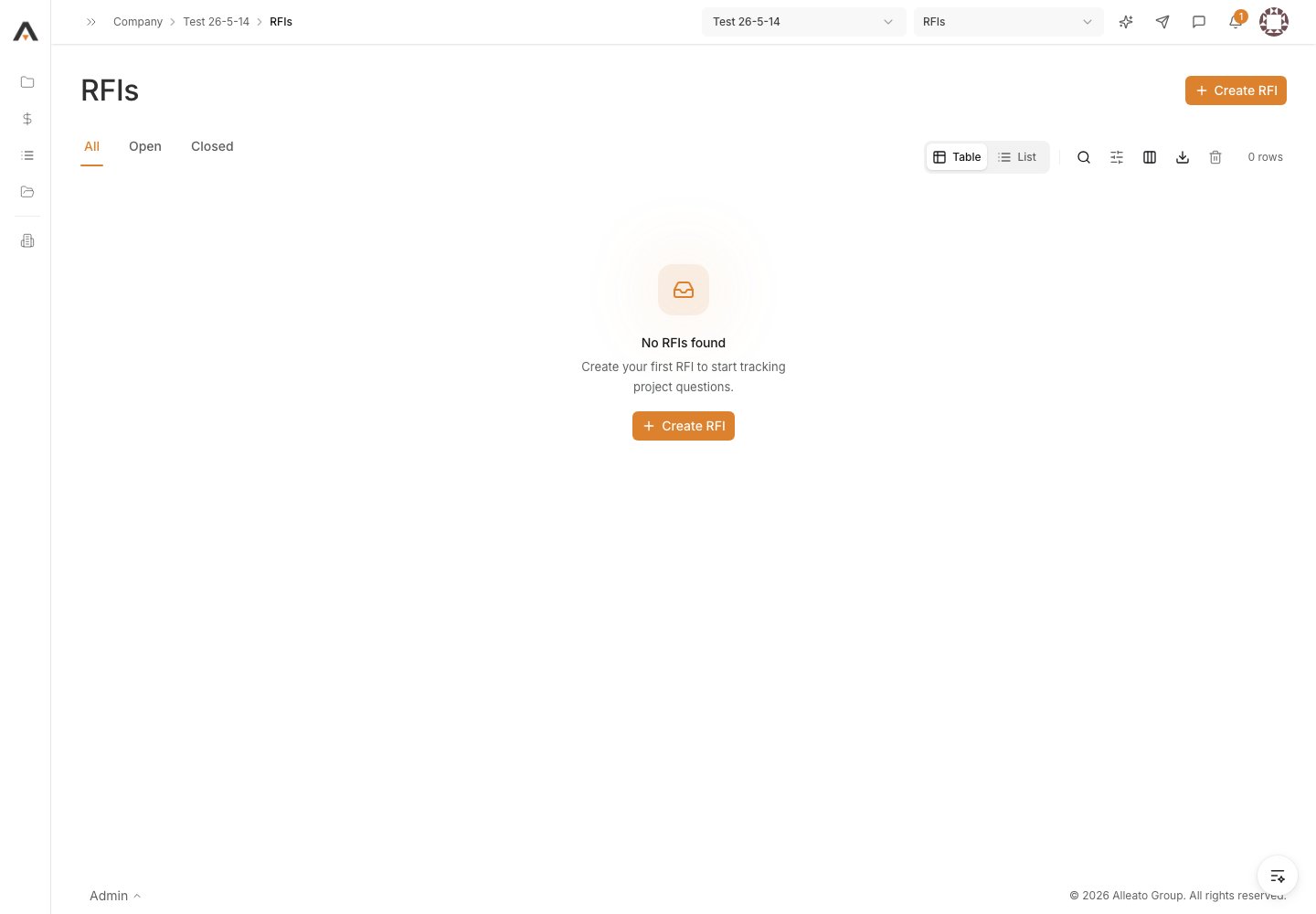
2. Confirm an answer is on record
Scroll to the Responses section and confirm the assignee’s answer is present, and check the Formal Responses for one marked Official if you require an answer of record. Expected result: You can see the response text and know the RFI has been answered before you close it.
3. Open the actions menu
In the page header, open the overflow (three-dot) actions menu next to the Create Change Event button. Expected result: The menu opens with Edit, Delete, and a status action.
4. Select Close RFI
When the RFI status is Open, the status action reads Close RFI. Select it. Expected result: The status updates to Closed and the Closed Date field on the detail page is populated.
5. Verify notification
Closing the RFI sends a close notification to the resolved recipients (assignees, distribution list, RFI manager). This send is best-effort: a failed email surfaces as a non-blocking warning and does not undo the close. Expected result: The RFI shows Closed and the project team is notified that an answer is available; if email could not be sent you see a warning, not an error.
6. Reopen if needed
If the RFI was closed in error, reopen the actions menu — the status action now reads Reopen RFI. Select it to return the RFI to Open. Expected result: The status returns to Open and the RFI can accept further responses again.