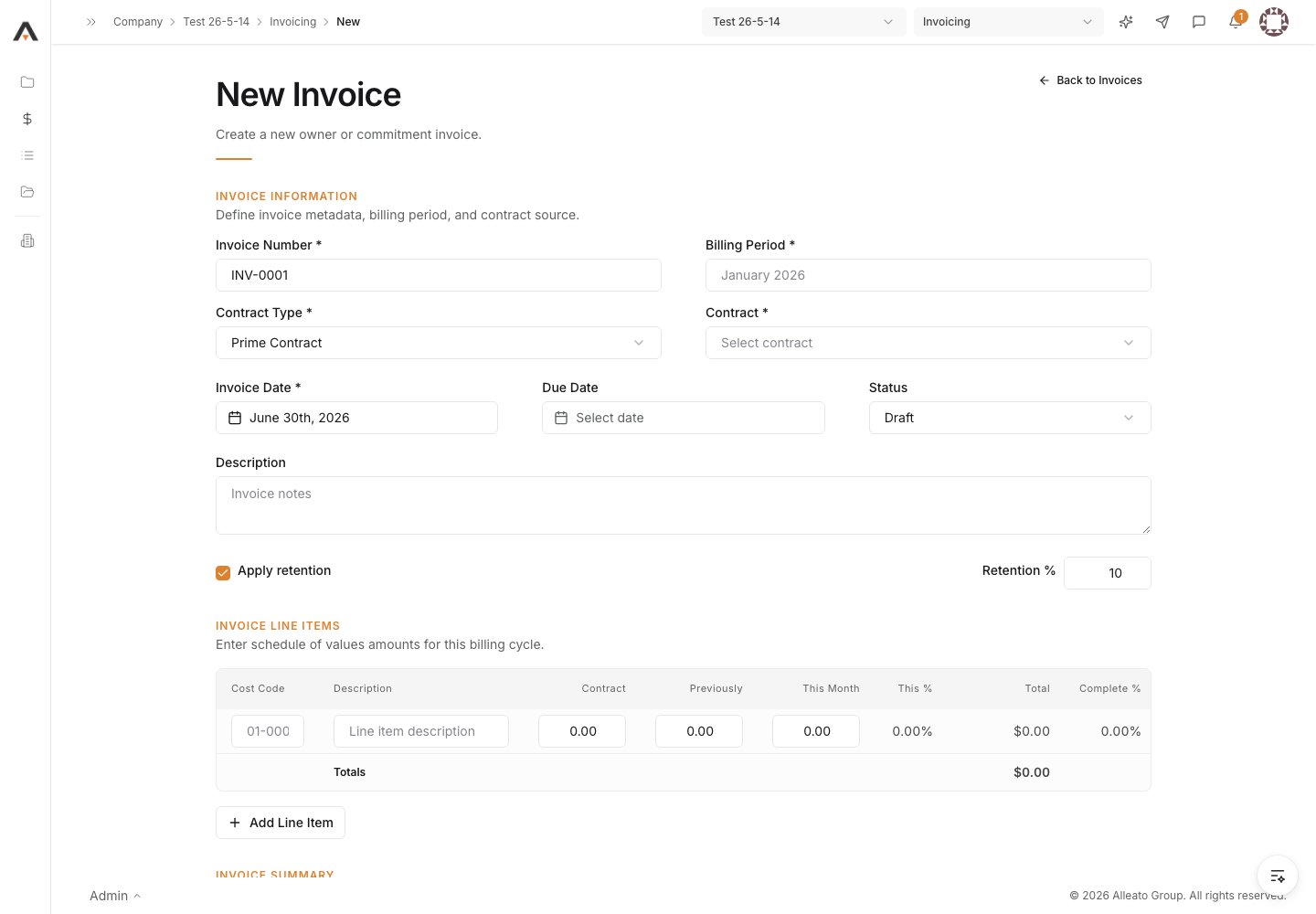
1. Start a new invoice
Start a new subcontractor invoice. When you launch it from the commitment, the commitment is already selected; otherwise, in the picker choose the Commitment Type (Subcontract or Purchase Order) and the Contract. Expected result: The Create New Invoice form opens and the commitment’s Schedule of Values loads.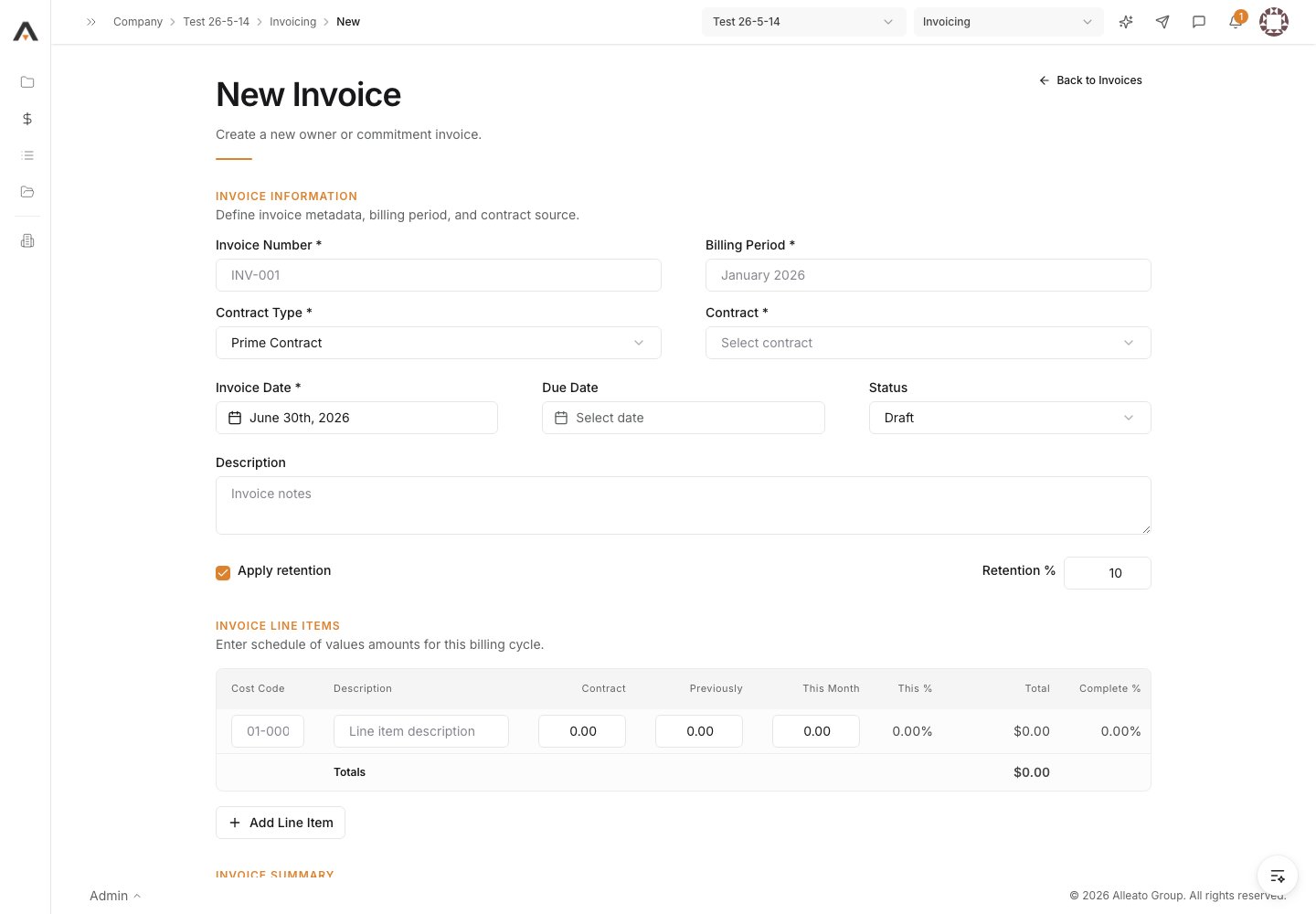
2. Enter the invoice header
Fill in Period Start, Period End, and Billing Date. Enter an Invoice # or leave it blank to have one auto-assigned. Expected result: The billing period and invoice number are set.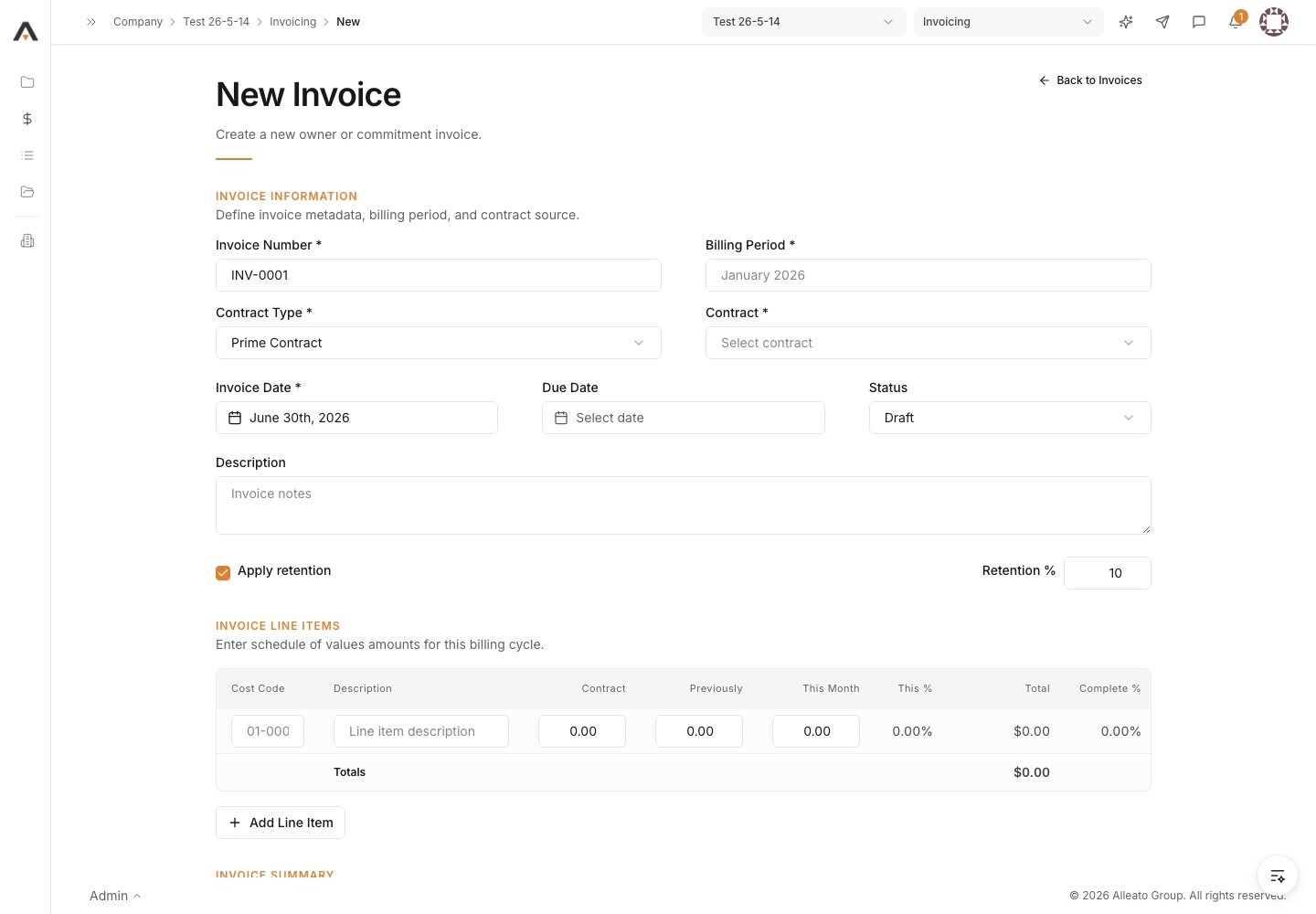
3. Bill the schedule of values
Under Complete Schedule of Values, each SOV line shows its Value and From Previous Application. Enter the amount billed this cycle in From This Period and any Materials Presently Stored for each line. Expected result: The line-level and Total rows update to reflect this period’s billing.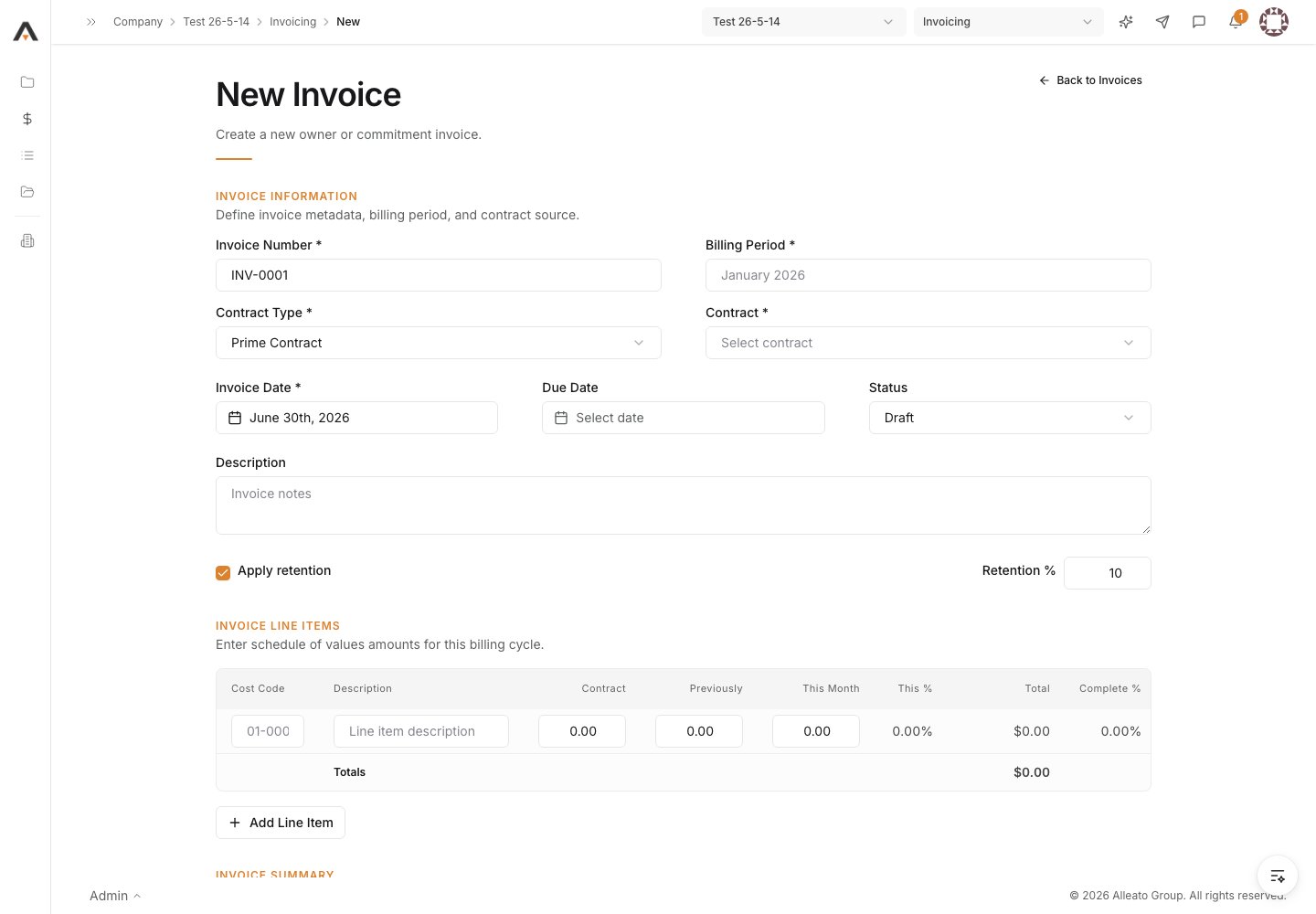
4. Bill approved change orders
Under Approved Commitment Change Orders, enter From This Period and Materials Presently Stored for any approved change order being billed. Only approved commitment change orders appear here. Expected result: Billed change-order amounts roll into the invoice totals.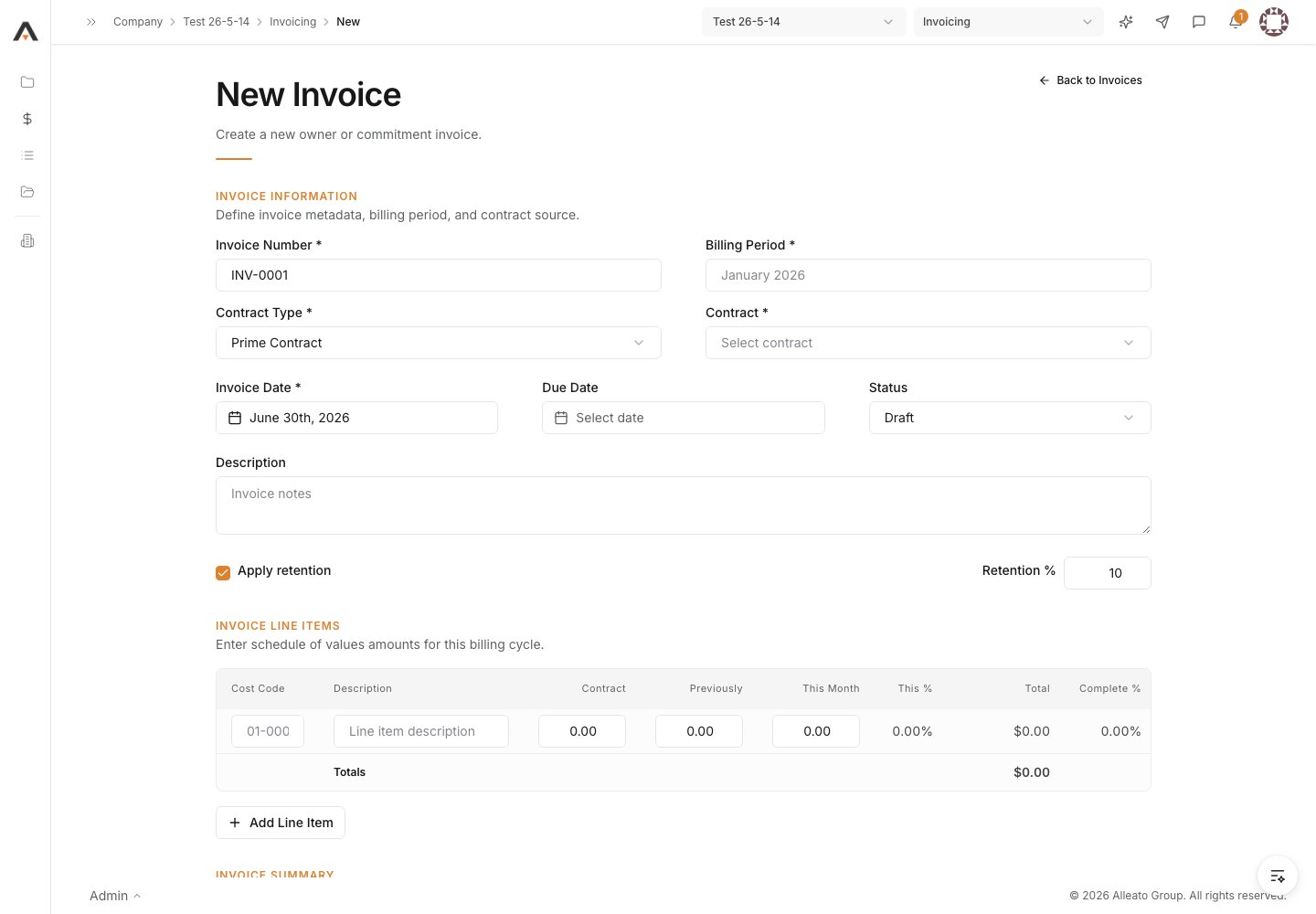
5. Save a draft (optional)
To keep the invoice in progress, select Save as Draft. Files can be attached after the invoice is saved. Expected result: The invoice is saved in Draft status and you can return to it later.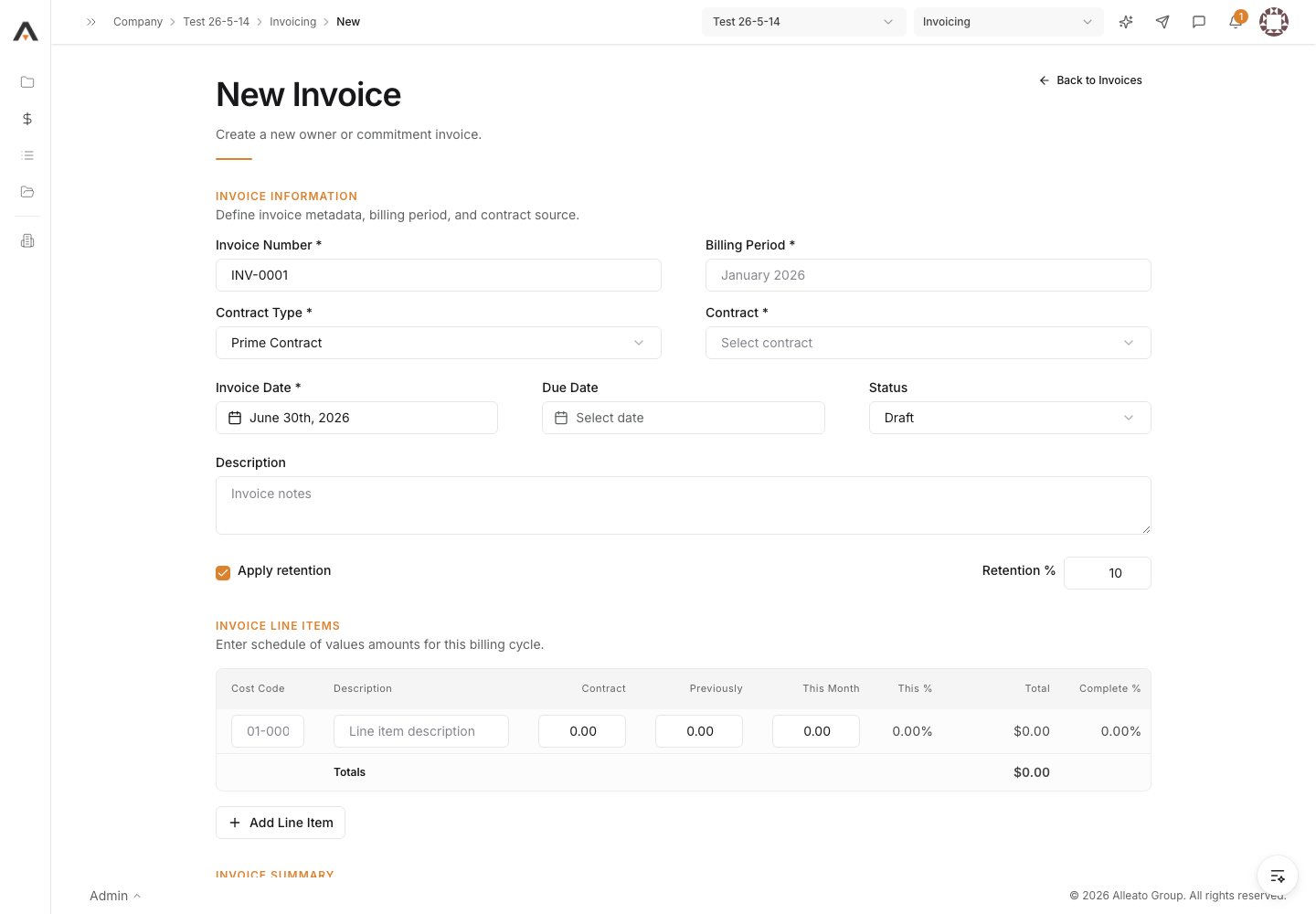
6. Submit for approval
When the invoice is complete, select Submit. Expected result: A confirmation appears, the invoice moves to review, and you land on the saved invoice record.