1. Open the Budget
Select the project in the header, then open Budget from the project sidebar. Expected result: The budget table loads, grouped by cost code and category.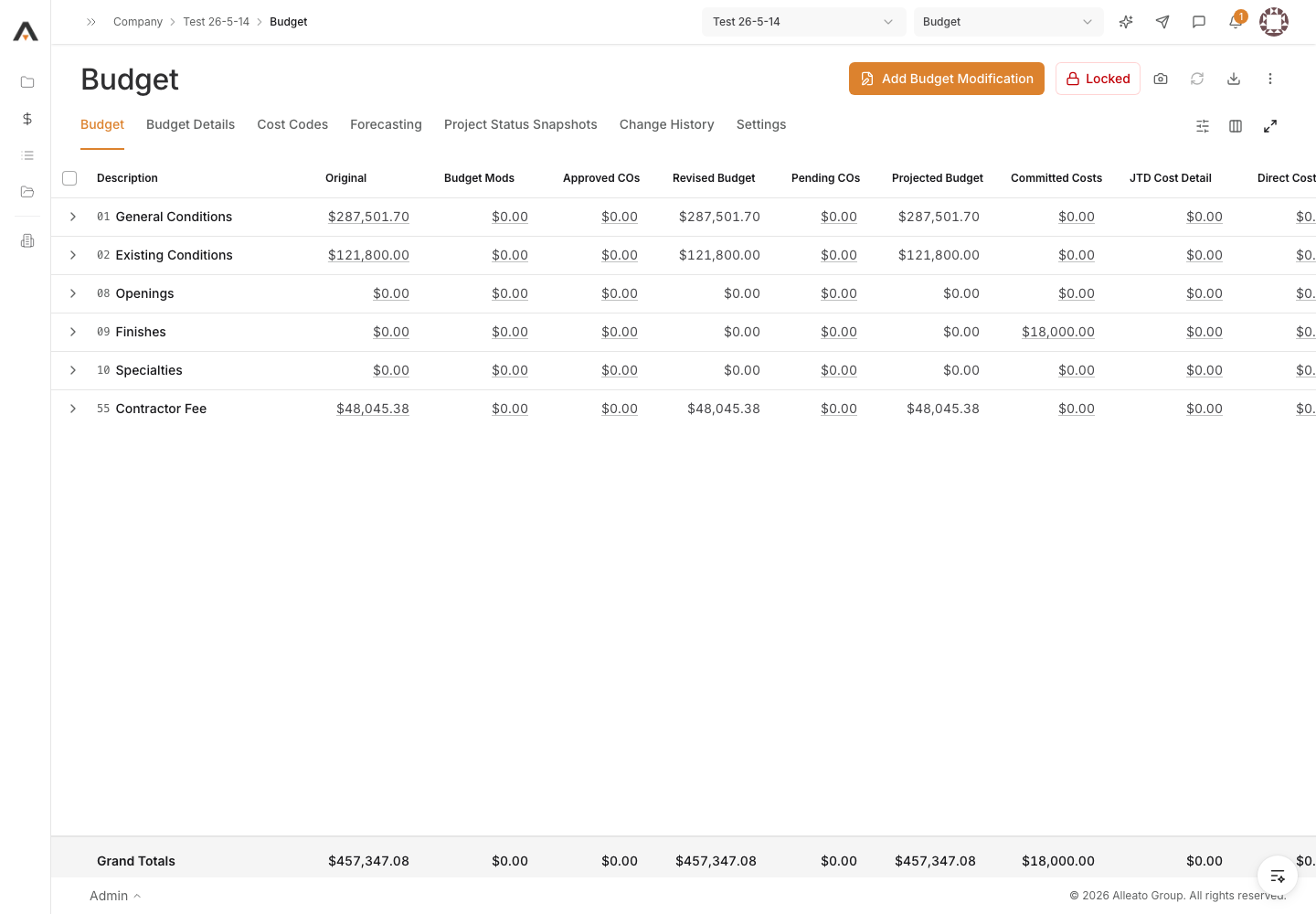
2. Start a new line item
Open the Create menu in the budget header and choose Budget Line Item. If the budget is locked, unlock it first — line items cannot be added while the budget is locked. Expected result: The Create Budget Line Items page opens with an empty line item row.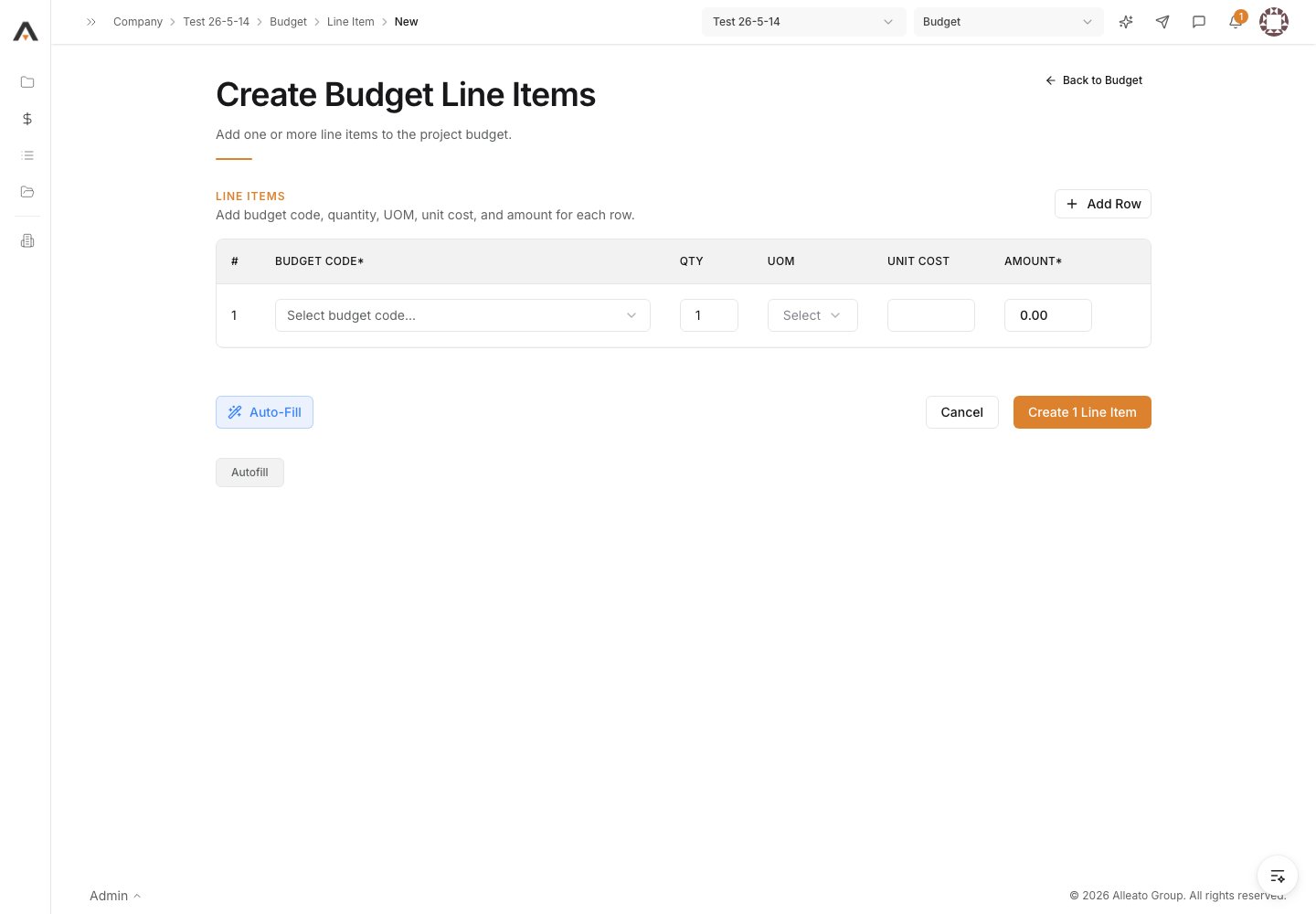
3. Select the Budget Code
In the Budget Code column, pick a budget code from the project’s list. If the code you need is not there, choose to create a new one and select a Cost Code and Cost Type in the Create New Budget Code dialog. Expected result: The selected budget code appears in the row.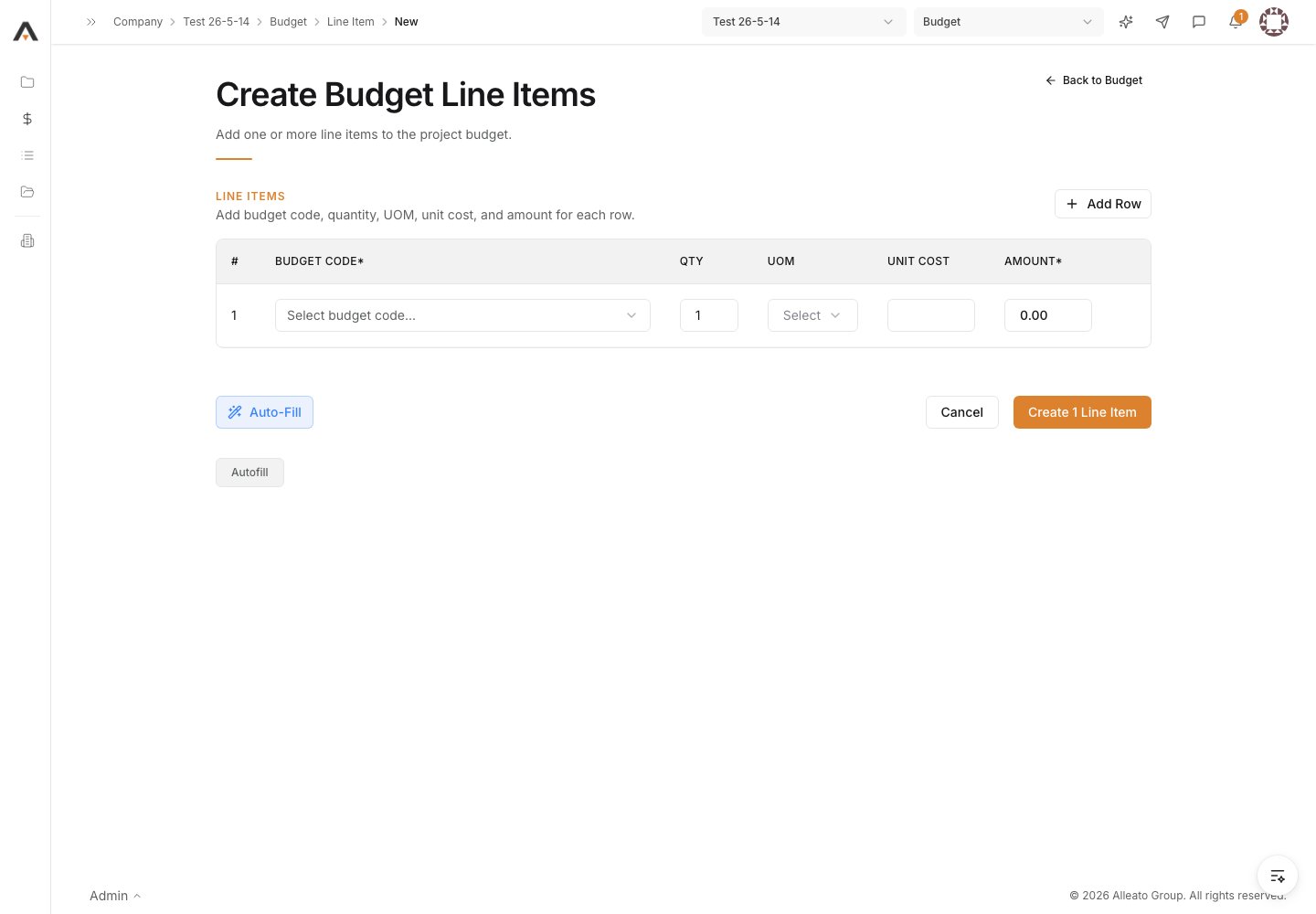
4. Enter the amounts
Fill in Qty, UOM, and Unit Cost for the row. The Amount is calculated automatically from quantity times unit cost, and can be overridden directly. Expected result: The Amount field reflects the entered values and is non-zero.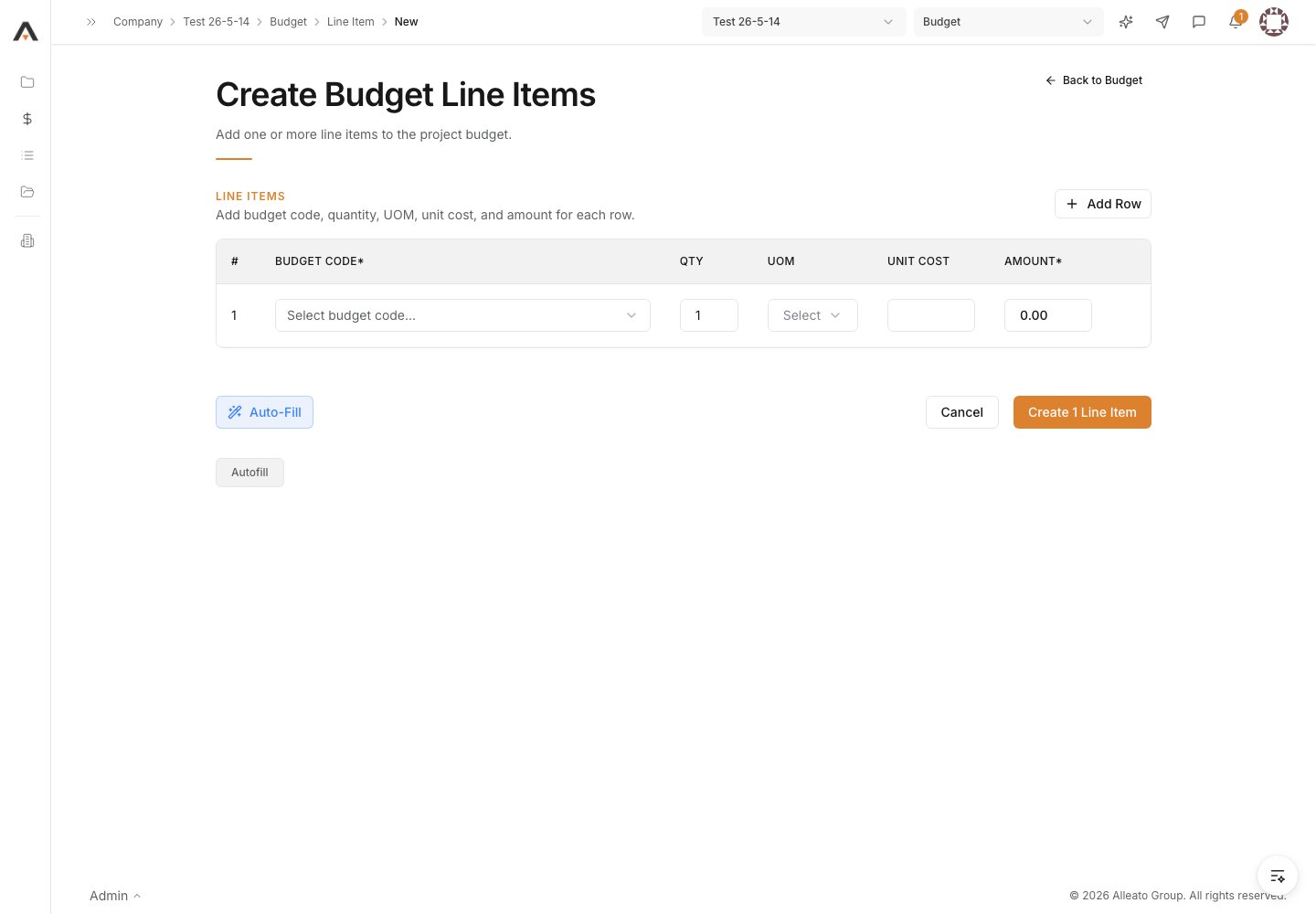
5. Add more rows if needed
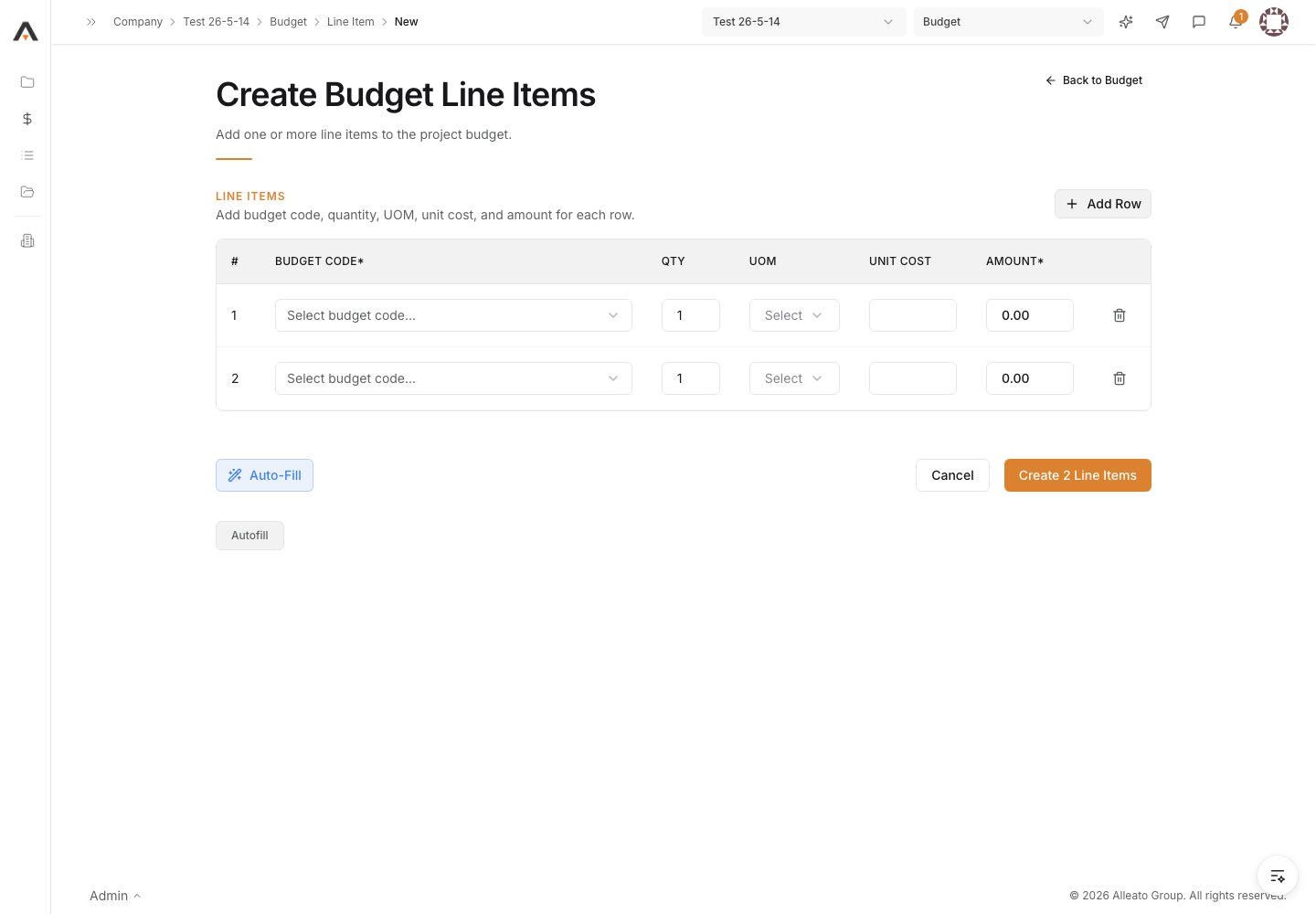
Select Add Row to add additional line items, and repeat the budget code and amount entry for each. Each row needs a budget code and a non-zero amount. Expected result: One row exists per line item you intend to create.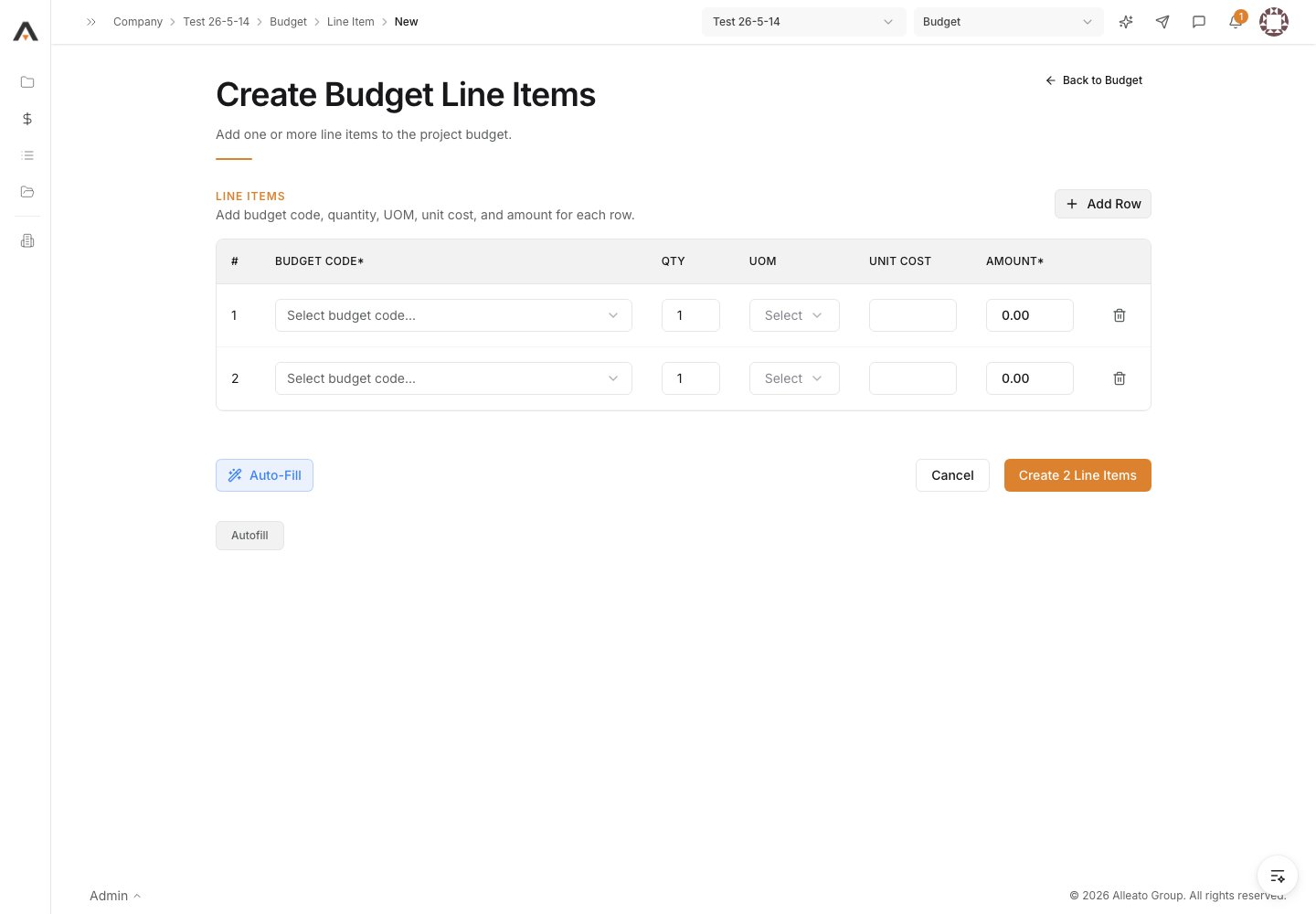
6. Create the line items
Select the Create … Line Items button to submit. Expected result: The line items are saved and you return to the Budget table, where the new lines appear with their cost codes and amounts.