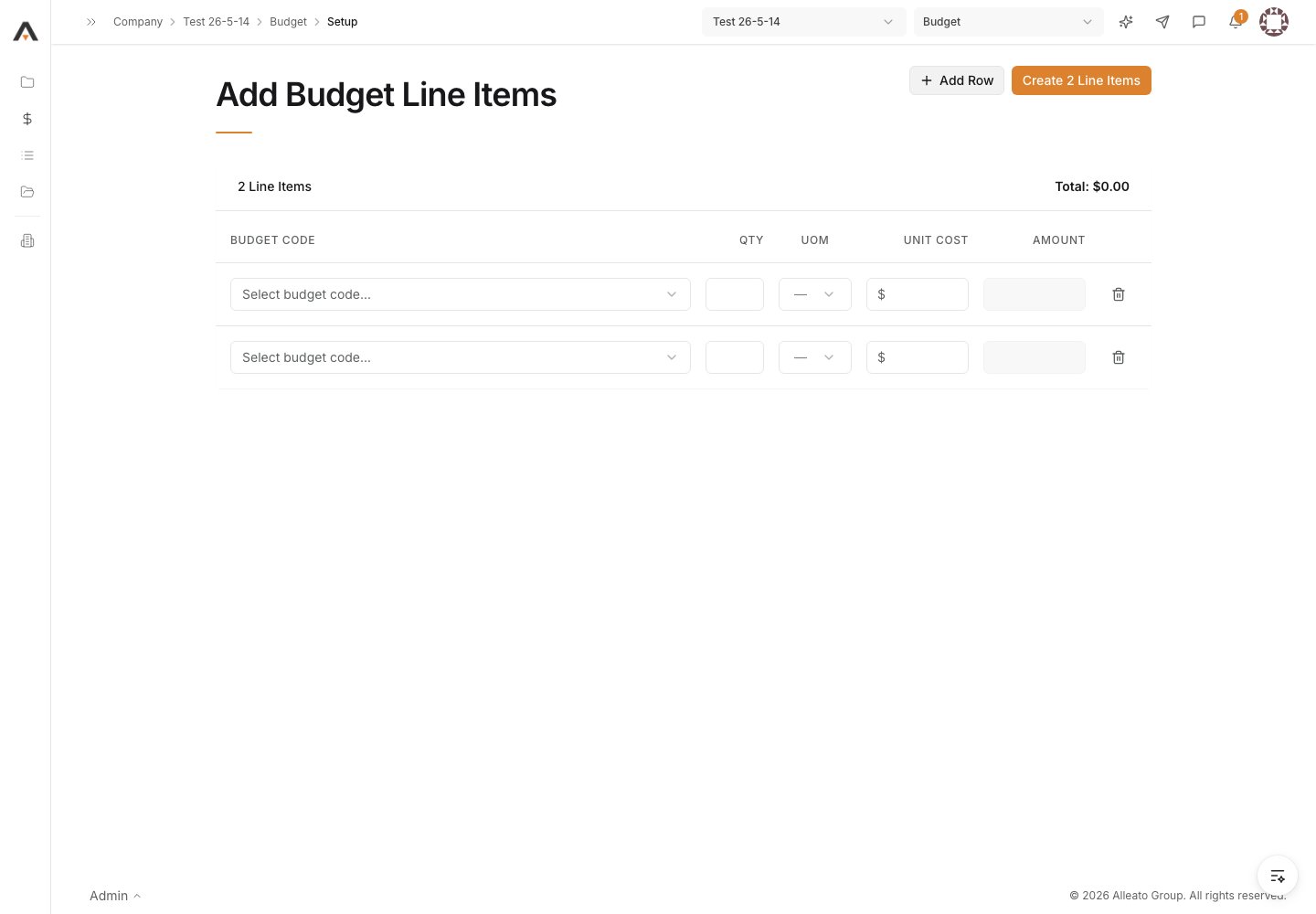
1. Open budget setup
From the project, go to the budget setup page. The Add Budget Line Items page loads the project’s active cost codes. Expected result: The setup page opens with an empty line item row and the project’s cost codes available.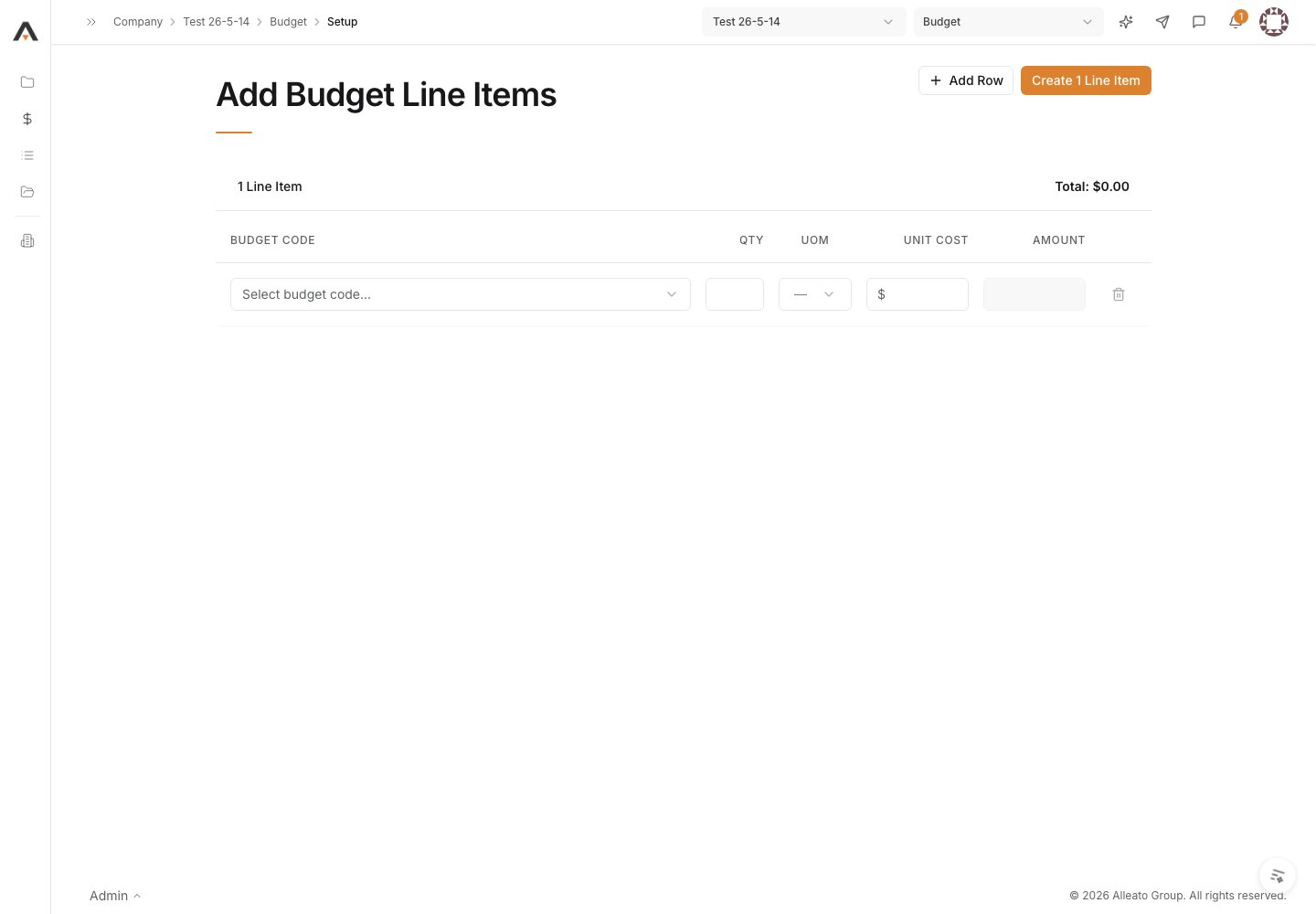
2. Select a budget code
In the first row, select a budget code from the project’s active cost codes. If the code you need does not exist, create a new budget code and it becomes available for selection. Expected result: The chosen budget code appears in the row.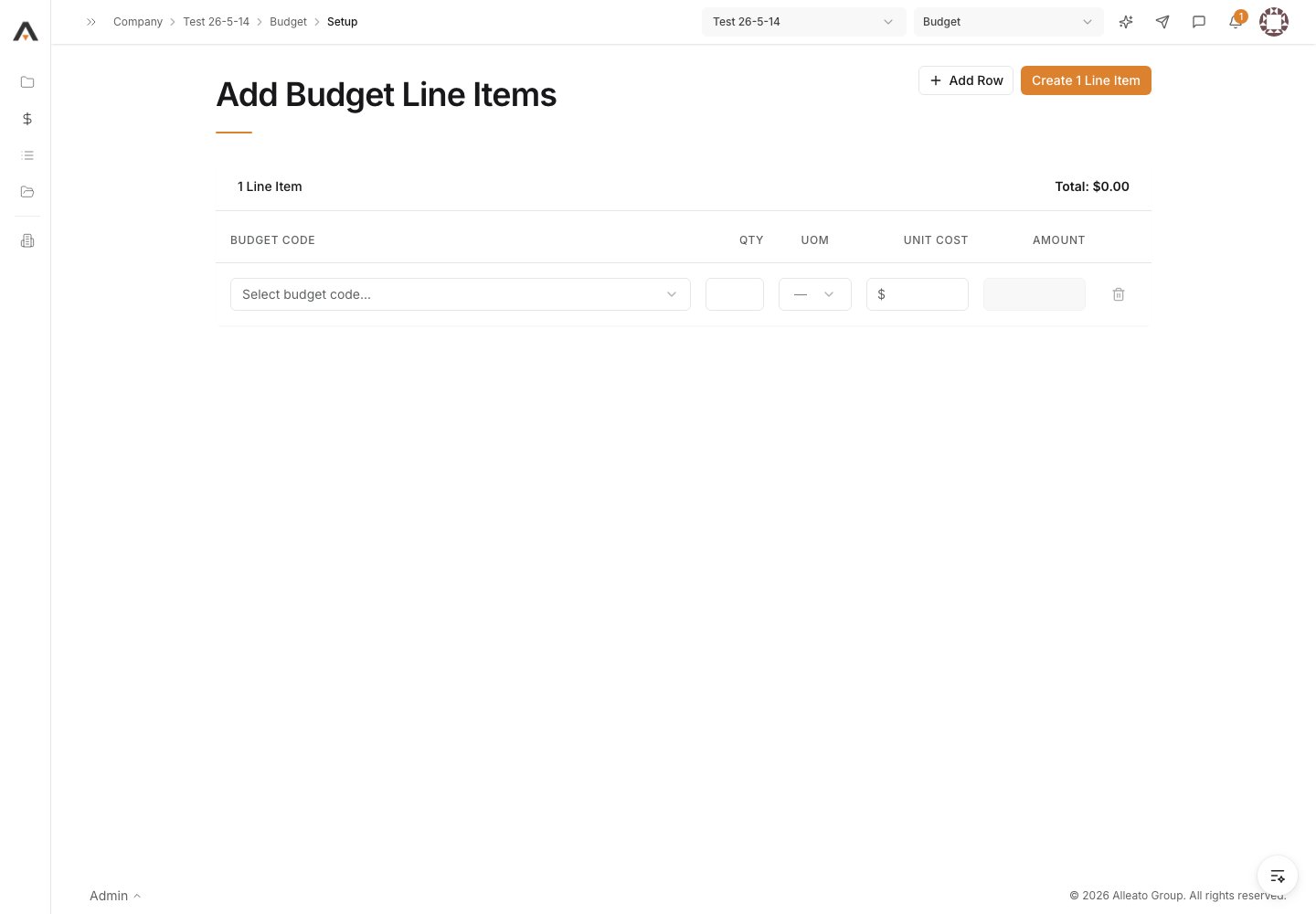
3. Enter the line amounts
Fill in the quantity, unit of measure, and unit cost for the row. The amount is calculated automatically from quantity times unit cost. Expected result: The row shows an amount based on your entries.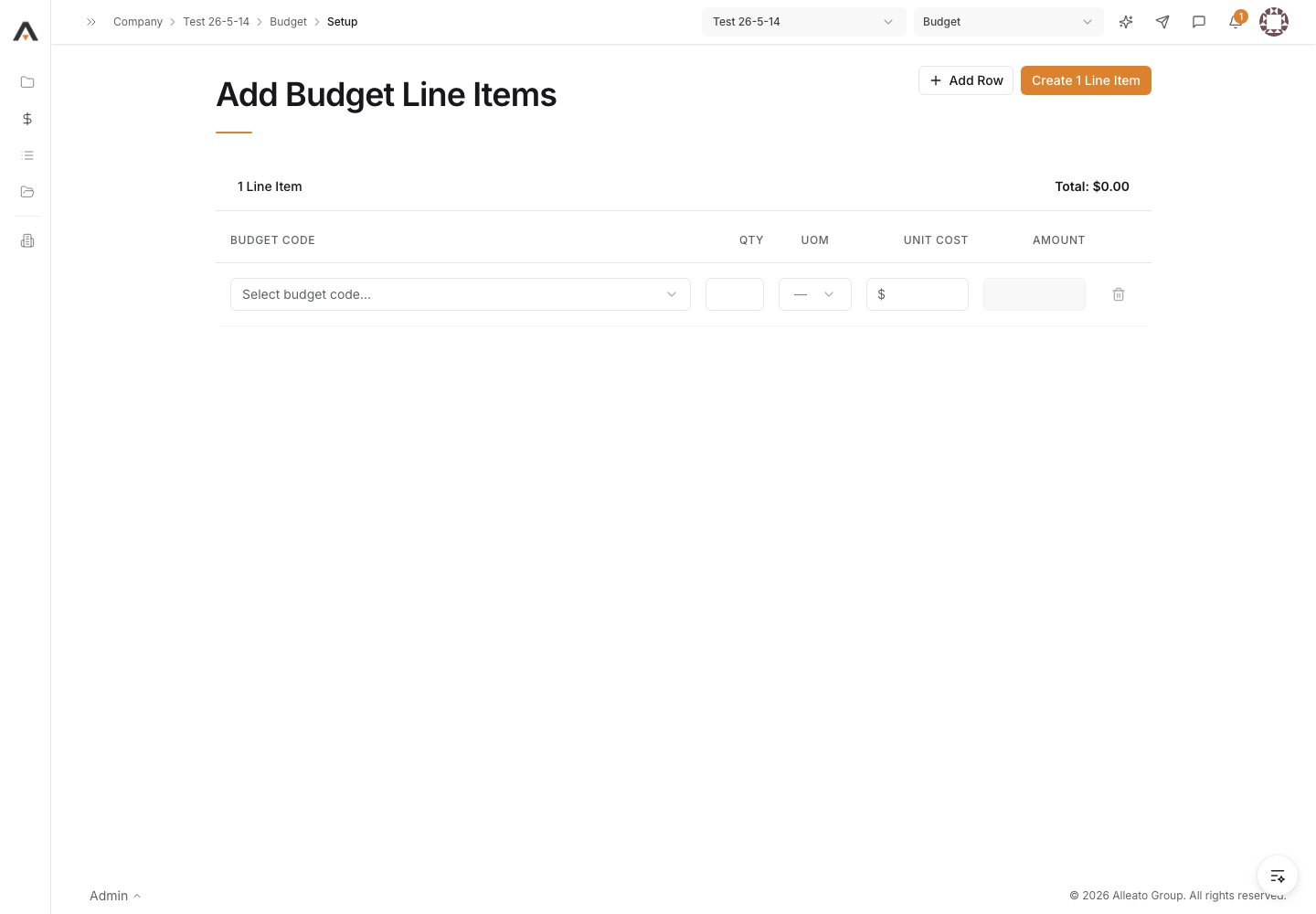
4. Add a row for each budget line
Select Add Row and repeat budget-code selection and amount entry for every cost line the budget should contain. Expected result: One row exists for each budget line, each with a selected budget code.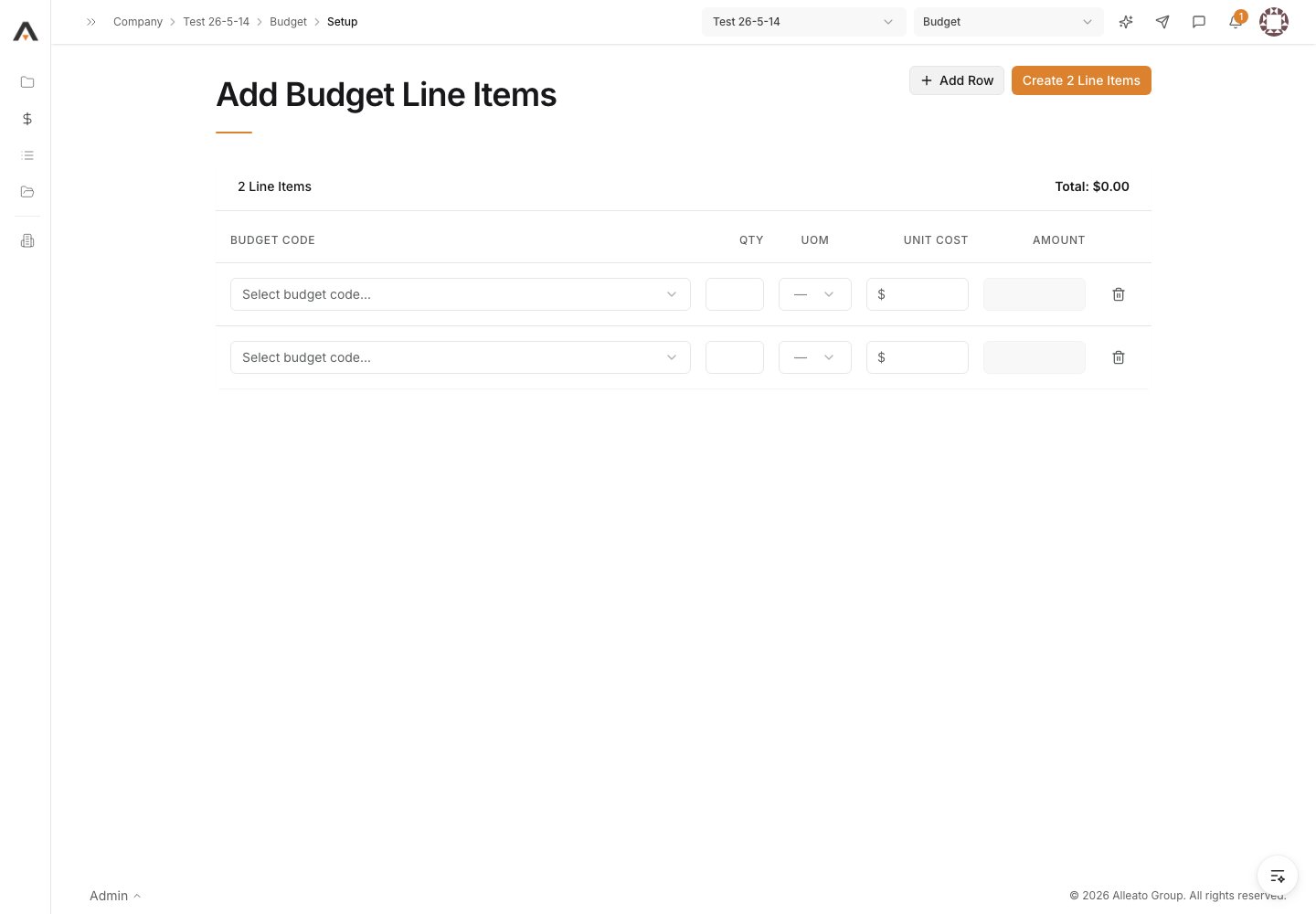
5. Create the budget lines
Select the Create … Line Item(s) button to submit. Every row must have a budget code selected, and every selected code must have a cost type. Expected result: The budget lines are created and you return to the Budget table showing the new lines.