This guide explains how to turn one or more approved Potential Change Orders (PCOs) into an official, owner-facing change order.

1. Confirm the PCOs are ready

A change order must be assembled from PCOs that have been priced and approved. Open the source change events and PCOs and confirm pricing is final, because no further cost edits should happen on an item once it has been approved. Expected result: Every PCO you intend to include is approved with final pricing.

2. Open the change orders area

Select the project, then open Change Orders from the sidebar. Use the Prime tab for owner change orders and the Commitment tab for subcontract/vendor change orders. Expected result: The change orders log opens on the correct tab for the contract you are amending. The Change Orders tool
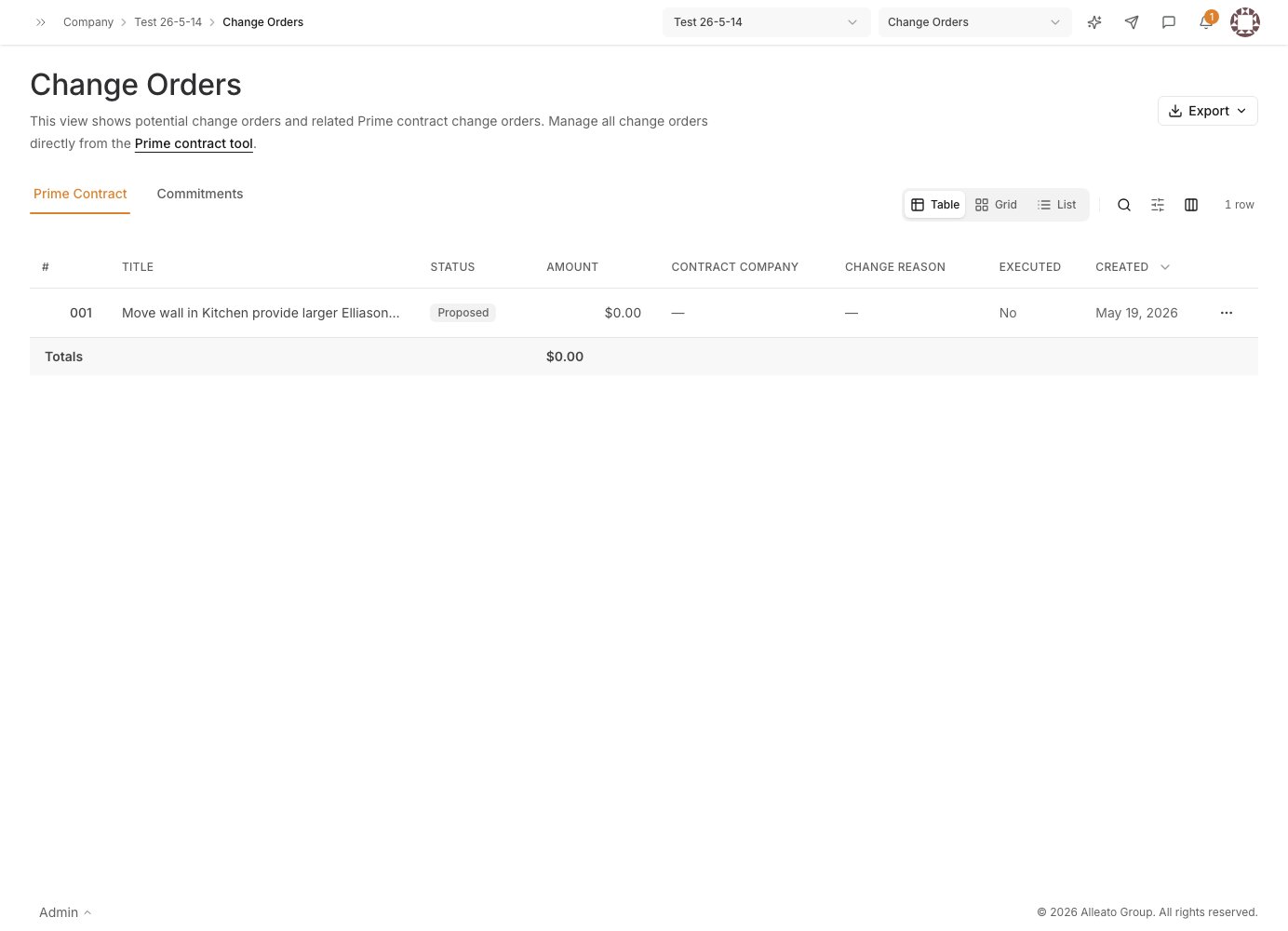
3. Start the change order

Start a new change order to open the New Prime Contract Change Order form. Use the Potential Change Orders picker to select the approved PCO(s) to bundle into this change order. Expected result: The selected PCOs appear on the form and their amounts roll up into the change order total. The New Prime Contract Change Order form
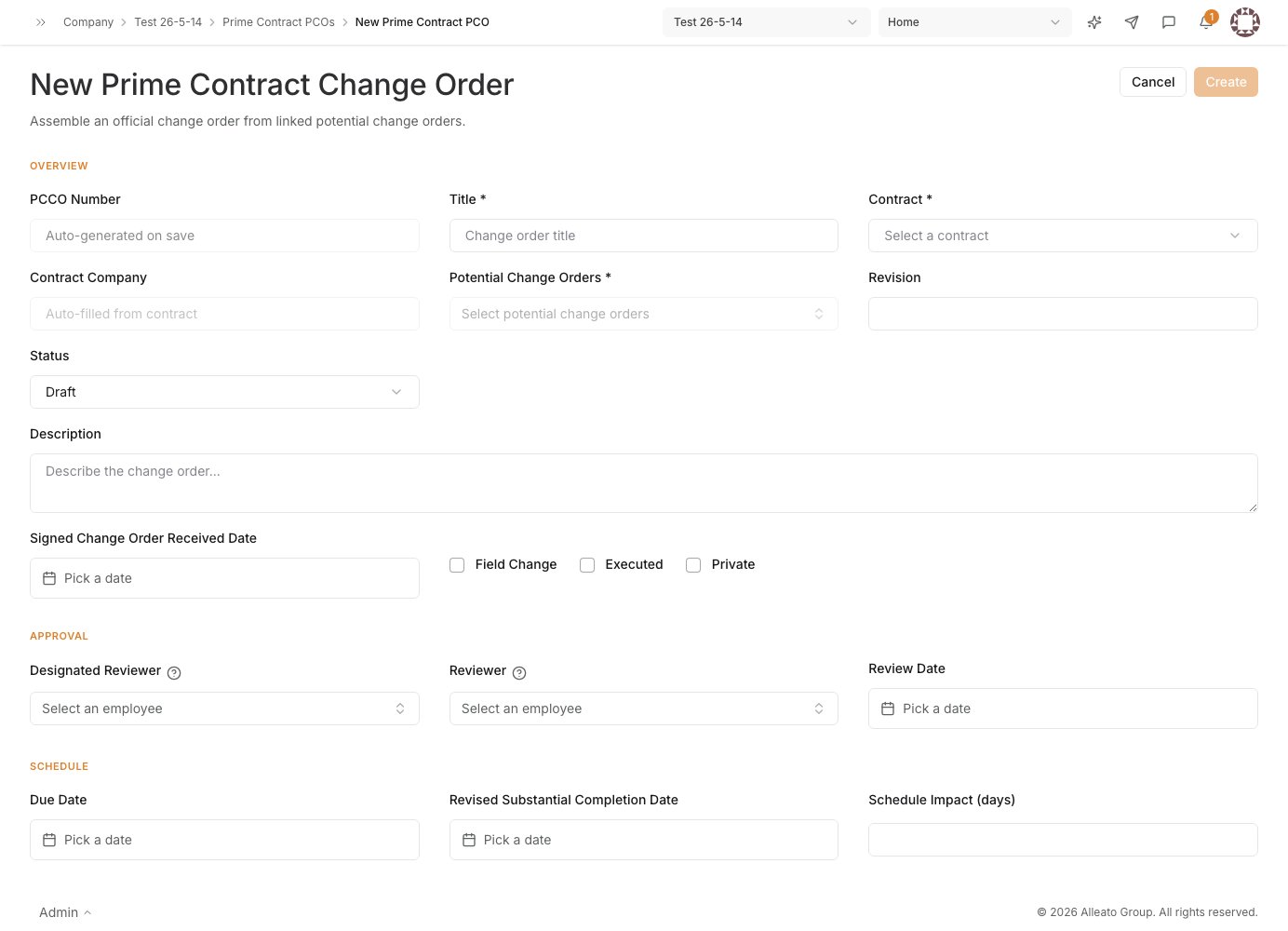
4. Complete the change order header

Enter the CO Number, Title, Description, and Effective Date. Review the line items and the total value pulled from the selected PCOs. Expected result: The change order header and line items are complete and the total matches the source PCOs.

5. Save the draft

Set the Amount, Revision, and Status as needed, then save. The change order starts in Draft status for internal preparation. Expected result: A change order record is created in Draft status.

6. Generate the PDF and route for signature

Open the change order record and select Generate PDF to produce the formatted change order with cover sheet, line items, and signature block. Send the PDF to the owner for countersignature. Expected result: A signed-ready change order PDF is produced and sent to the owner.

7. Approve and close

When the owner signs, advance the status to Approved. The approved amount flows into the Approved Changes column on the budget, the Revised Budget updates on affected cost codes, and the prime contract total updates. Expected result: The change order is Approved and the budget and prime contract totals reflect the change.