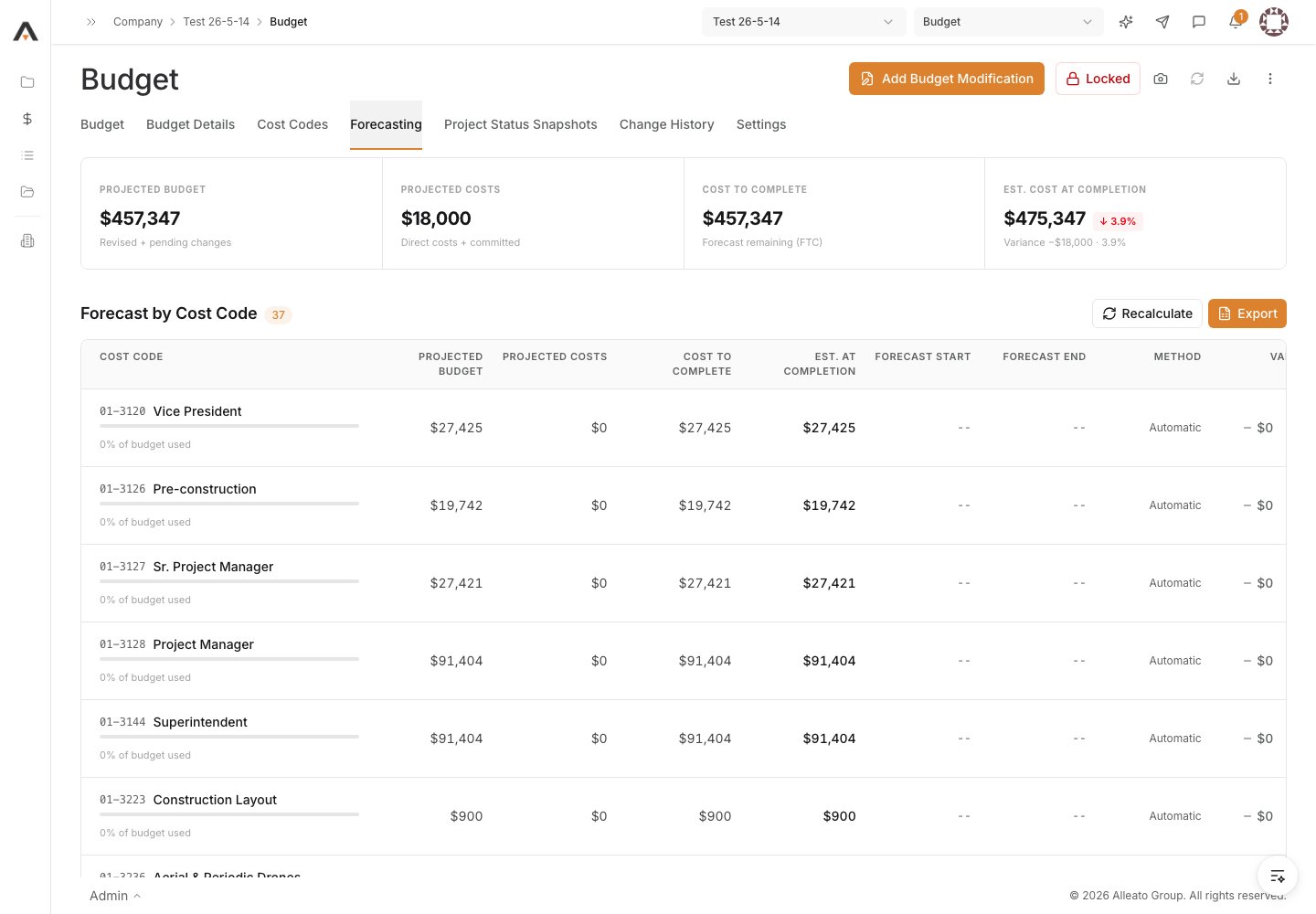
1. Open the Budget
Select the project, then open Budget from the project sidebar. Expected result: The budget table loads with its line items and the Forecast to Complete column.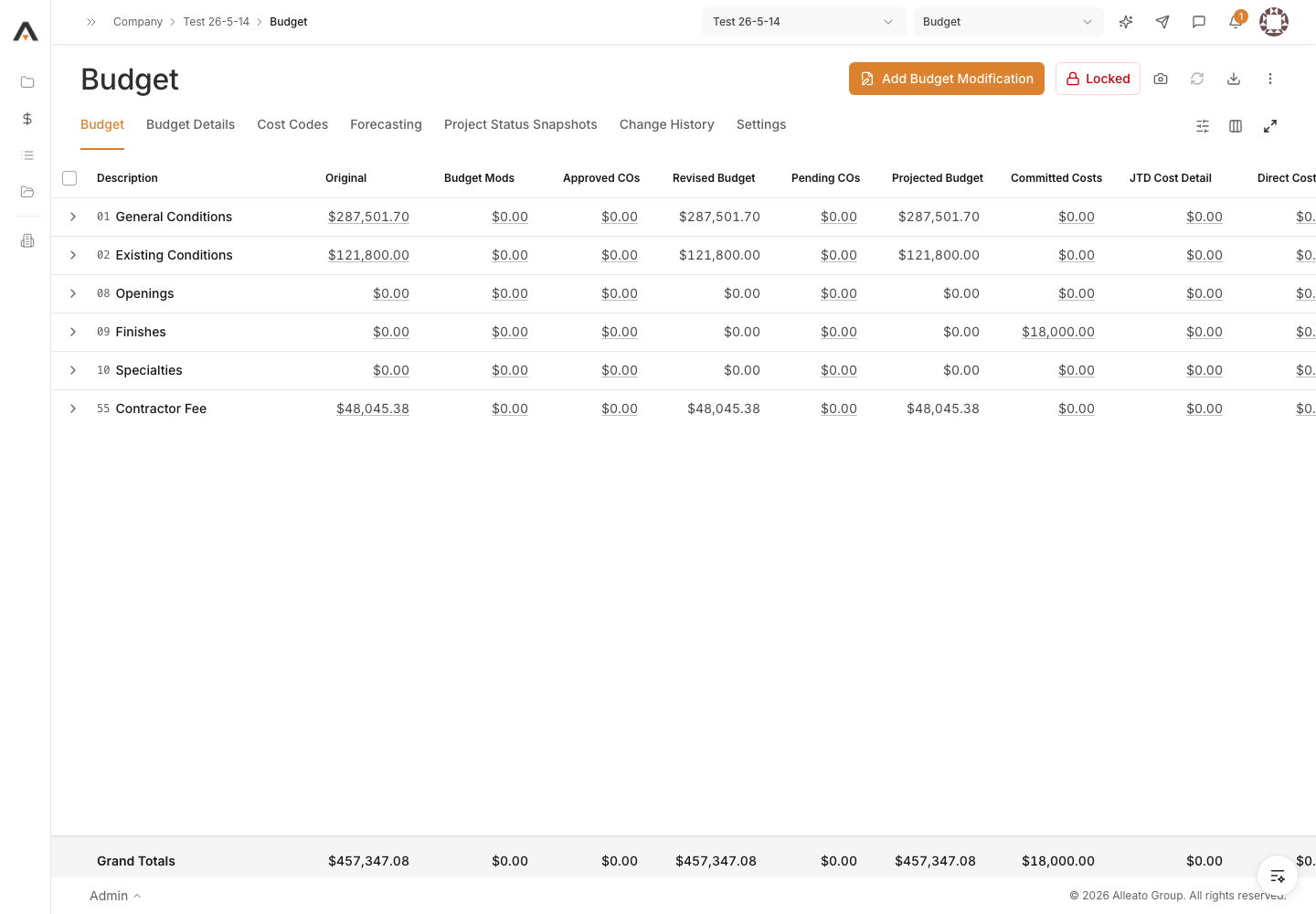
2. Open the line’s forecast
On the budget line you want to forecast, open its Forecast To Complete. Expected result: The Forecast To Complete dialog opens for that line.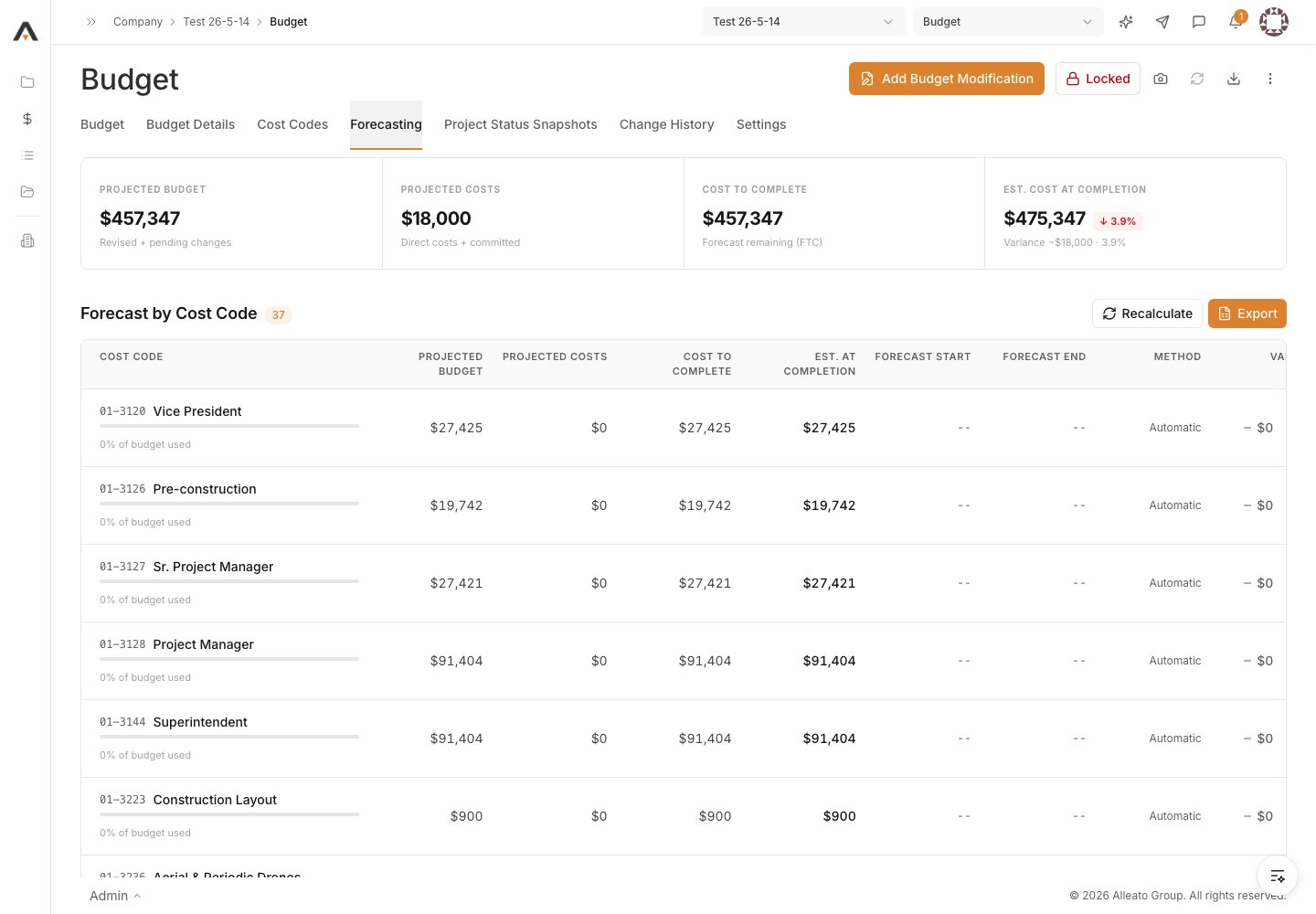
3. Choose a forecast method
Select one of the methods: Automatic Calculation (Projected Budget minus Projected Costs), Lump Sum Entry (a fixed amount to complete), Manual Entry (build the forecast from editable line items), or Monitored Resources (track time-phased resources with drawdown). Expected result: The editor shows the inputs for the method you selected.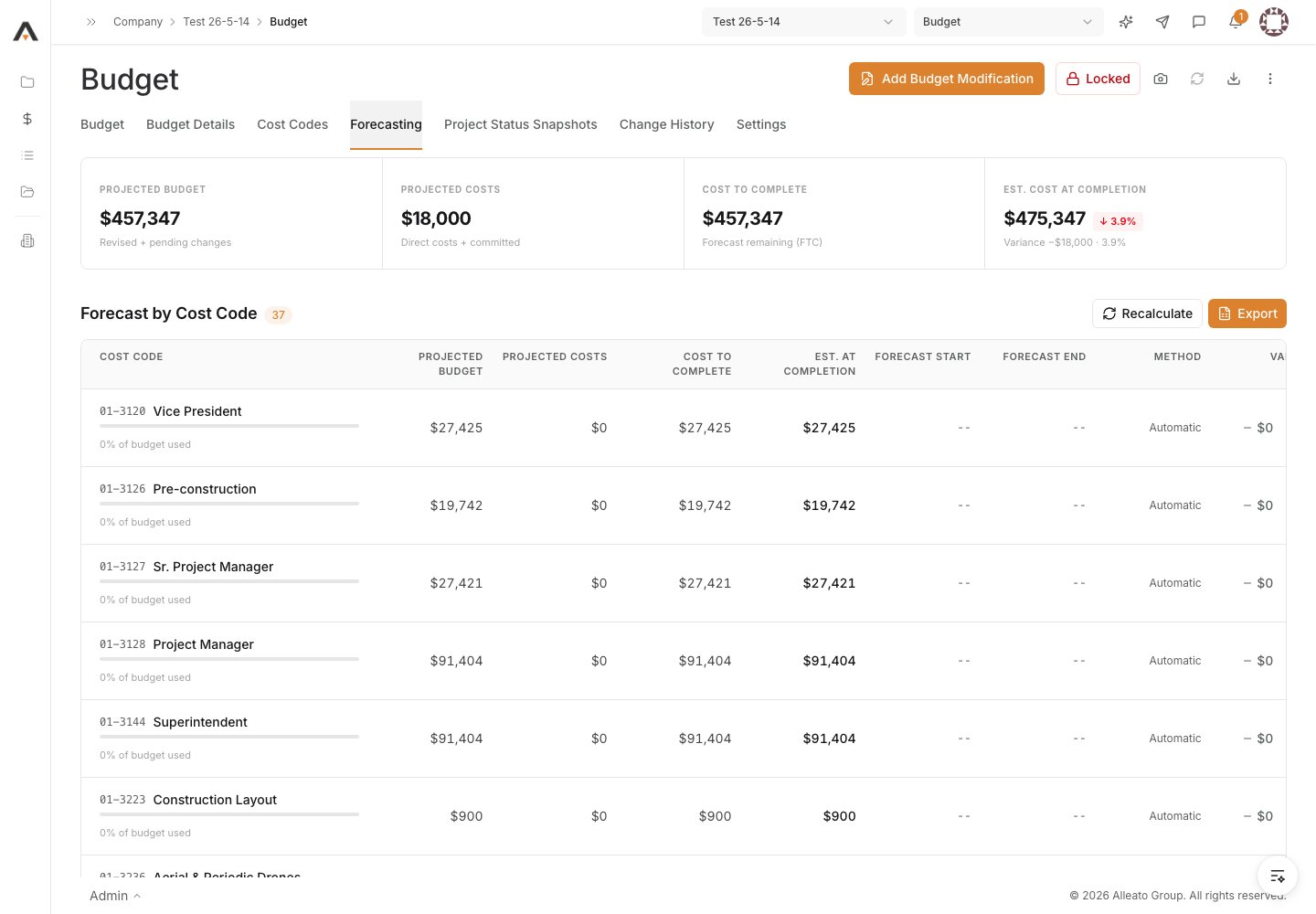
4. Enter the forecast detail
For Lump Sum Entry, enter the Forecast Amount. For Manual Entry or Monitored Resources, add and complete the forecast line items. Automatic Calculation needs no manual input. Expected result: The Forecast To Complete total at the bottom of the dialog updates to match your entries.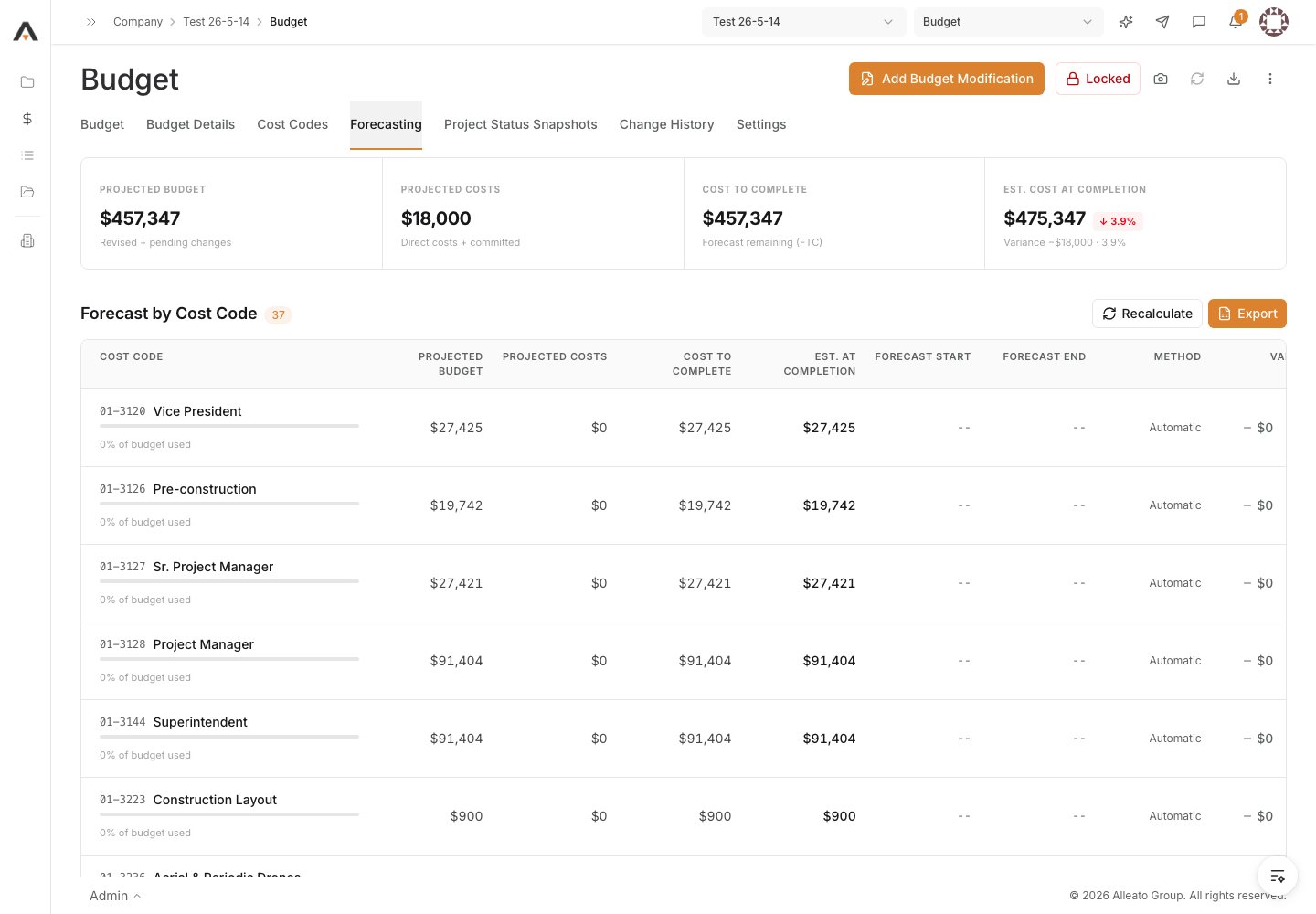
5. Add notes (optional)
Use the Notes field to add context for this forecast. Expected result: Your note is captured with the forecast.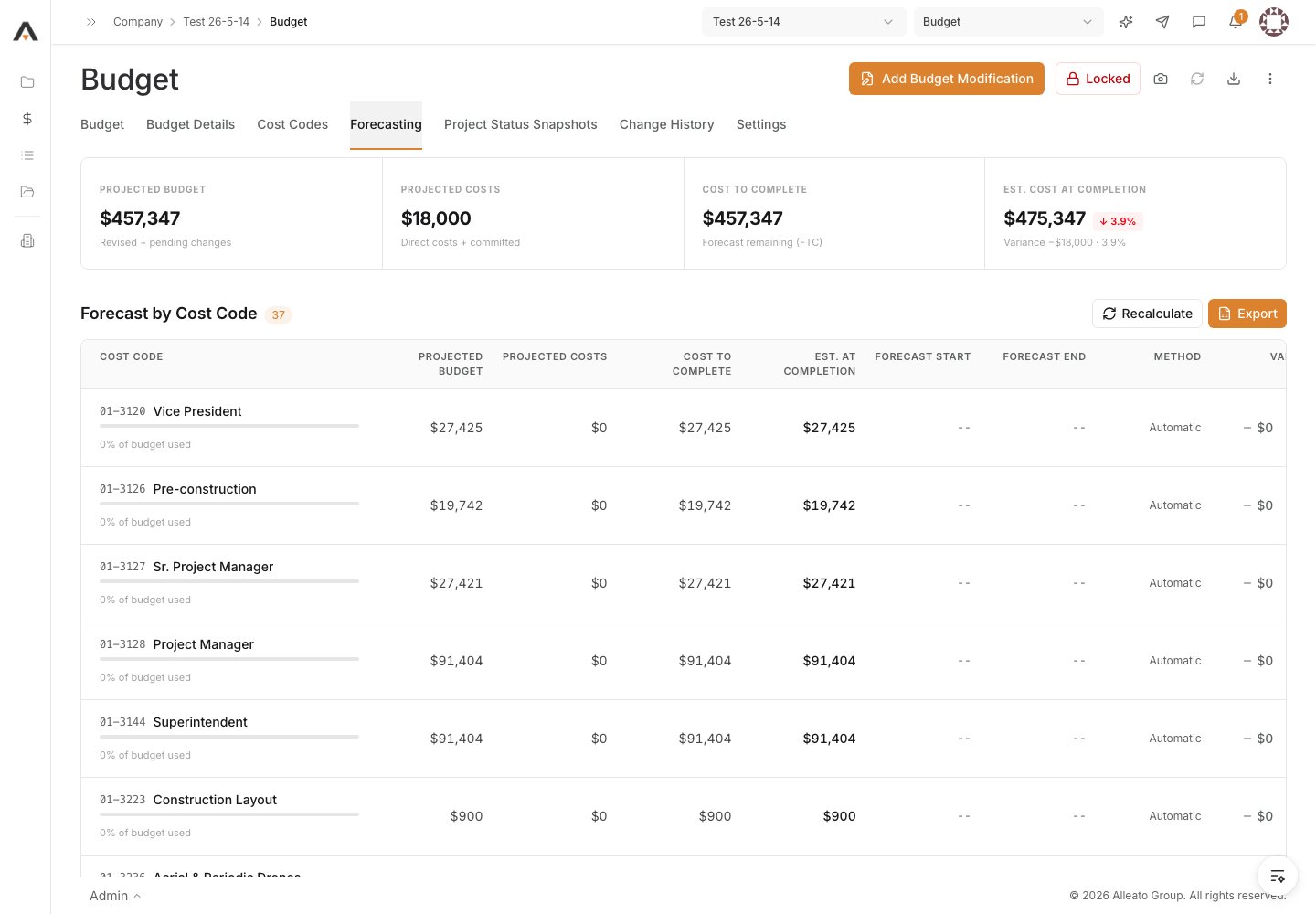
6. Save the forecast
Select Save. Expected result: The line’s forecast method and Forecast to Complete are saved, and the budget table reflects the updated forecast. Saving the forecast requires Budget Write permission and an unlocked budget.