Ask Ask Alleato to find information across emails, Teams messages, meetings, documents, and project records in one place.

1. Open the assistant

Open Ask Alleato from the main sidebar, or press ⌘I (Mac) / Ctrl+I (Windows) to open the floating pill from anywhere in the app. The assistant has live access to your projects, financials, schedules, meetings, emails, Teams messages, documents, and accounting data at the same time. Expected result: The chat is ready for your question. The Ask Alleato assistant
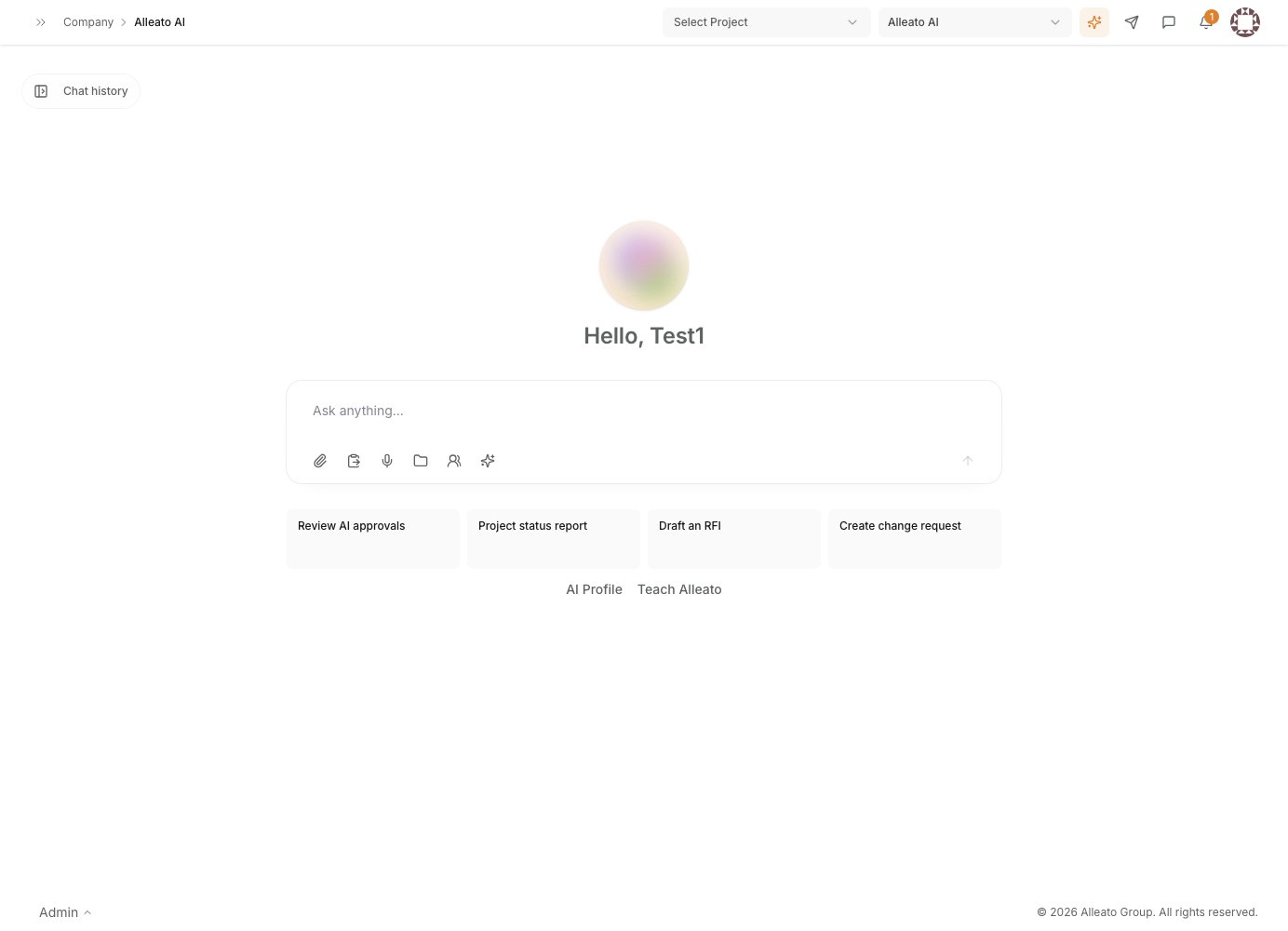
2. Ask your question in plain English

Ask what you want to find — you do not need to select a project or a data source first. For example: “Did Brandon send anything about the steel delivery in the last 10 days?” or “Summarize what happened on the Vermillion Rise job this week.” Expected result: The assistant searches across the relevant sources and returns a single grounded answer.

3. Scope to a project when needed

To focus a search on one project, include it in the question (“on Union Collective…”) or pin the project in the Workspace panel so every follow-up question is automatically scoped to it. Expected result: Answers are limited to the project you specified.

4. Open the citations

Click any citation in the answer to open the underlying meeting, email, document, RFI, line item, or record it came from. Verify before acting on financial or schedule decisions. Expected result: The source record opens so you can confirm the answer against it.

5. Follow up in the same thread

The assistant sees the whole conversation, so you can refine without repeating yourself: “expand on that”, “show me every line”, or “and what about the second project?”. Ask for more detail when you want it — the assistant defaults to concise. Expected result: The assistant builds on prior messages and returns the deeper answer you asked for.

6. Handle gaps and warnings

If the assistant says it “couldn’t check” a source, that source was briefly unreachable — try the question again a moment later. If an answer depends on data that is not indexed or a workflow that is not documented, the assistant will say so plainly rather than guess. A recently held meeting may also need up to ~45 minutes to finish syncing before it appears. Expected result: You can tell the difference between a transient source warning and a genuine data gap, and retry accordingly.