

Purpose
Use this SOP when a subcontract or purchase order needs to be created in Alleato PM so commitments, SOV lines, change management, and subcontractor invoicing have a clean source record.Before You Start
Confirm the project, commitment type, contract company, title, contract number, status, retainage, executed state, scope description, attachments, and Schedule of Values line items.Steps
Step 1: Open the Commitments tool
From the project workspace, open Commitments. Use the tabs to confirm whether you are creating a subcontract or purchase order, then choose Create.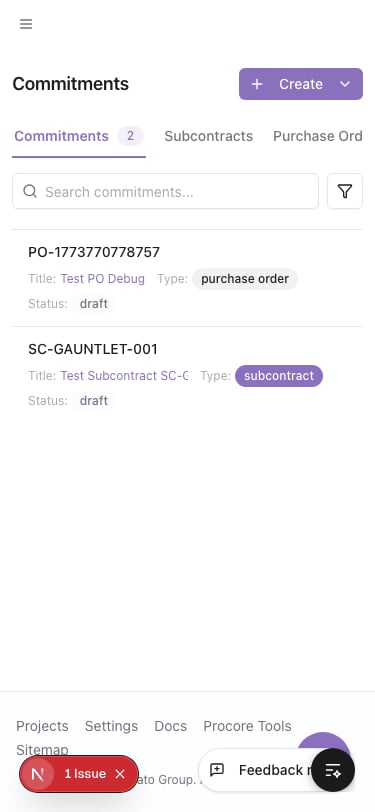
/1034/commitments
Step 2: Start a new subcontract or purchase order
Choose the commitment type. Use Subcontract for trade/vendor contracts with SOV tracking. Use Purchase Order for material or vendor orders.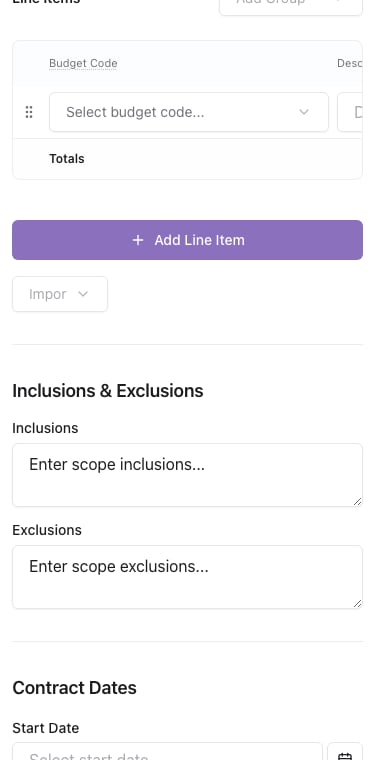
/1034/commitments/new?type=subcontract
Step 3: Complete general information
Enter the title, contract number, contract company, status, default retainage, executed state, and description. Keep the title and contract number aligned with the signed document or vendor quote.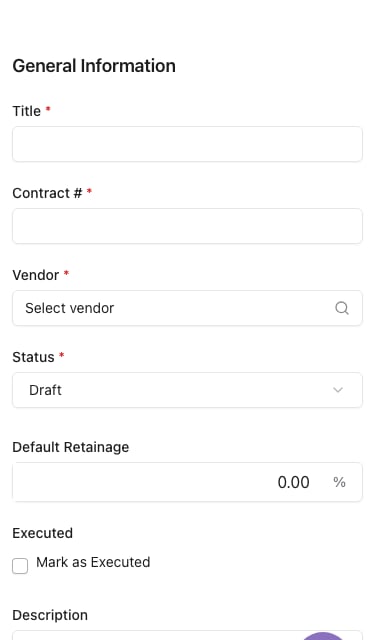
/1034/commitments/new?type=subcontract
Step 4: Attach contract backup
Upload the signed subcontract, purchase order, proposal, scope exhibit, insurance document, or vendor backup. Attachments make the commitment auditable later.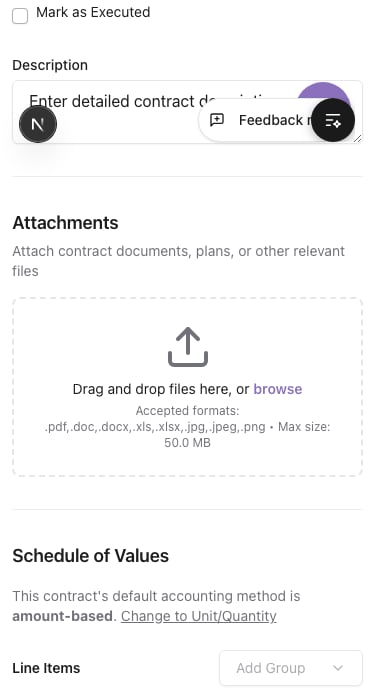
/1034/commitments/new?type=subcontract
Step 5: Enter Schedule of Values lines
Add each SOV line with the correct budget code, description, and amount. Confirm the SOV total matches the contract value before continuing.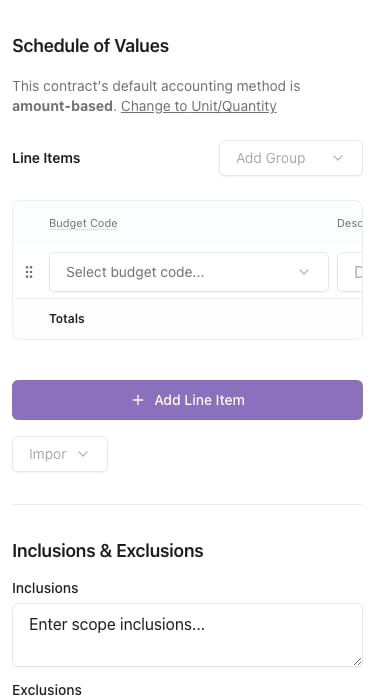
/1034/commitments/new?type=subcontract
Step 6: Set dates, privacy, and invoice contacts
Add the applicable start, completion, contract, signed-received, and issued dates. Review privacy access and invoice contacts before saving.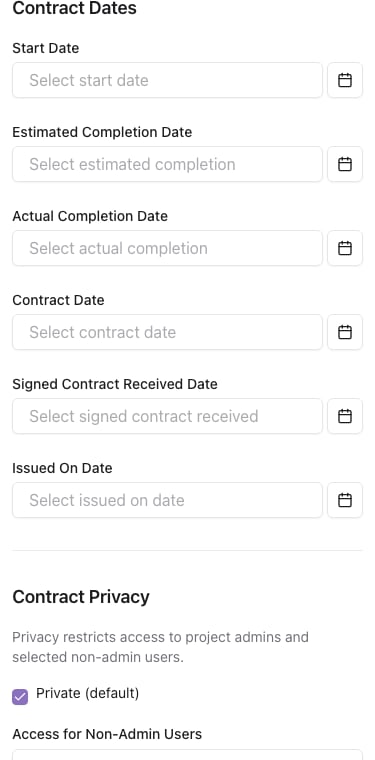
/1034/commitments/new?type=subcontract
Step 7: Review and create the commitment
Before selecting Create Subcontract or Create Purchase Order, scan the full form from top to bottom: general information, attachments, SOV, inclusions and exclusions, dates, privacy, and contacts.
/1034/commitments/new?type=subcontract
Quality Check
After saving, reopen the commitment detail page and confirm the General Information and Schedule of Values tabs match the signed subcontract, purchase order, or approved vendor quote.Common Issues
- If the vendor is missing, add or activate the company in Directory before creating the commitment.
- If the SOV total does not match the contract value, correct the line items before saving.
- If non-admin users need access, review Contract Privacy before creating the record.