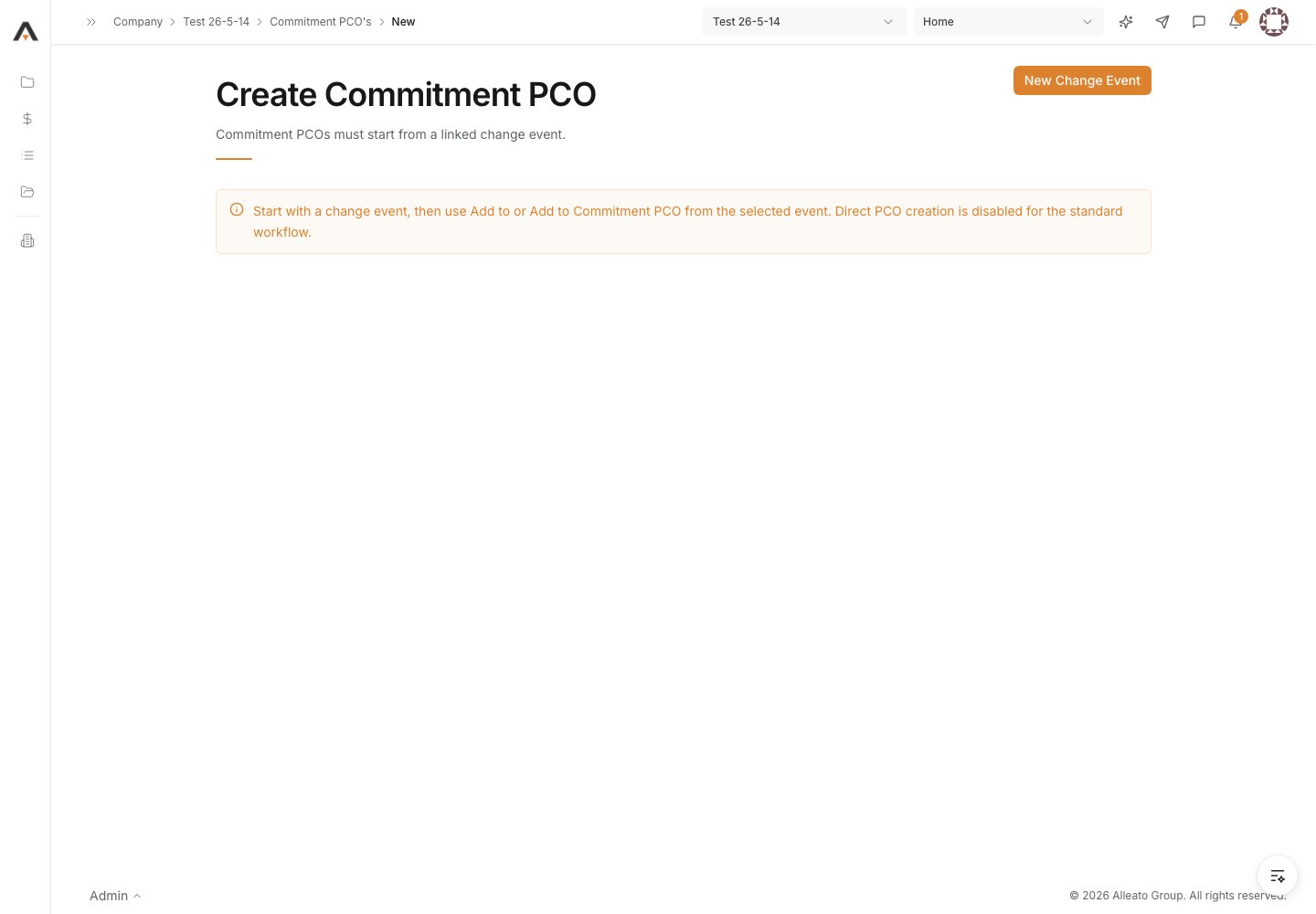
1. Start a new PCO from the commitment
From the commitment’s Change Orders tab, start a new potential change order. The form opens as Create Potential Change Order with the Contract Information (Contract Company and the linked Contract) shown read-only. Expected result: The Create Potential Change Order form opens, pre-filled with the parent commitment’s company and contract.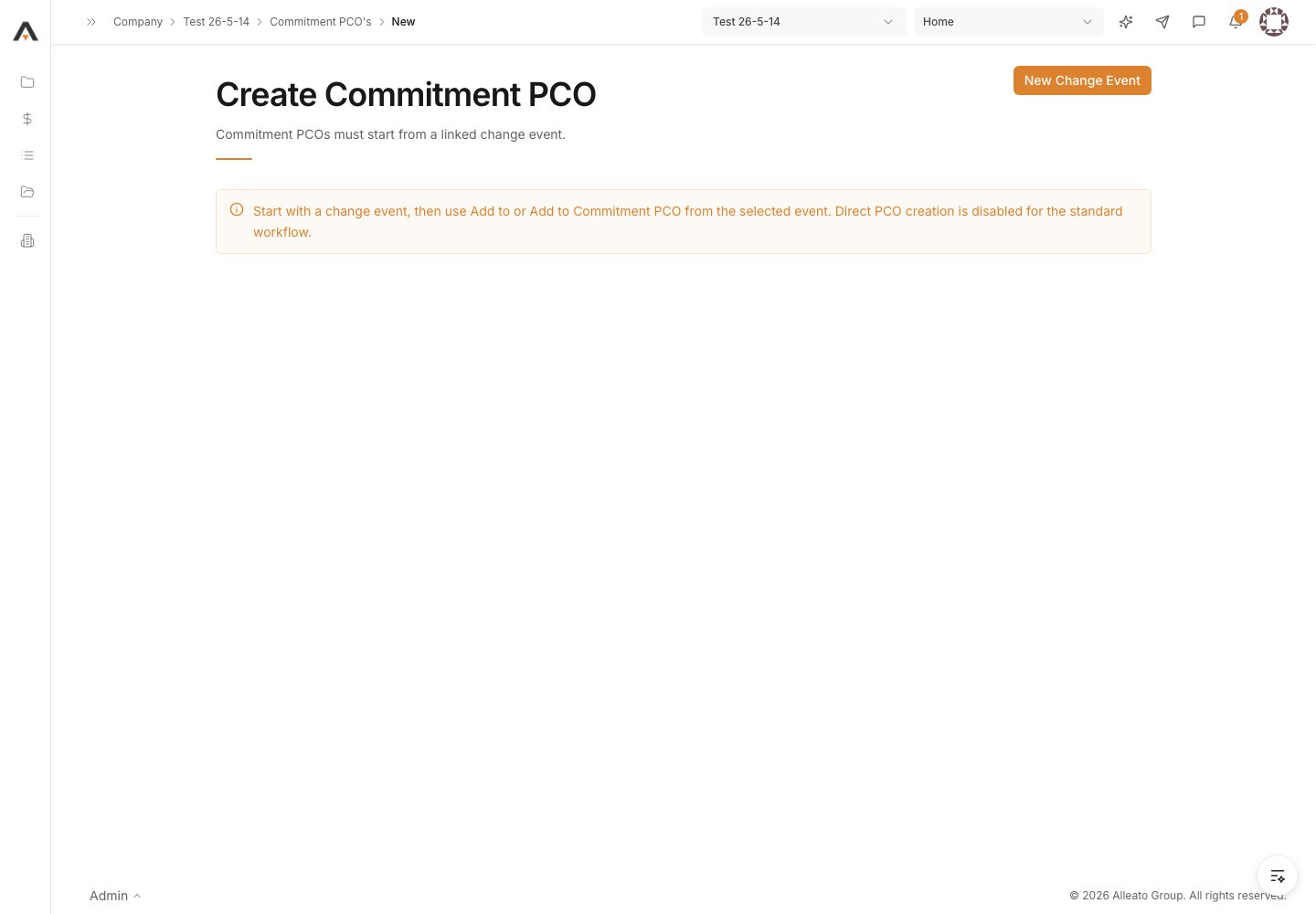
2. Complete General Information
In General Information, the # and Title fields are required. The # is prefilled with the next number, which you can keep or replace. Set the Status (defaults to Draft) and optionally a Change Reason. Expected result: A number and title are entered and a status is selected.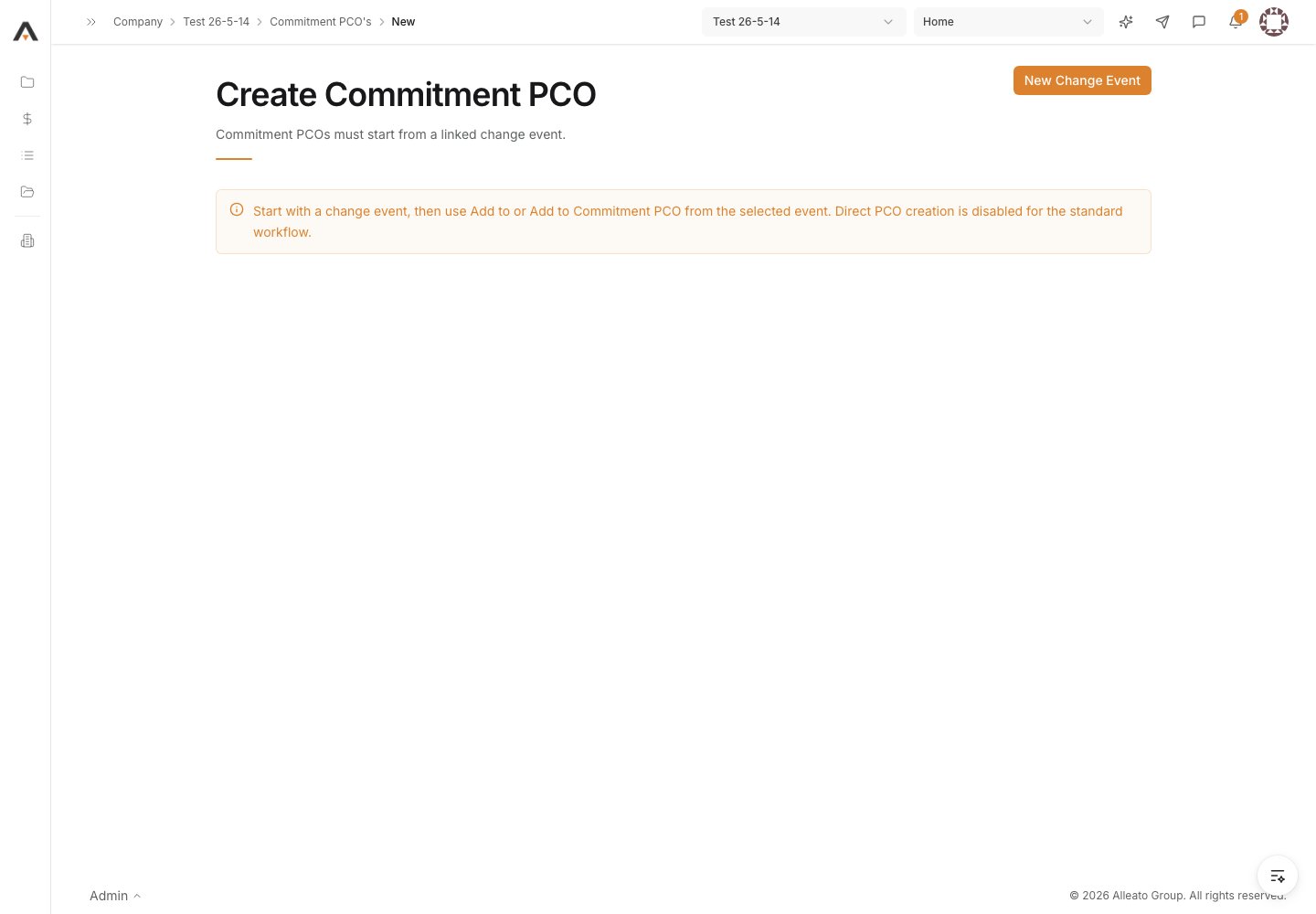
3. Enter the change amount
Enter the Amount ($) for the change. Optionally record Request Received From and a Description of the change. Expected result: The amount and any descriptive details are captured on the PCO.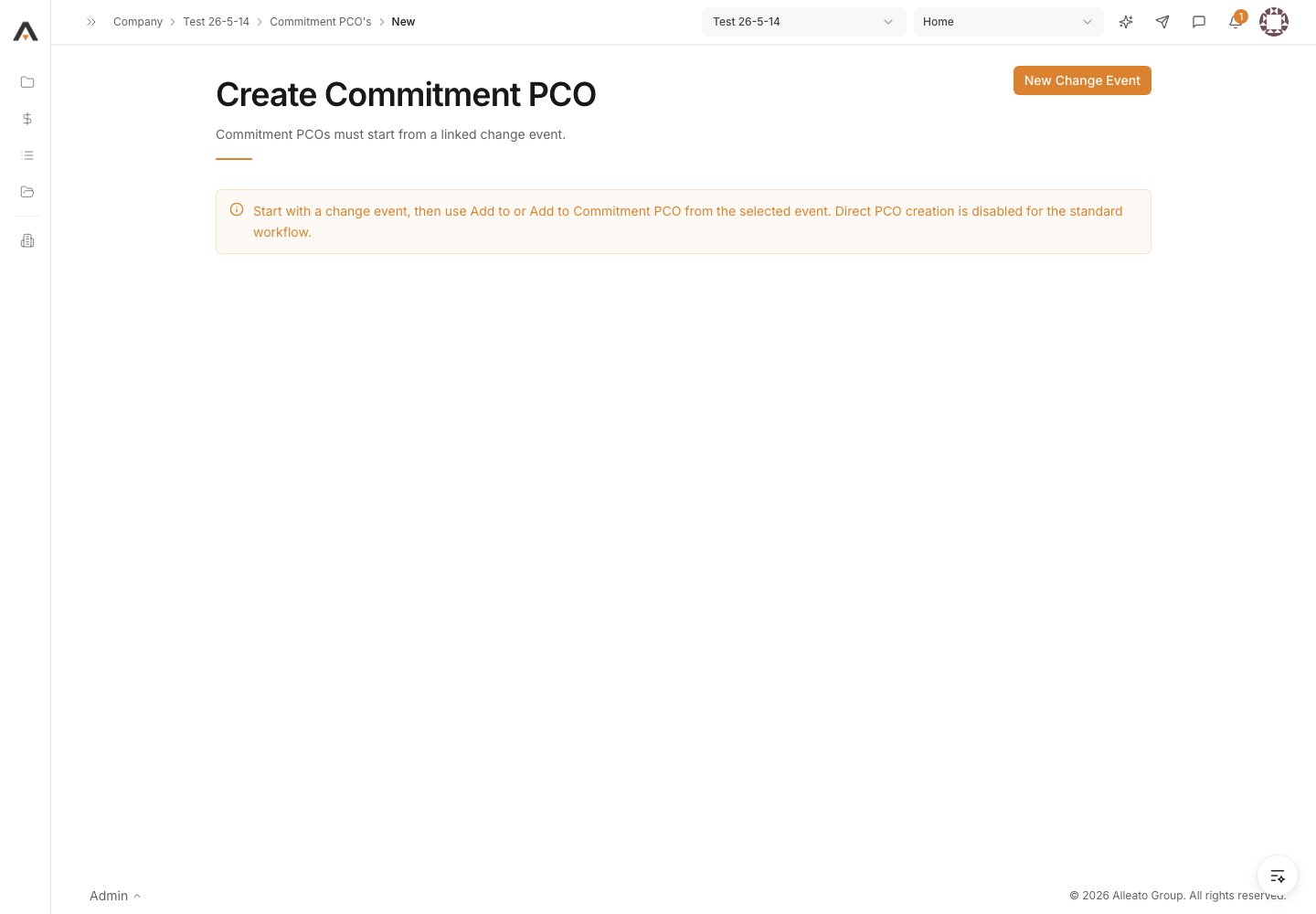
4. Add dates and details
In Dates & Details, fill in only the relevant fields: Due Date, Signed Change Order Received Date, Schedule Impact (days), Location, and Reference. Expected result: The dates and tracking details that apply to this change are recorded.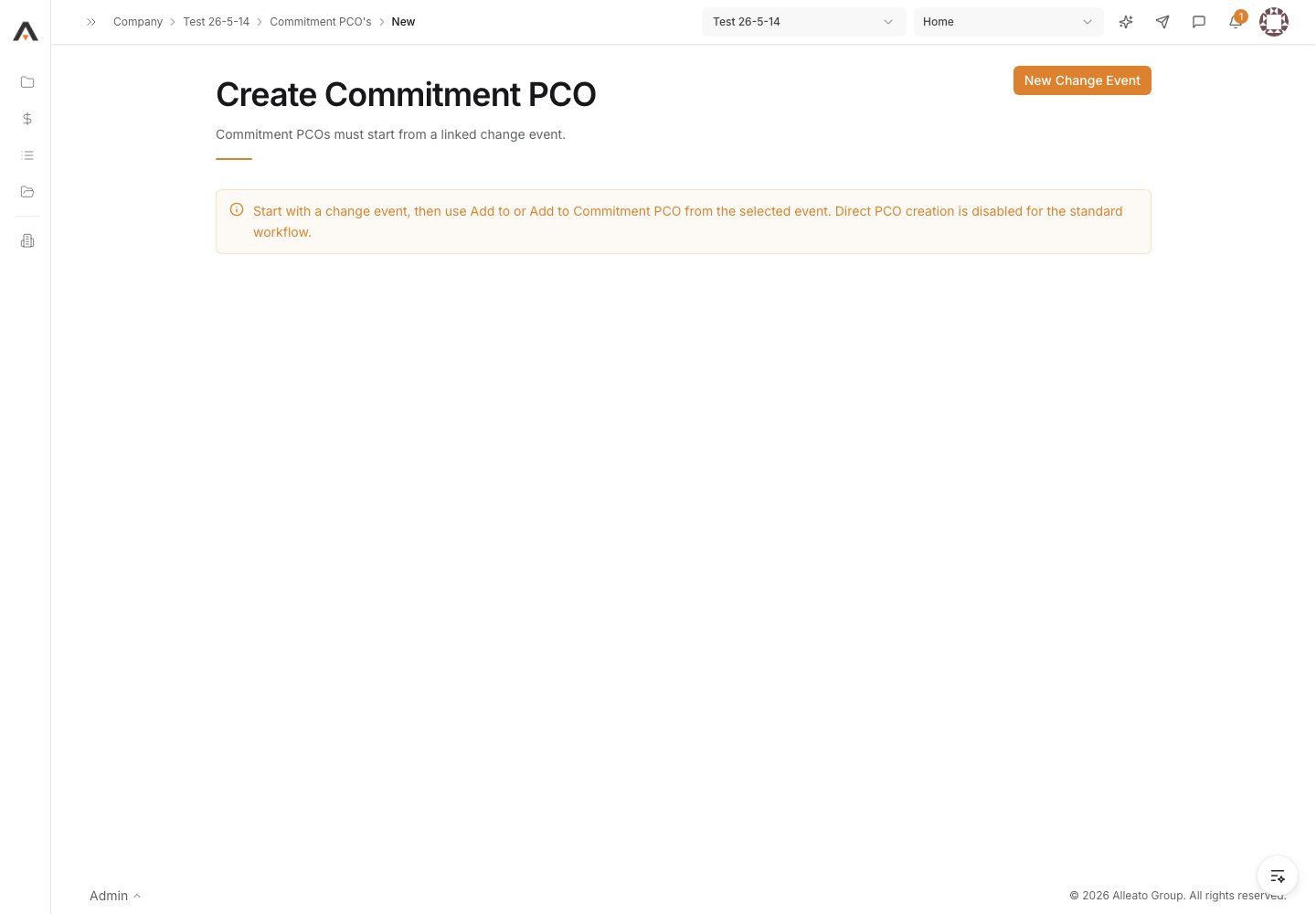
5. Set the flags
Turn on any of Private, Executed, Field Change, or Paid in Full as appropriate for this change order. Expected result: The flags reflect the change order’s state.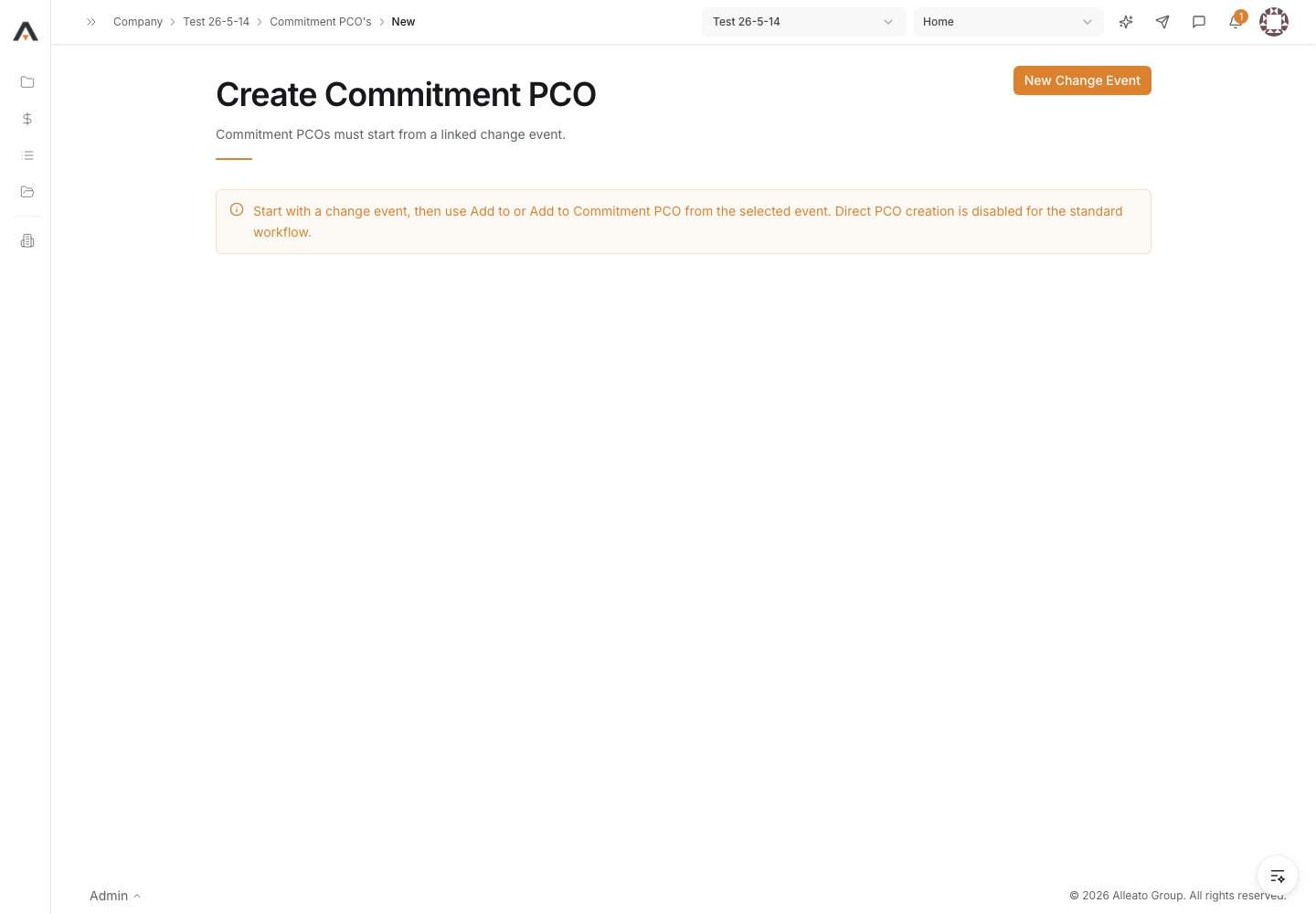
6. Create the PCO
Select Create to save the potential change order. Expected result: A confirmation appears and you return to the commitment’s Change Orders tab with the new PCO listed.