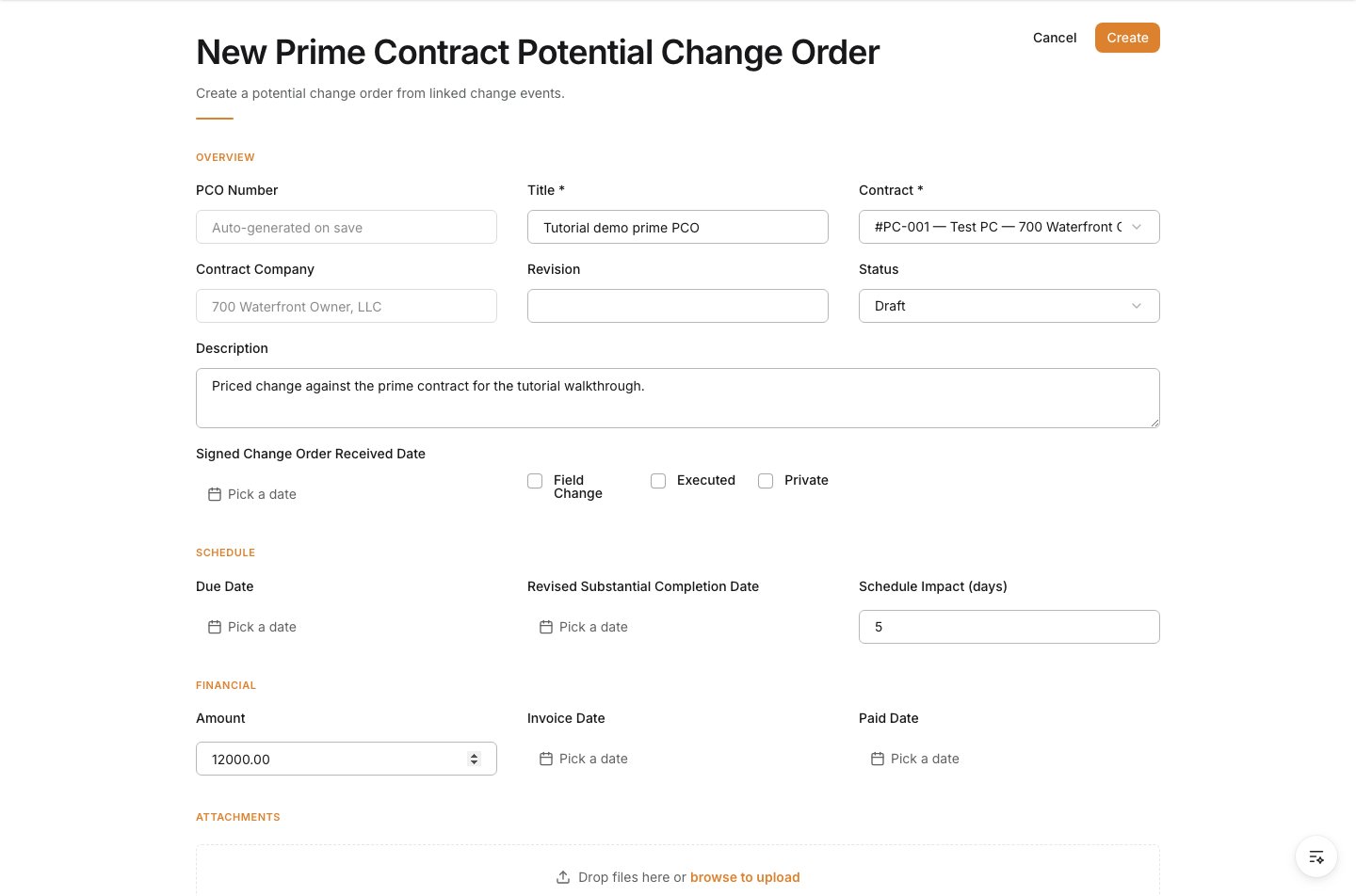
1. Start from an approved change event
Open Change Events from the sidebar and open the change event for this change. Use the add-to action and choose Add to Prime Contract PCO to begin a prime-side potential change order for owner review. Expected result: The change event’s add-to-Prime-Contract-PCO flow is started.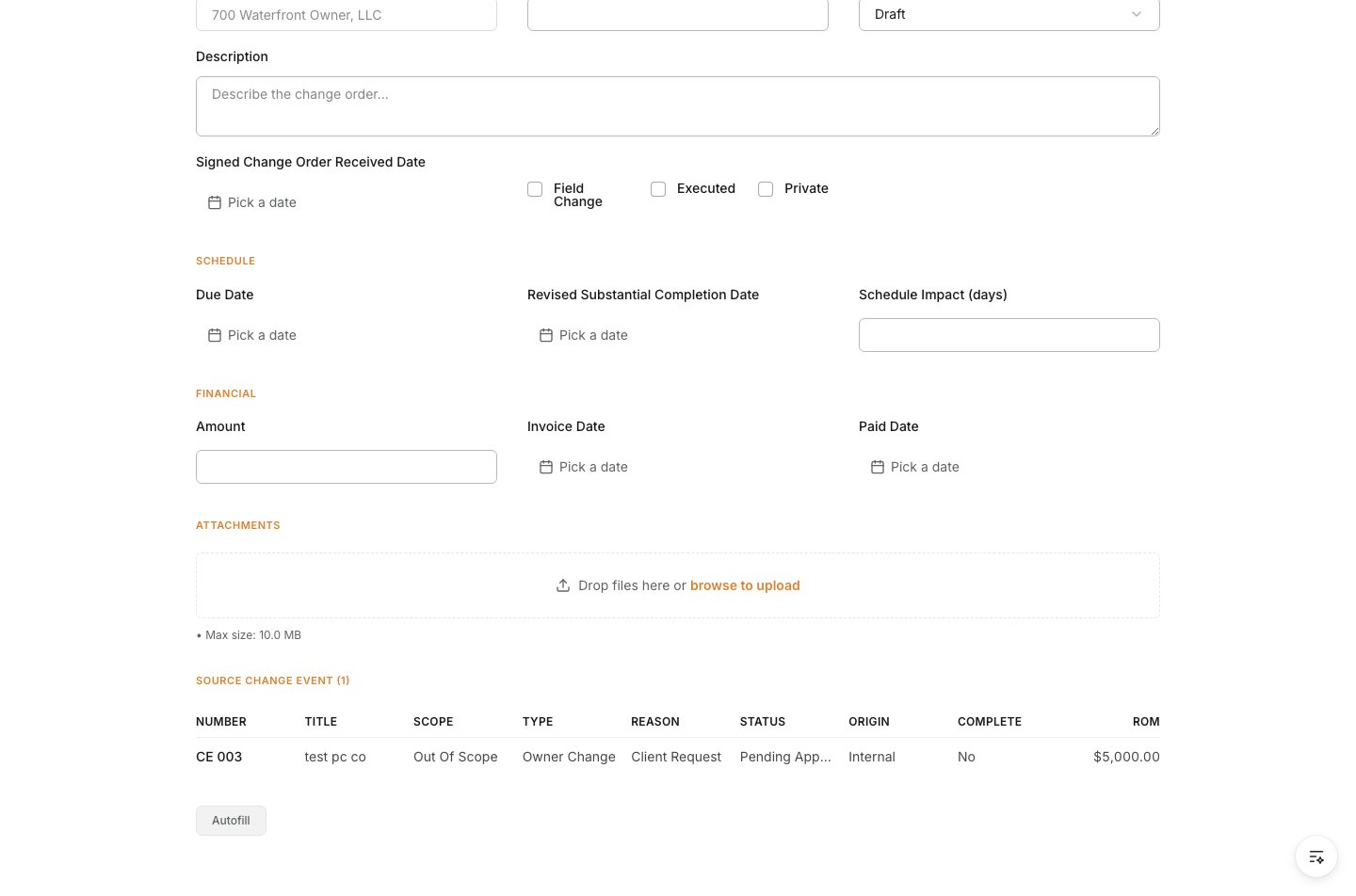
2. Open the new Prime PCO form
The New Prime Contract PCO form opens with the Source Change Event(s) listed. The PCO Number is auto-generated on save. Expected result: The New Prime Contract PCO form opens with the source change event(s) shown.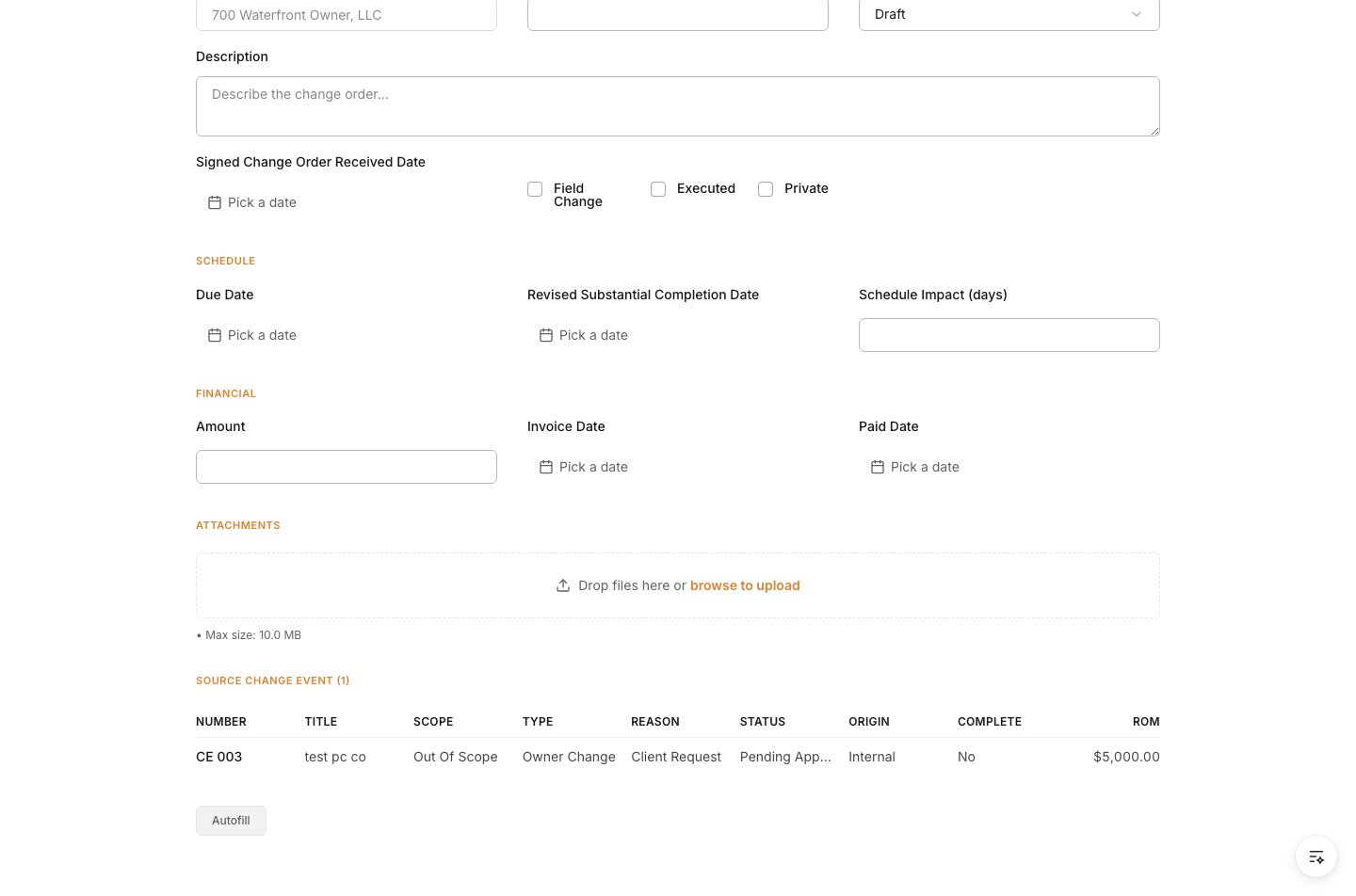
3. Enter the overview
Under Overview, enter a Title and select the Contract (the prime contract being amended). The Contract Company auto-fills from the selected contract. Expected result: The PCO has a title and is tied to the correct prime contract.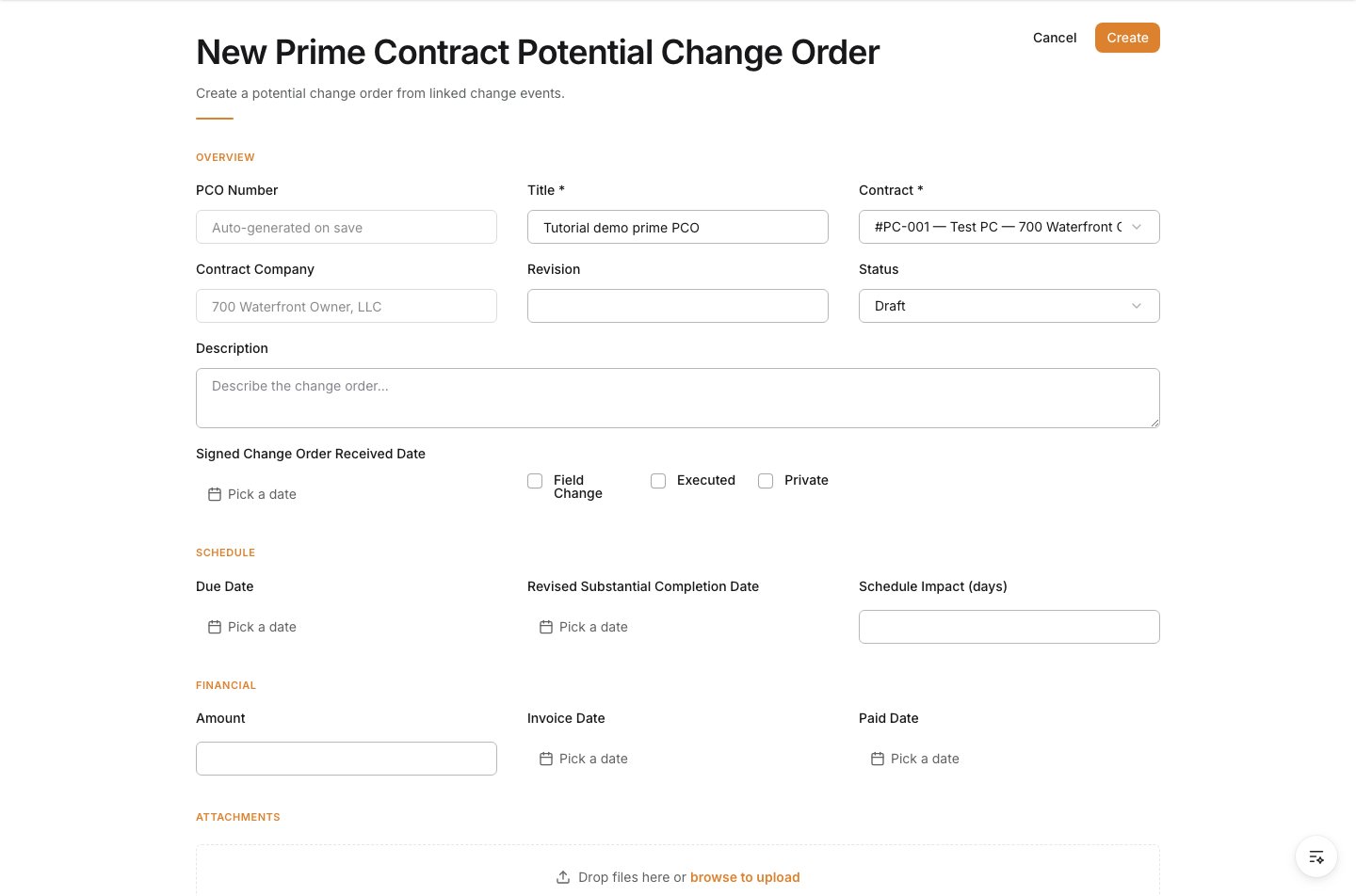
4. Describe the change
Enter the Description of the change order so the owner has clear context for the request. Expected result: The change is described in full.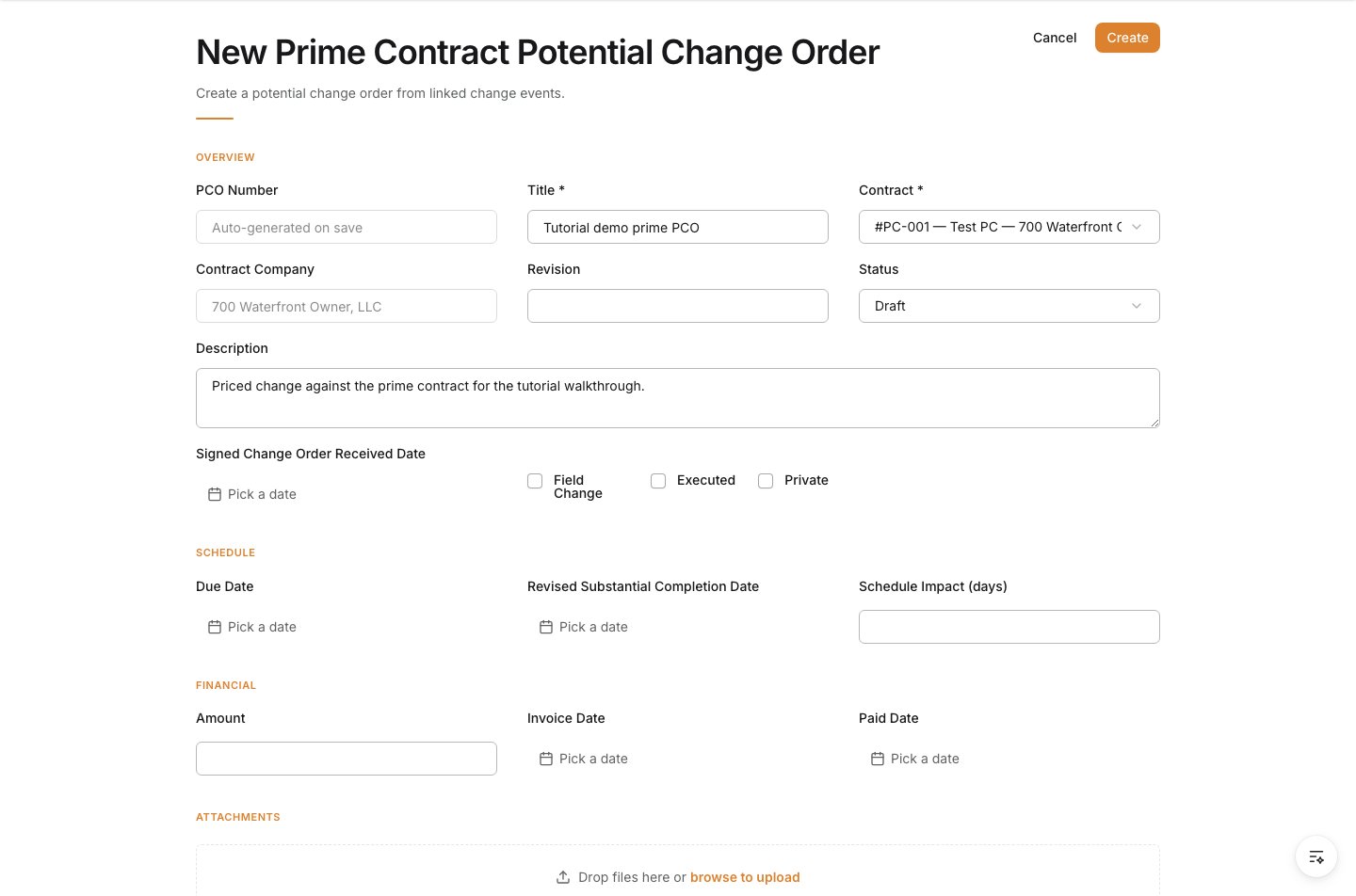
5. Set schedule and amount
Enter the Schedule Impact (days) if the change extends the schedule, and set the Amount for the change. Expected result: The PCO records its cost amount and any schedule impact.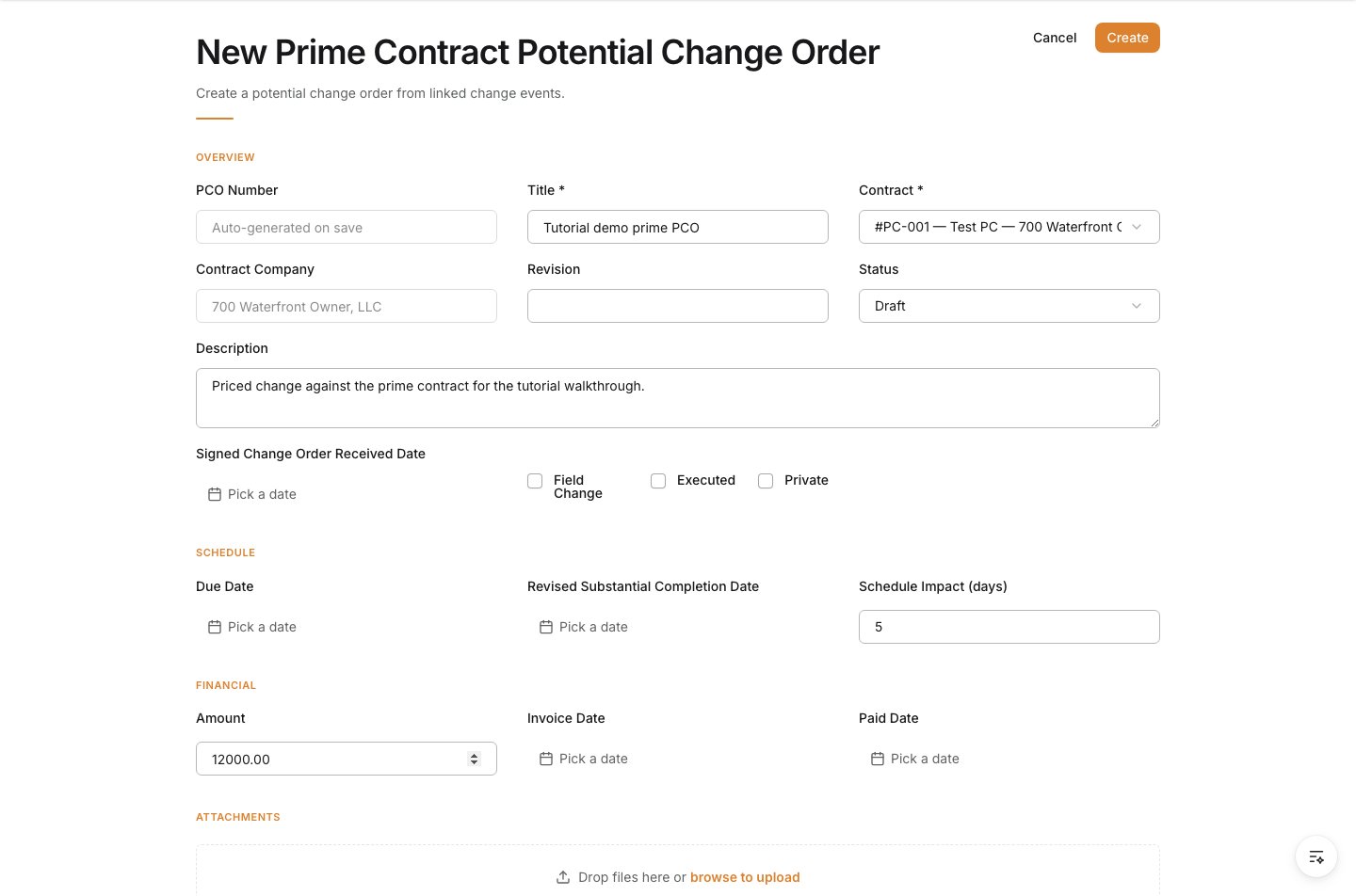
6. Attach supporting documents
In the Attachments section, upload any supporting files for the change. Expected result: Supporting documents are attached to the PCO.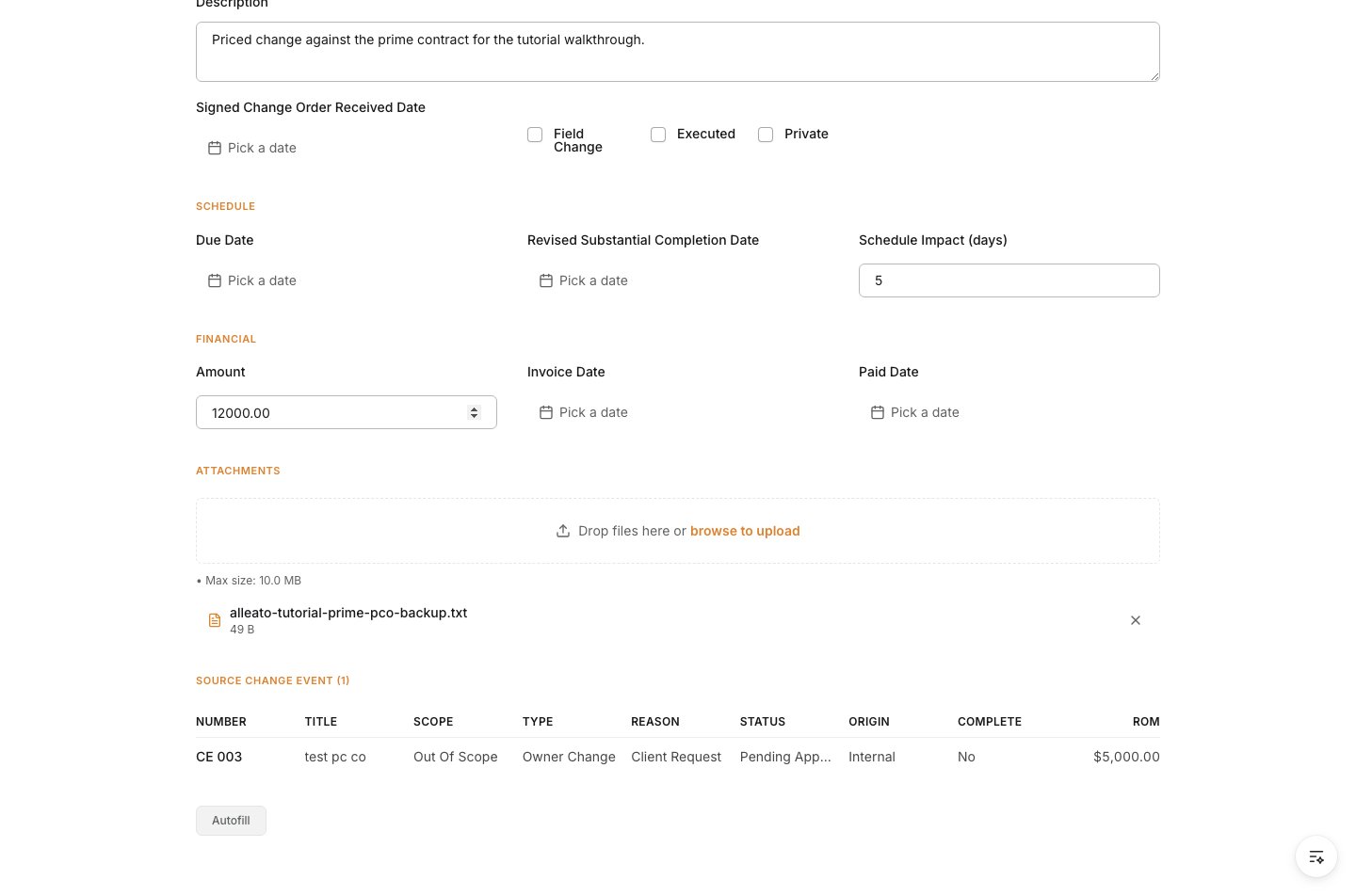
7. Create the PCO
Select Create to save. The Prime Contract PCO is created against the owner contract and linked to its source change event, ready to be assembled into an owner change order. Expected result: The Prime PCO is saved and linked to its source change event and prime contract.