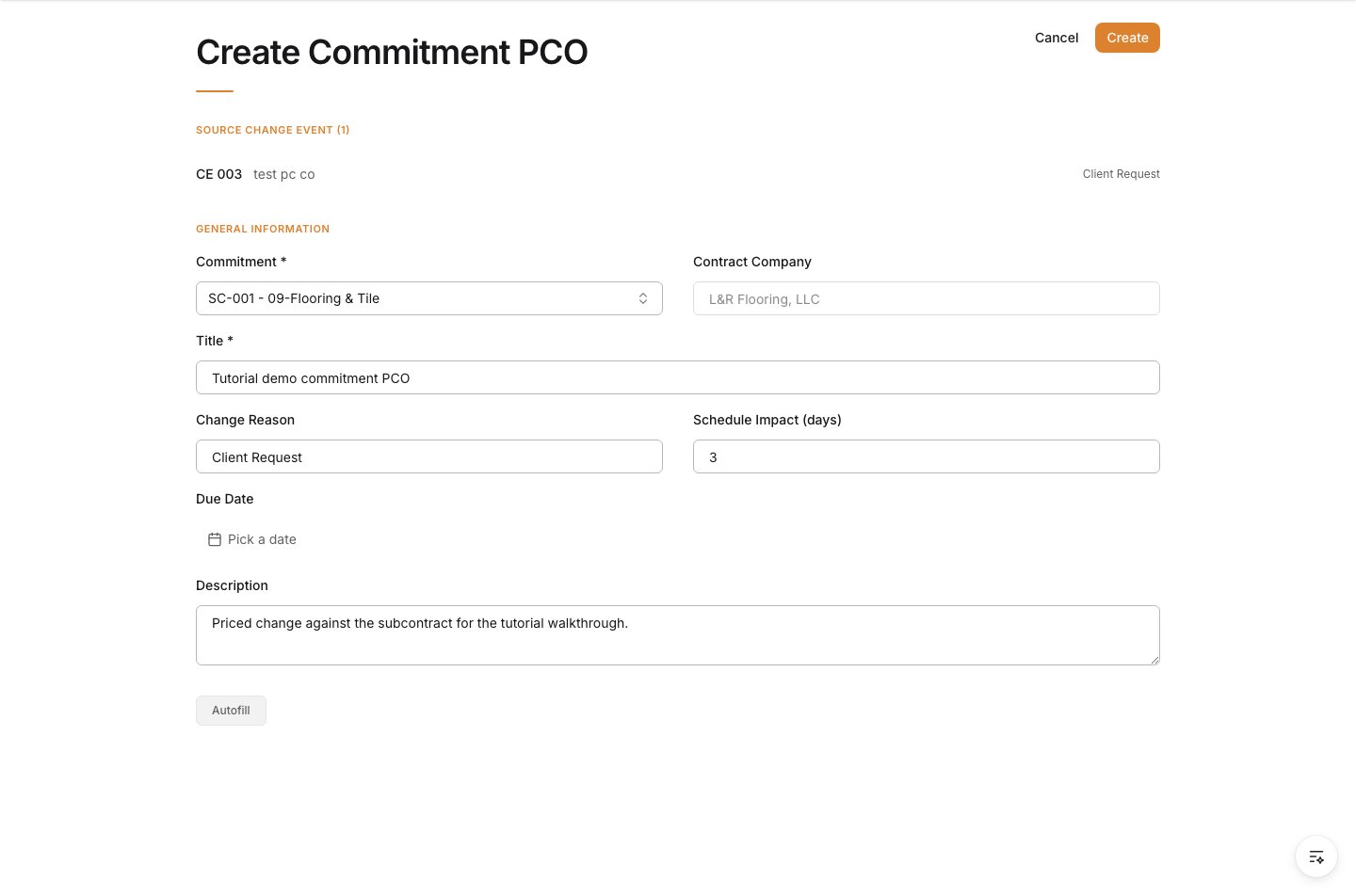
1. Start from a change event
Open Change Events from the sidebar and open the change event that covers this change. Commitment PCOs cannot be created directly — they must begin from a change event. If no change event exists yet, create one first. Expected result: The source change event is open.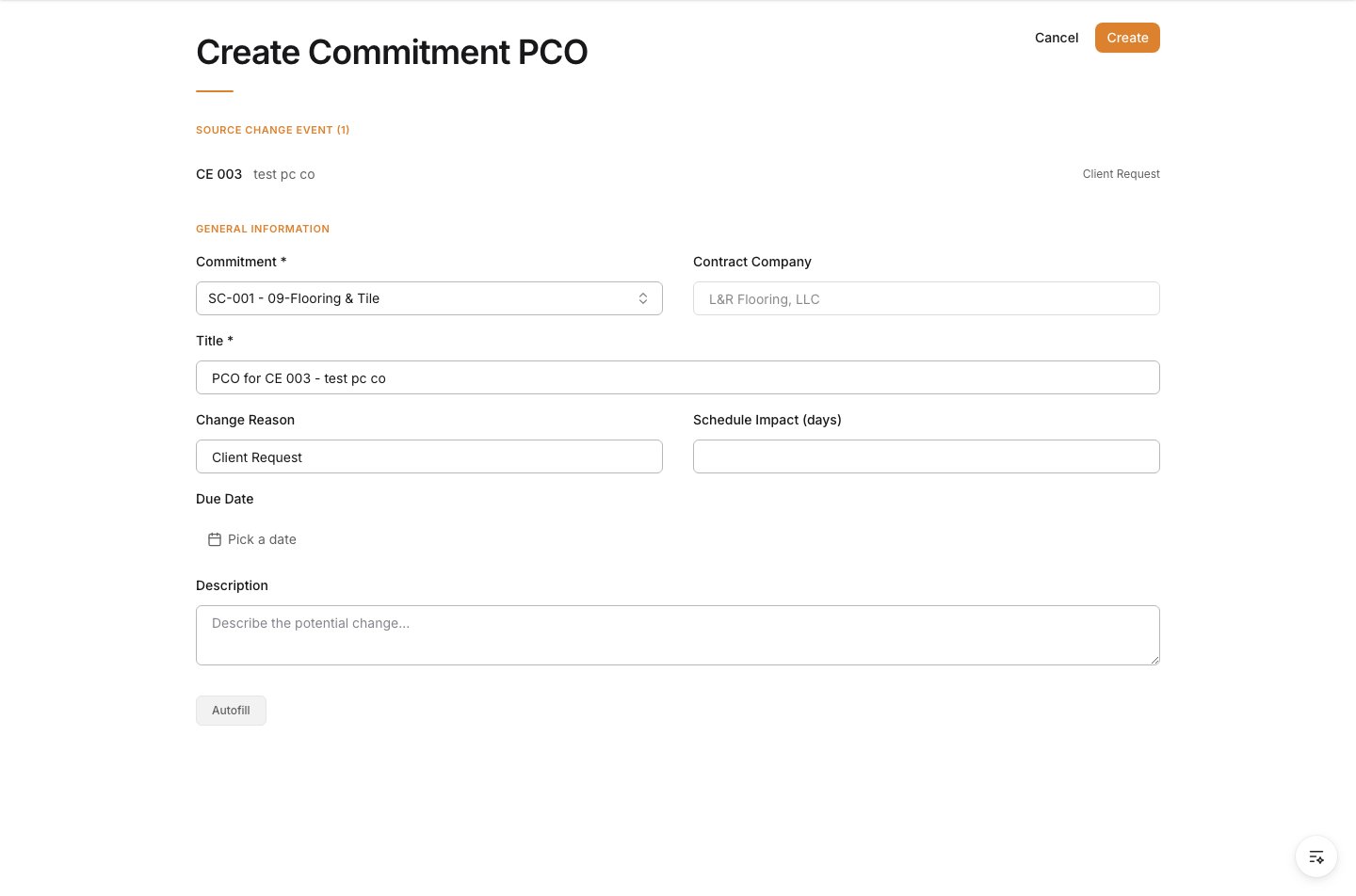
2. Add the event to a Commitment PCO
From the selected change event, use the add-to-change-order action and choose to create a Commitment PCO for the subcontractor or vendor. This opens the Create Commitment PCO form with the source change event(s) listed. Expected result: The Create Commitment PCO form opens, showing the Source Change Event(s).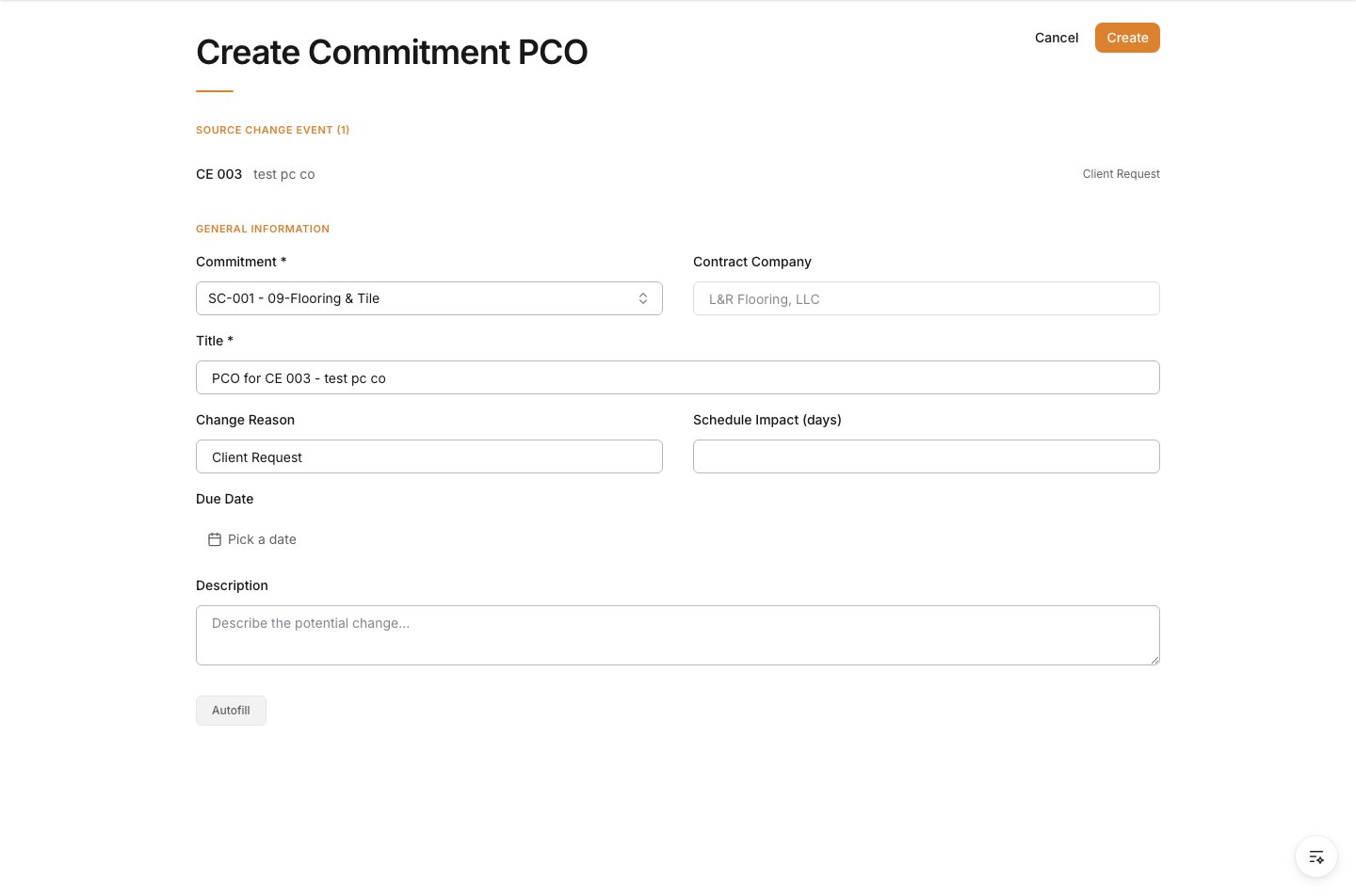
3. Select the commitment
Under General Information, choose the Commitment the change is priced against. The Contract Company is determined by the selected commitment and fills in automatically. Expected result: The commitment is selected and the contract company is populated.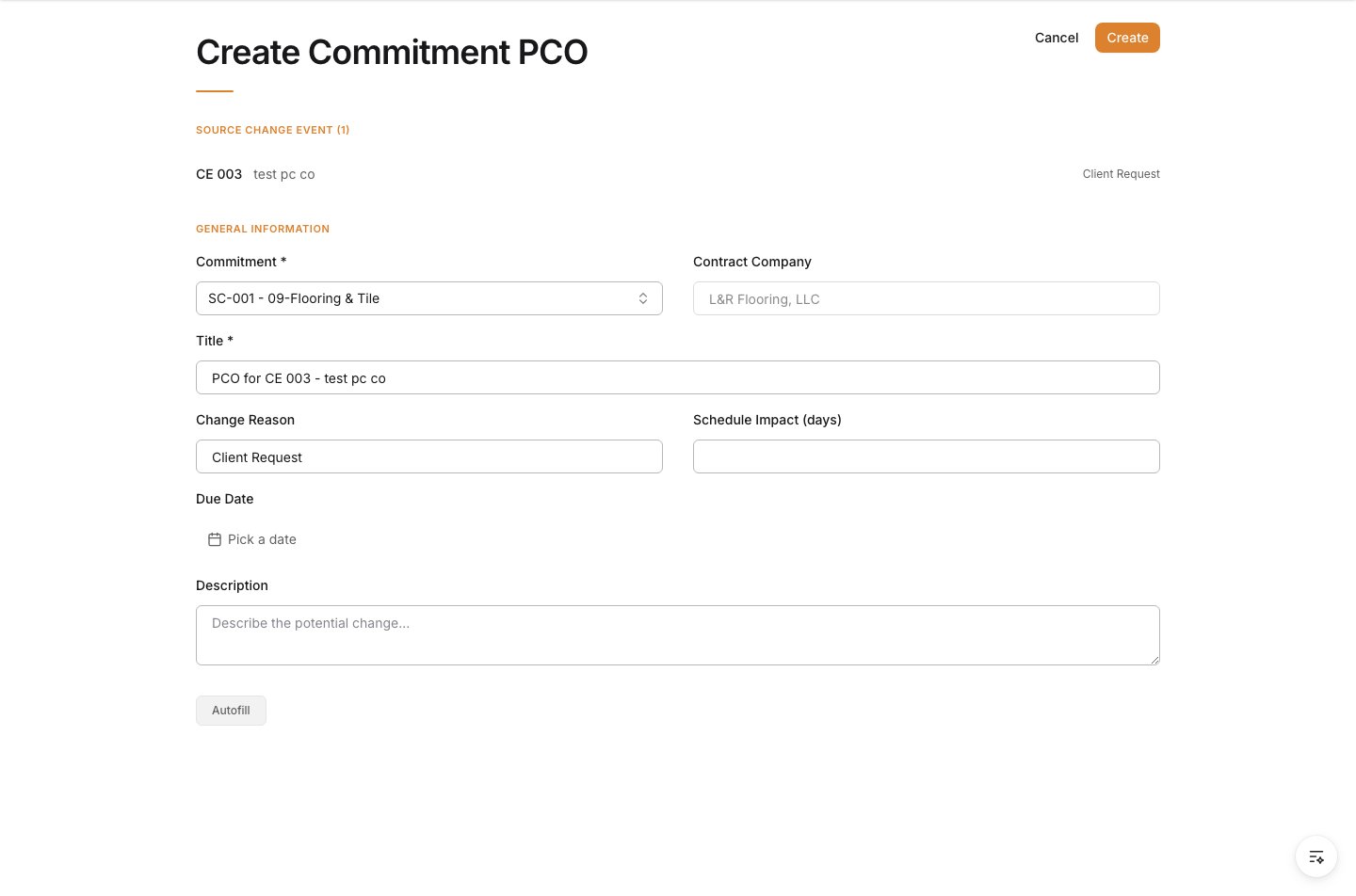
4. Enter the PCO details
Enter a Title for the potential change order. Optionally set the Change Reason and the Schedule Impact (days) if the change affects the schedule. Expected result: The PCO has a title and any reason or schedule impact recorded.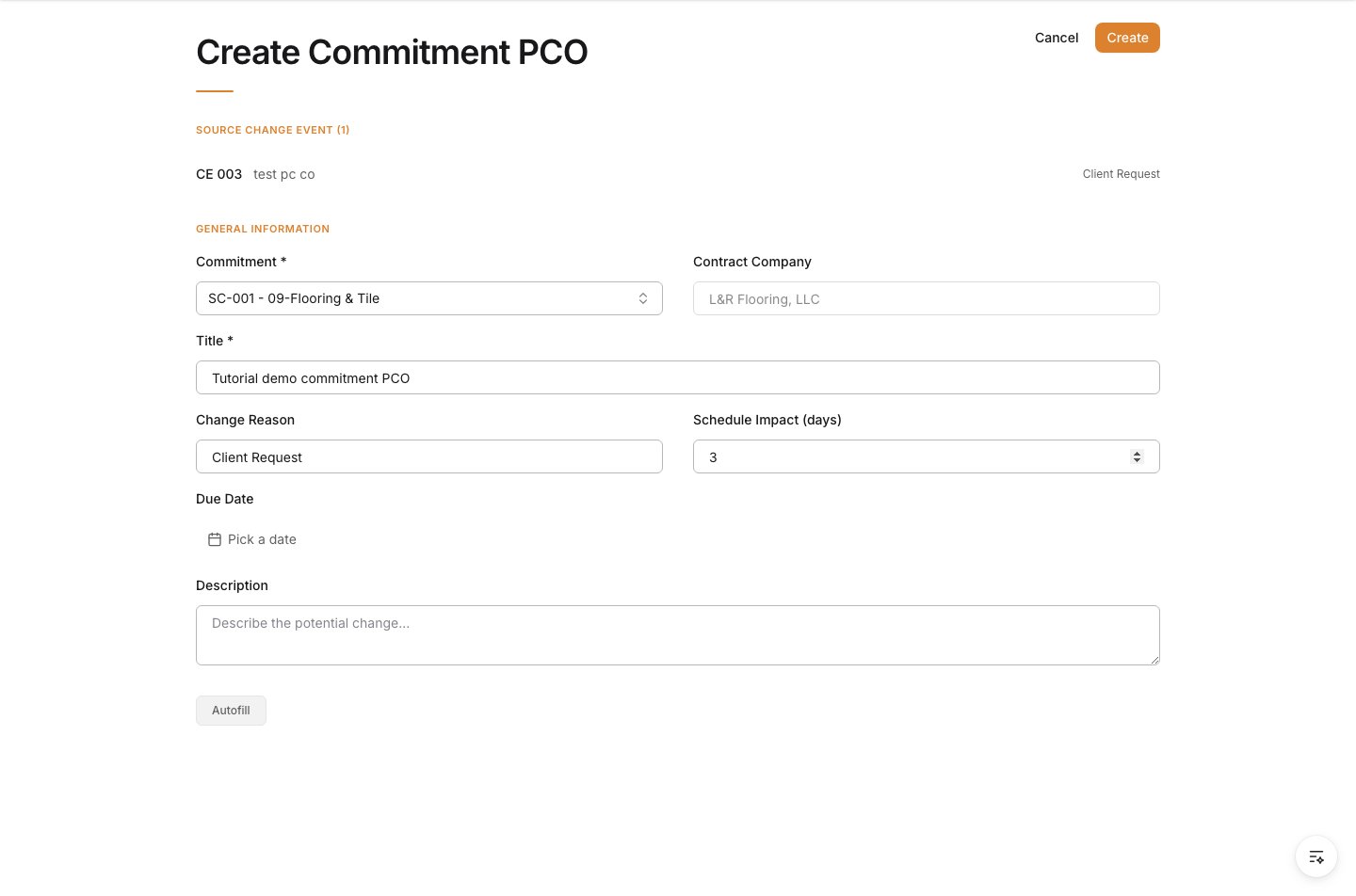
5. Describe the change
In the Description field, describe the potential change so the pricing has clear context. Expected result: The change is described in full.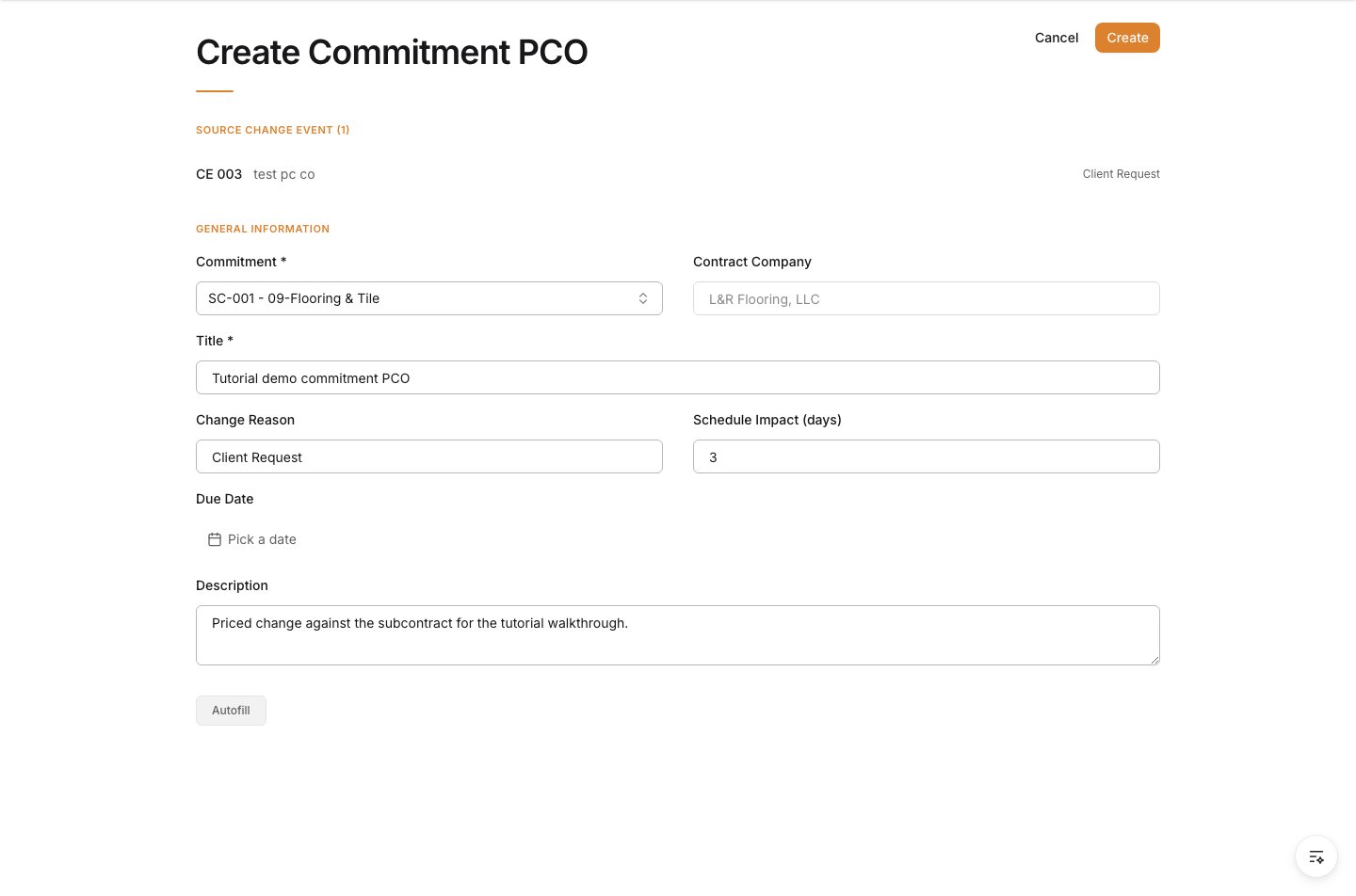
6. Create the PCO
Select Create to save. The Commitment PCO is created against the selected subcontract or PO and linked to its source change event. Expected result: The Commitment PCO is saved and linked to its source change event and commitment.